



















CRM for Sales
For sales teams aiming to better identify opportunities, increase deal closures, and boost revenue growth.
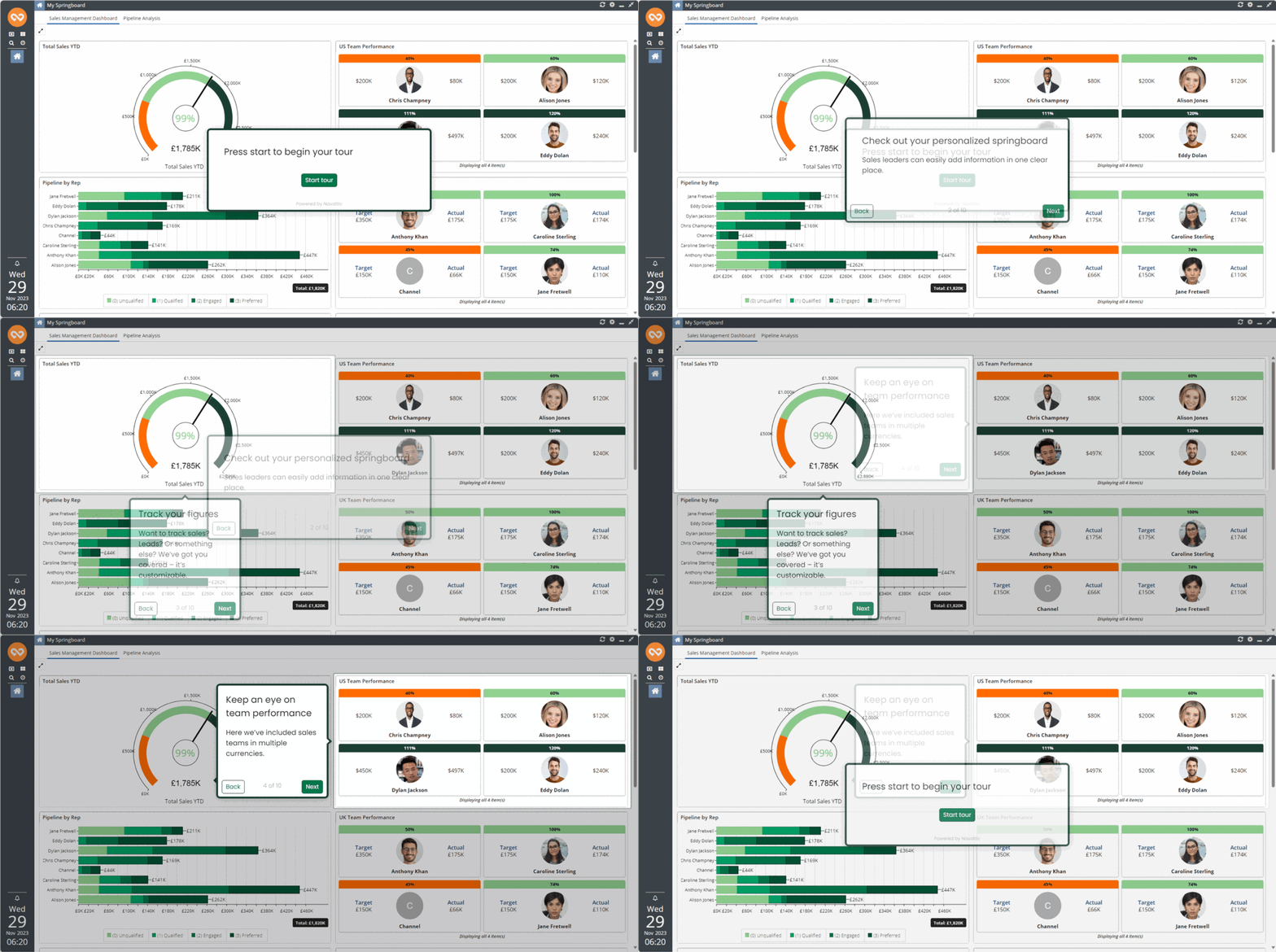
Workbooks provides sales pipeline management software to optimize business sales processes. Learn more about the benefits of CRM for sales here.

CRM Sales Features
 Full visibility on KPI fulfillment and timelines
 Synchronization with Outlook, Microsoft 365 and Google Workspace
 Accurate forecasting data to assist with business planning
Workbooks is a CRM solution that gives you more
CRM for Marketing
For marketers aiming to execute campaigns, generate higher-quality leads, and monitor return on investment.
Workbooks gives you an automated marketing CRM that supports businesses to execute campaigns, measure ROI and strategize effectively.

CRM Marketing Features
 Customer segmentation and email templates
 Full visibility on campaign performance metrics
 A comprehensive event management platform
Workbooks is a CRM solution that gives you more
CRM for Commercial Operations
For finance and sales teams aiming to drive more efficiency and collect cash faster.
Workbooks is a CRM platform specializing in order, contract and supplier management. Learn how to streamline commercial operations with CRM here.

CRM Commercial Operations Features
Seamless data integration with finance and ERP systems
 Bespoke automations for CPQ, contract approval and more
Adjustable compliance rules and tax schemes for each legal entity
Bespoke automations for CPQ, contract approval and more
Adjustable compliance rules and tax schemes for each legal entity
Workbooks is a CRM solution that gives you more
CRM for Customer Service
For teams striving to enhance customer value and boost overall satisfaction.
Turn customer service into a competitive advantage with the Workbooks customer service CRM. Learn more about CRM tools for customer service here.

CRM Customer Service Features
 A self-service web portal for customers to log and resolve queries
Real-time case data for assessing trends and peaks
A self-service web portal for customers to log and resolve queries
Real-time case data for assessing trends and peaks
 Actionable insights from reviews and feedback
Discover your CRM by Industry









How does Workbooks compare to other vendors?
With Workbooks you get...
- Software and implementation from one organization
- A co-funded workshop to guarantee shared success
- Free consulting days to ensure a smooth implementation
With other vendors you get...
- Pressured to buy before understanding implementation costs
- Software that has to be deployed by a third party
- To pay full cost for implementation
With Workbooks you can

Customize
We understand that every team is unique. Whether you’re in Marketing, Sales, Operations or Customer Services, our platform can be seamlessly customized to suit your specific goals.

Streamline
With Workbooks CRM, your teams can collaborate effortlessly, ensuring everyone stays on the same page. Automate mundane tasks, track leads, and manage customer interactions, all in one place.

Grow
Happy customers are loyal customers. Workbooks empowers you to deliver personalized experiences to leave a lasting impression. Strengthen customer relationships, drive sales, and watch your business flourish.