









Deleting Records
This article explains how record deletion works in Workbooks, the available deletion methods, and important considerations before and after deleting records. In Workbooks, most records are not permanently removed when deleted. Instead, they are flagged as deleted and hidden from Users. This approach allows recovery of data within 30 days of it being flagged as deleted.
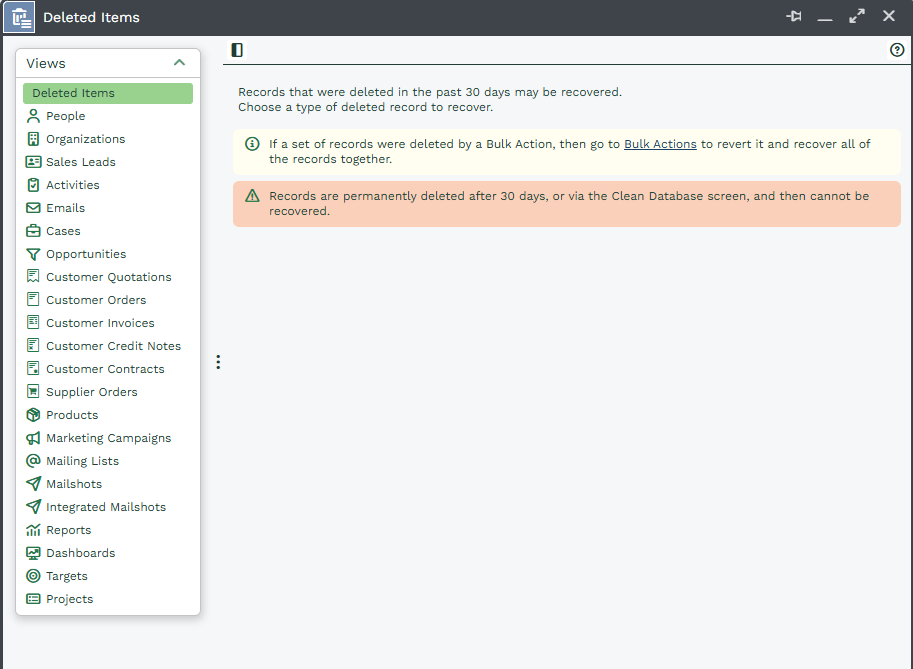
To restore a deleted item please navigate as so Start > Deleted Items
Note
To permanently get rid of data before the end of 30 days period you can run the Clean Database tool
Ability to delete Records in Workbooks depend on User Permissions on the specific Record and User Capabilities granted by the System Administrators.
Methods of Deleting Records
1. Deleting Individual Records
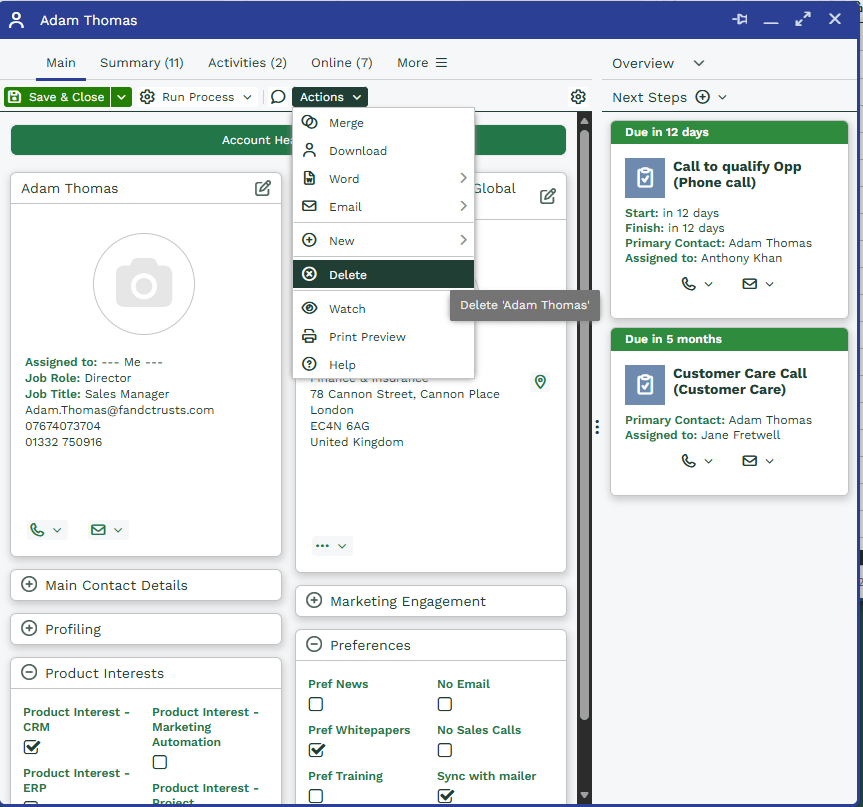
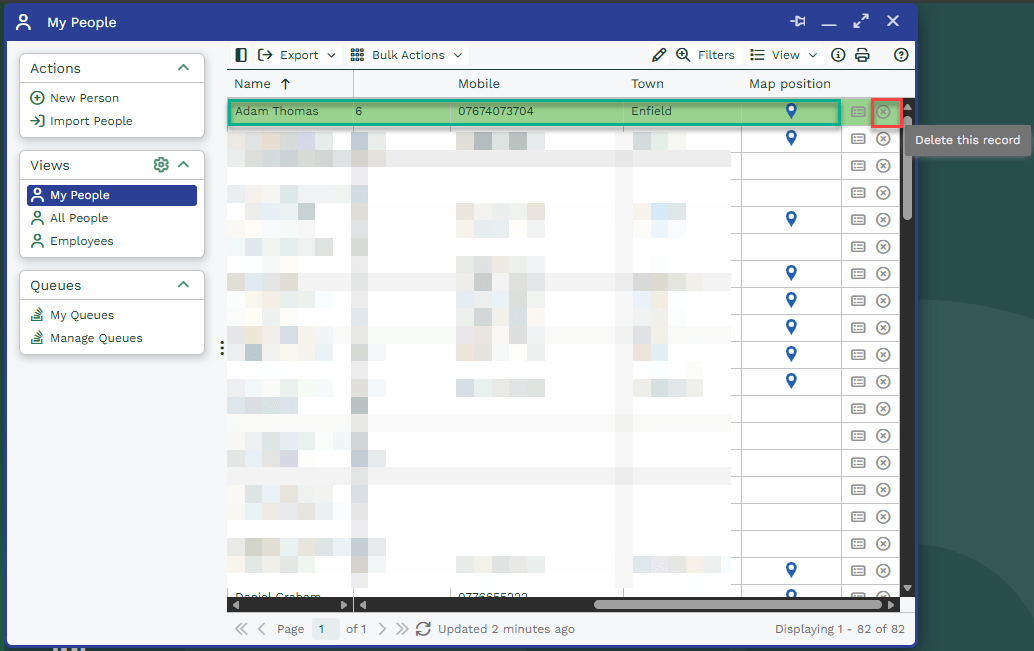
Individual records can be deleted directly from most Record types Landing Page View and/or from the Record itself, subject to Permissions and Capabilities. Once deleted, this record is hidden from standard views and treated as deleted by the system.
Delete button on an open Record
Deleting a record from a Landing page view
2. Bulk Deletion
Workbooks provides Bulk Actions that allow you to delete multiple records at once from a Landing Page View or Report. This is useful for data cleansing, storage reduction, or removing historic records.
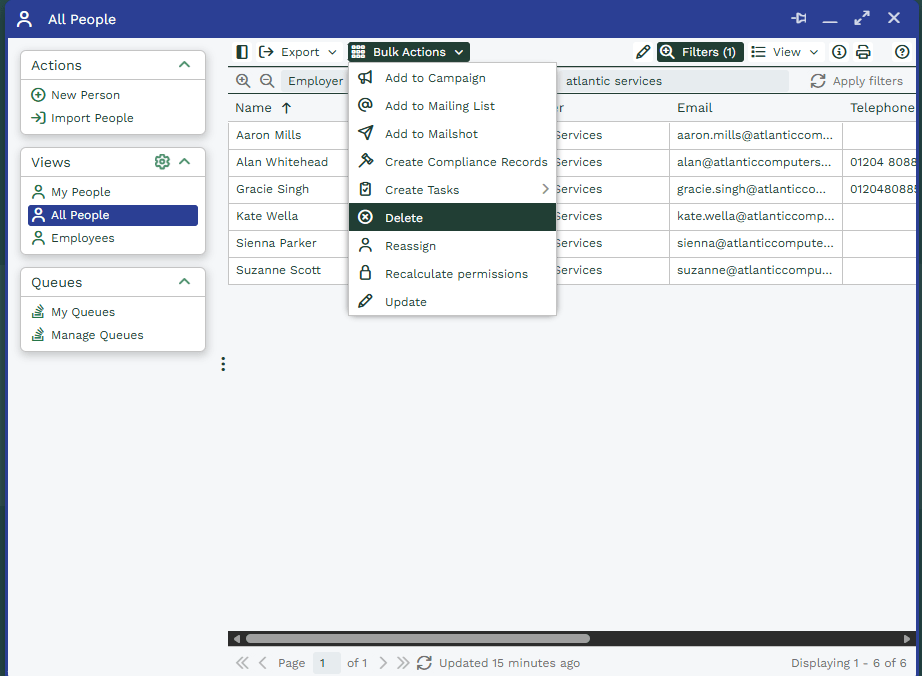
You could also choose to set up a Scheduled Bulk Action to routinely delete records in Workbooks
Note
Bulk Deletions can be undone for up to 30 days, provided the affected Records have not been modified since the action was performed. Click here for more information
Deleting Emails
Deleting an email record in Workbooks does not delete the email from your email system (for example, Outlook or Exchange). It only removes the record stored within Workbooks.
Deleting POSTED Transaction documents
In order to delete POSTED Transaction document you will need the correct set of Capabilities and the below Database setting enabled:
