Product Bundles
Overview
Product Bundles allow you to group multiple Products together so they can be added to a transaction
as a single item. When a bundle is selected on a transaction document (e.g. a quotation or order), it automatically adds the associated Products, saving time and ensuring consistency.
Prerequisite:
- Product Bundles are only available to users with a Business Professional licence
- The Product Bundles extension has been ENABLED in Account Settings
Why Use Product Bundles?
Product Bundles are useful when you frequently sell the same combination of items.
- Packaged offerings
e.g. “Table with 10 seats” or “Starter Kit” - Event or ticketing scenarios
Add multiple tickets or items in one action - Standardised sales packages
Ensure consistent product combinations across quotes - Efficiency in quoting
Reduce manual entry and minimise errors when adding multiple products
How Product Bundles Work
A Product Bundle consists of:
- A parent Product (the bundle itself)
- One or more component Products (the items included in the bundle)
When the bundle is added to a transaction:
- It initially appears as a single line item
- After saving the transaction:
- The individual component Products are displayed beneath the bundle line
- These are shown as separate lines (indented for clarity)
Display Options
When creating a bundle, you can control how it appears on transactions:
- Expanded view
- Component Products are added as separate line items
- Collapsed view
- Bundle remains as a single line item
This is configured using the “Expand on add” option.
Enabling Product Bundles
- Navigate to:
Start > Configurations > Account Settings > Licenses & Modules - Open the Modules tab
- Enable Product Bundles
Creating a Product Bundle
You should start by creating the Products which need to be included in the Product Bundle. We will be using this example to understand how to create a Product Bundle , we are creating a Product Bundle of “Table with 10 seats”, so we need to create a Product of “1 Seat”. The Product Code will automatically be generated, but you can overwrite this with your own if you prefer.
Step 1: Create the Component Products(Products to be included in the Product Bundle)
To create a new Product Bundle, you will need to create a new Product via Start > Marketing > Products > New Product. Create the individual Products that will make up the bundle.
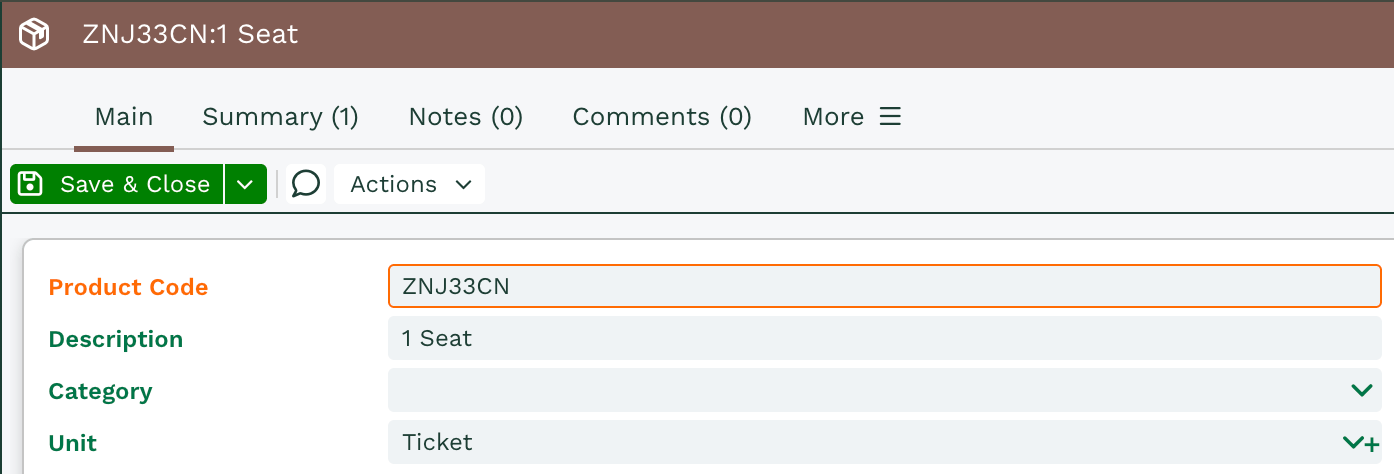
Once you have completed all relevant fields, including the quantity, pricing schemes and default prices etc. (if relevant), click Save & Close. You will need to repeat this for any products that are unique within your bundle. In this example, we only need to create the Seat once, not 10 times.
Step 2: Create the Product Bundle
Now you have your Products set up, you can create your Bundle i.e. your “Table with 10 Seats”. To do this, you will need to create another product in the same way as Step 2 above.
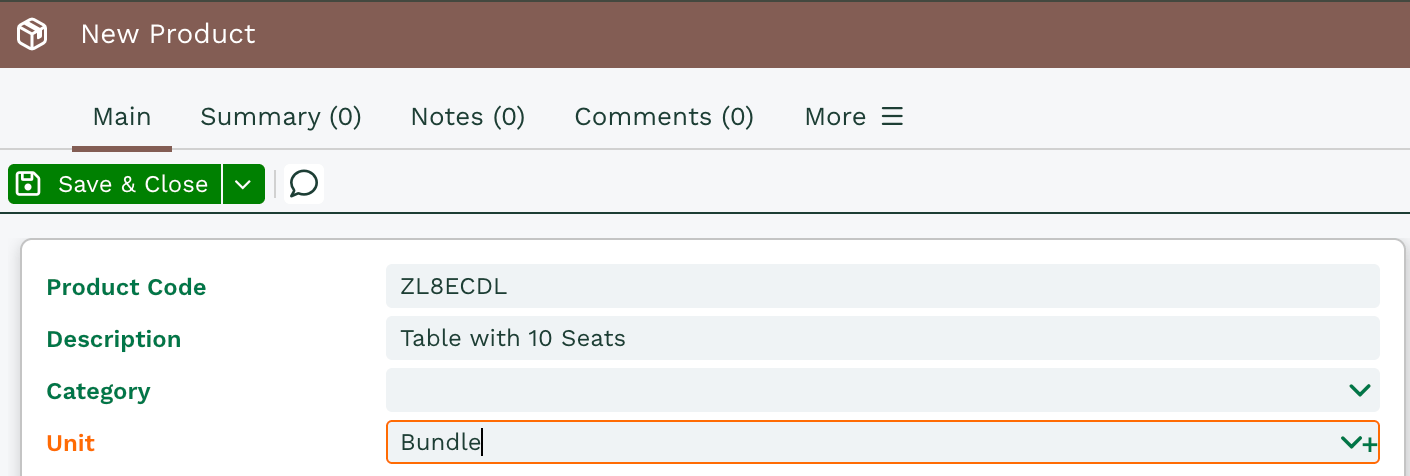
This time, click Save. You will notice that you now have additional tabs next to Pricing Schemes and Supply Schemes called Component Products and Bundles.
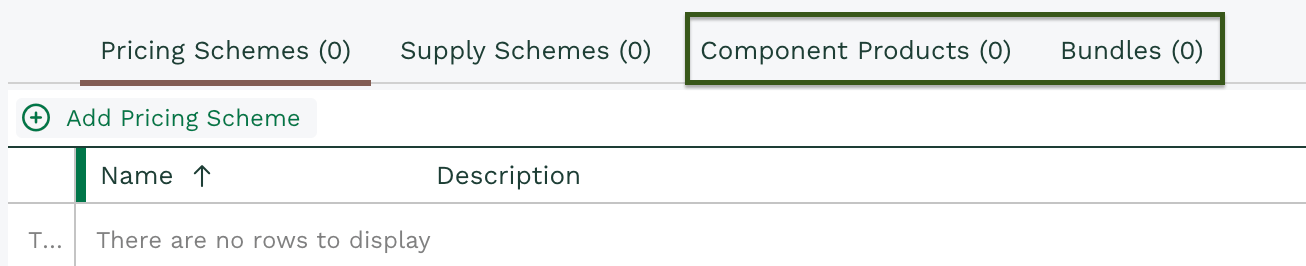
The Component Products tab will show you the products which make up this bundle, and the Bundles tab will show you any Bundles that this product is included in.
Step 3: Add the Component Products to the Bundle
You will need to click on Component Products > Add to add the seats to the bundle. This will display a new window where you will need to select the Component and Quantity.
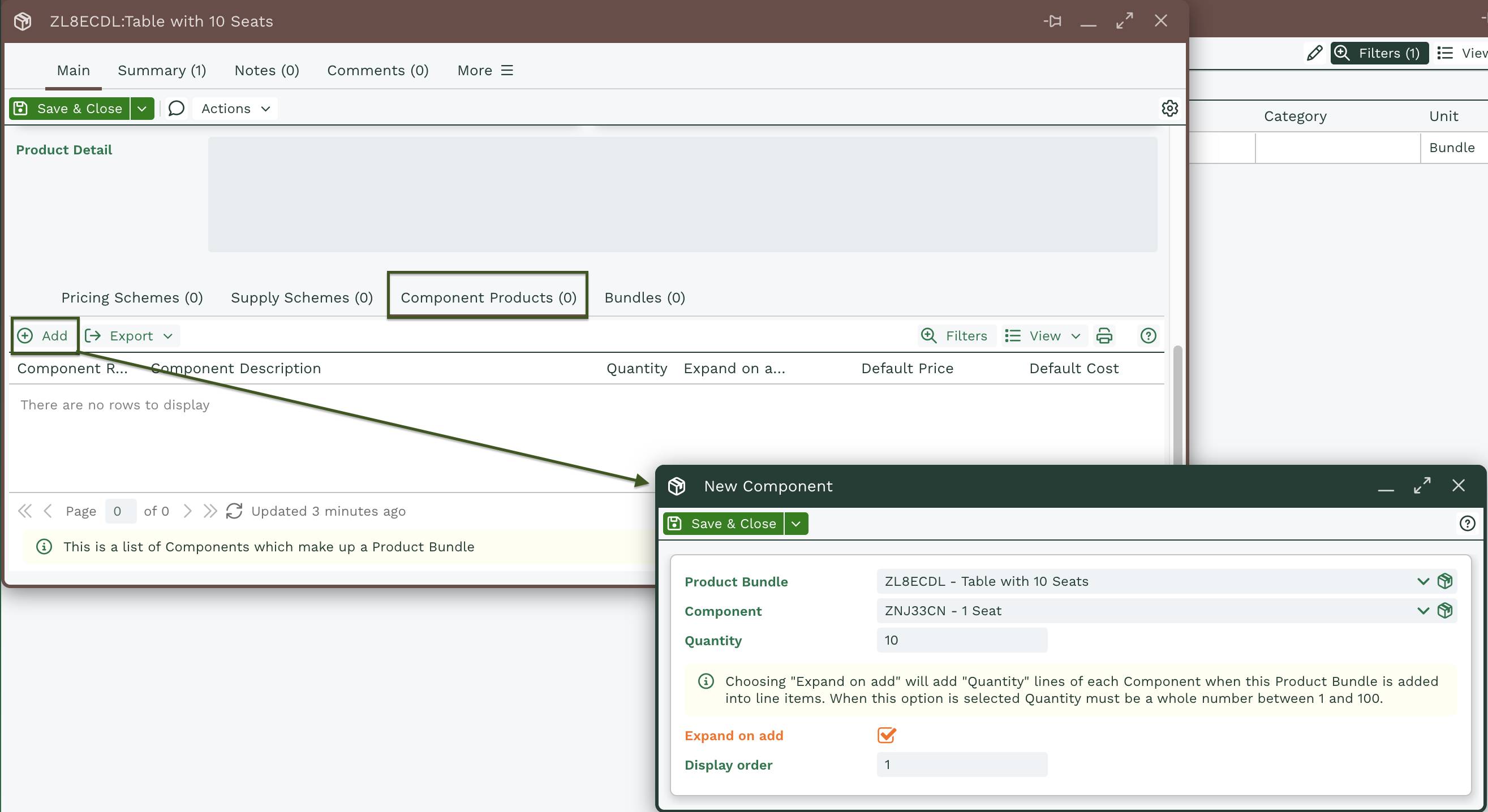
Ticking the ‘Expand on add’ checkbox will expand the bundled products as different line items on transaction documents, whereas keeping it unchecked just keeps it as a single line item.
Step 4: Use the Product Bundle
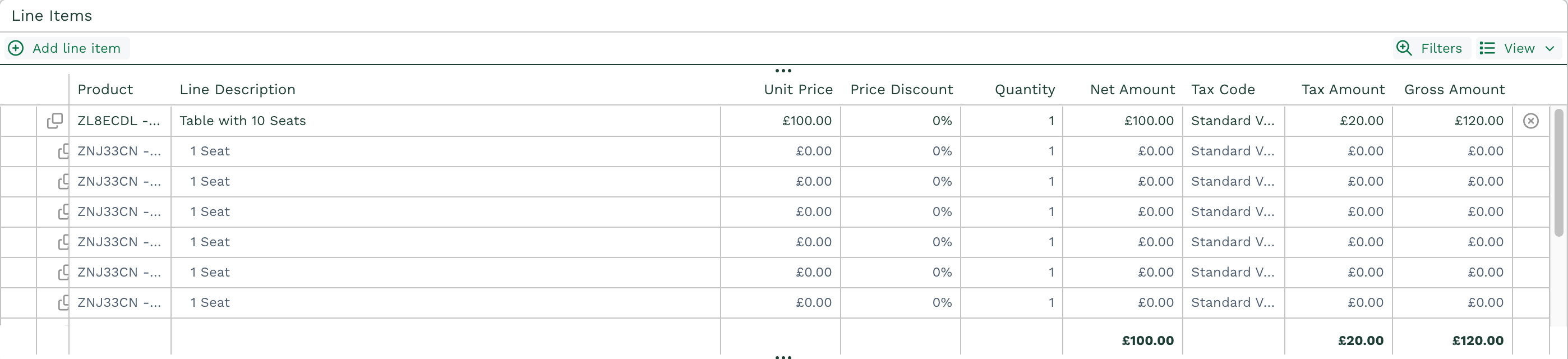
To use the Product Bundle, you simply need to add the Bundled item to a transaction document. When added, it will show as a single line item.

After saving the document, any unique products will be split onto different line items below the Bundle line item with the Product reference slightly indented. If ‘Expand on add’ has been selected for any of the Component, it will create a new line item for the quantity available.
Reporting on Product Bundles
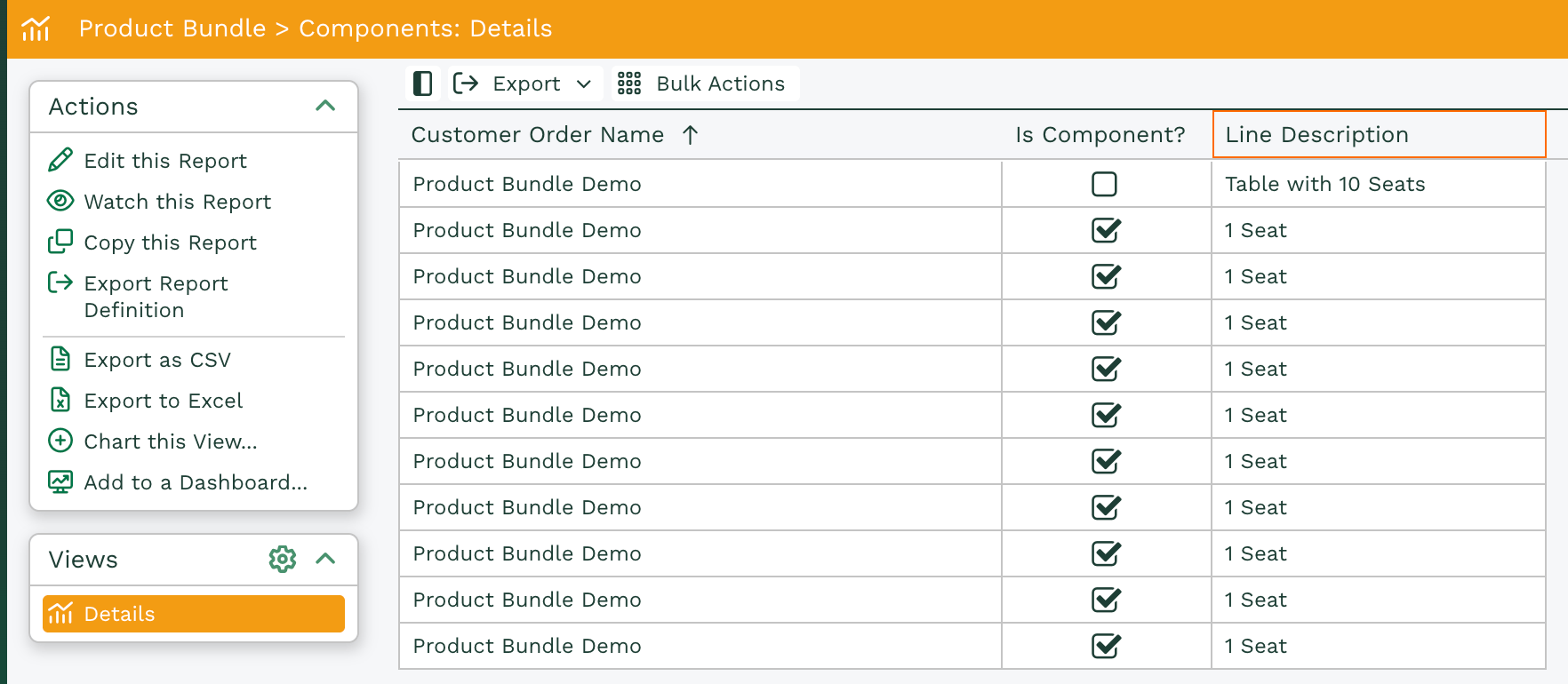
Line items (on customer orders) can either be a bundle, component in a bundle or a stand-alone product. You can specify which one when setting up products. These can then be added to a customer order. Here’s an example:
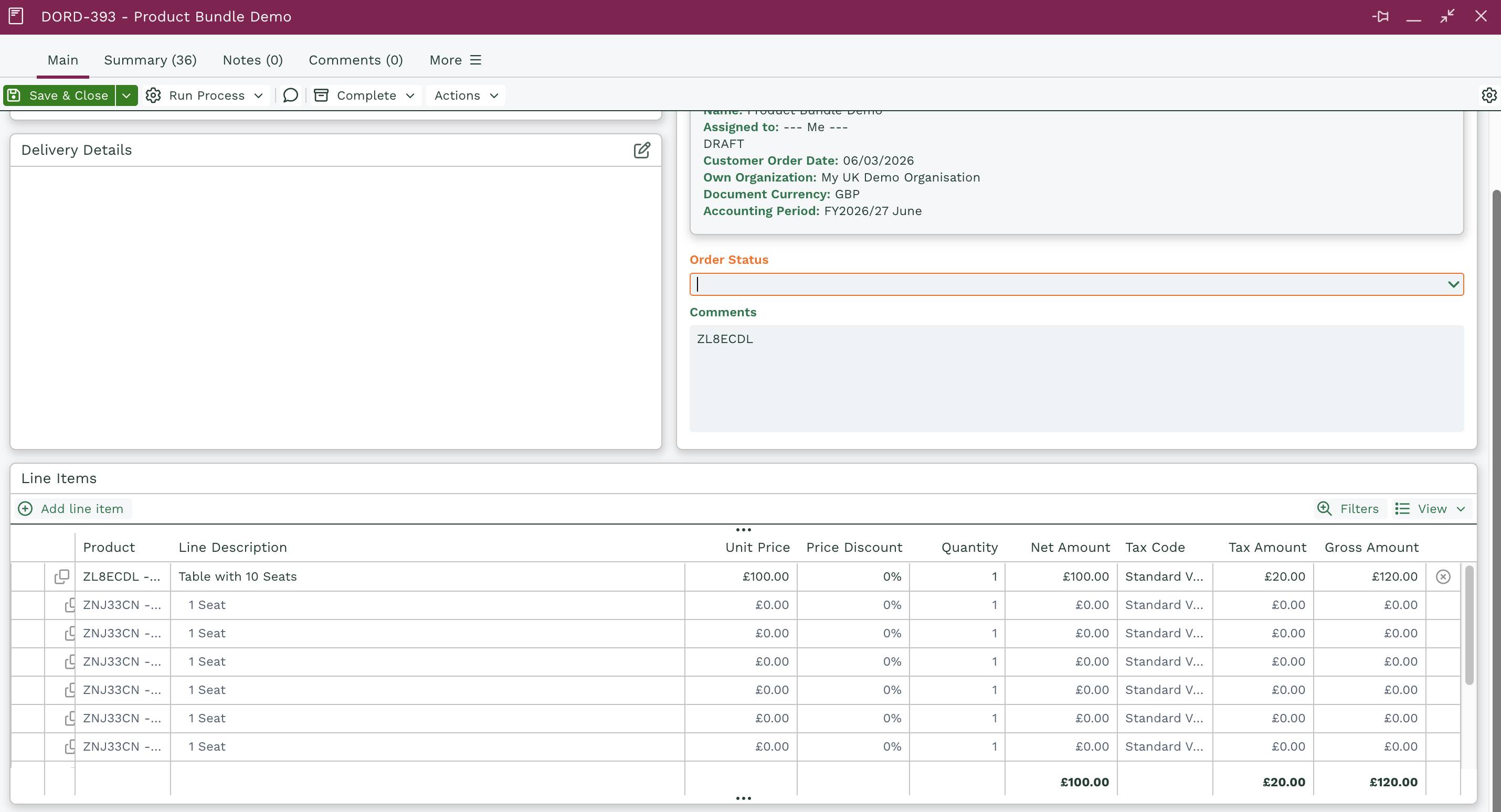
A column containing a checkbox can be seen within reports on customer orders. This indicates whether a line item is a component in a larger bundle or just a standalone product. This can be used in reports to view line items that are components and even exclude any that are not.
To do this, you need to build a report based on customer orders. There are two specific columns that should be added to the report. They are as follows:
Line Items -> Line Description
Line Items -> Is Component?
The Is Component? check box should be only be checked for line items that are components. You can apply a criteria to set this to false if you would only like to show line items that aren’t components. The report will look something like this: