








Changing the size/colour of Map Pins
Within a report, you can customize the color and size of map pins using custom criteria. This is done through a calculated column, in the same way as other CSS styling.
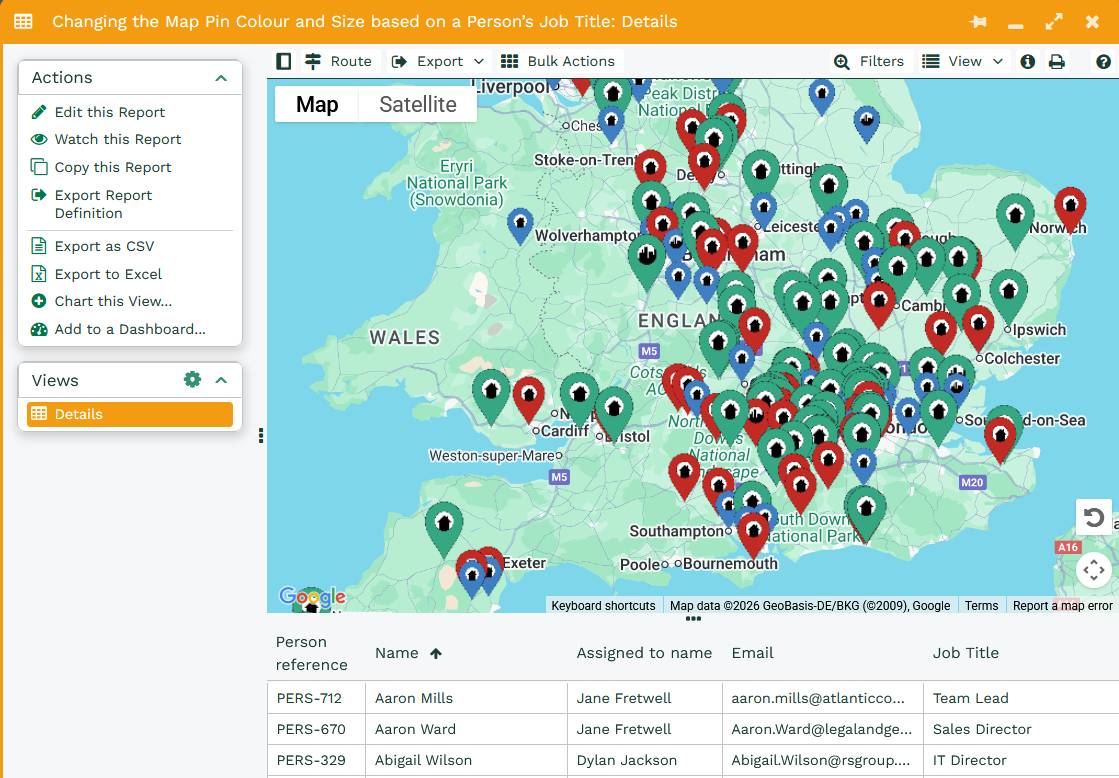
Color coding map pins is made of two parts:
- -wb-map-pin-color – this defines the color of the pin.
- -wb-map-pin-scale – this defines the size of the pin.
The colors are defined through Hexadecimal (Hex) values, a few examples include:
- Red: #c12e28
- Yellow: #edc20b
- Blue: #3f7ec1
- Green: #38a582
- Black: #1a1e25
- White: #ffffff
Note: For a complete guide on Hex colors, we recommend using W3 Schools. Alternatively, you can simply search ‘What’s the Hex code for’ in Google for the color code you’re looking for.
The Scale for the pin size can be set anywhere between 0.5 and 3. For example, to define a pin to be blue and standard sized, use:
“-wb-map-pin-color:#3f7ec1; -wb-map-pin-scale:1”
For a pin to be green and extra large, use:
“-wb-map-pin-color:#38a582; -wb-map-pin-scale:3”
The easiest way to set up color coding that depends on something like an Organizations type (Head Office or Subsidiary) or a Person’s Job Role, will be through a CASE statement such as below:
CASE
WHEN person_job_role = 'Director' THEN '-wb-map-pin-color:#38a582; -wb-map-pin-scale:1.2;'
WHEN person_job_role = 'Manager' THEN '-wb-map-pin-color:#c12e28;-wb-map-pin-scale:1;'
ELSE '-wb-map-pin-color:#3f7ec1;-wb-map-pin-scale:0.8;'
END
The above translates to;
- When the Person’s job title is Director then the Map Pin will be Green and Large
- When the Person’s job title is Manager then the Map Pin will be Red and Regular sized.
- Otherwise the pin will be blue and small.
To apply this formatting, open your Map Position report column > Style tab > change the Cell conditional style to ‘Calculated conditional styling’, then select your calculated column.
You can find a worked example of changing the color and size of the Map Pin based on a Person’s Job Title here.