









Campaign Membership
Campaign Memberships can be used to track the Members of a Campaign and their statuses, helping you track the success of your Campaign
.png)
Tracking and managing members (People, Leads or Organisations) that are being targeted by a specific Marketing Campaign can be extremely time-consuming and complicated. Creating the list of members, understanding their status in respect of the Campaign and carrying out follow-up Activities can be a costly process and therefore efficient management of this will help improve anticipated ROI.
Within Workbooks a report can be used to identify members to add to a Campaign using a report. Members can be added to a Campaign through the Members tab, and clicking the Add button.
You will be presented with a choice of adding members. Selecting Add People, Add Organisations or Add Leads lets you add new members individually. Member can also be added en masse using the Add Members Selected from Report, Add members from a Mailing List or Add members from a Marketing Campaign options.
NOTE: Only reports based on People, Organisations or Leads can be used.
You can also add Leads, People and Organisations to a Campaign from their record within the Memberships tab.
A member of a Campaign will always have a Membership Status specific to that Campaign. This can be used to record the member’s response to Campaign communications or record if they have accepted or declined an invitation. The list of possible statuses for a Campaign is found in the Member Status tab where new statuses can be added by clicking Add Status.
To change the status of a member, click the member status in the Members tab and amend accordingly.
When adding members, there is a checkbox called ‘Update Status’. This will change the status for existing members of the Campaign.
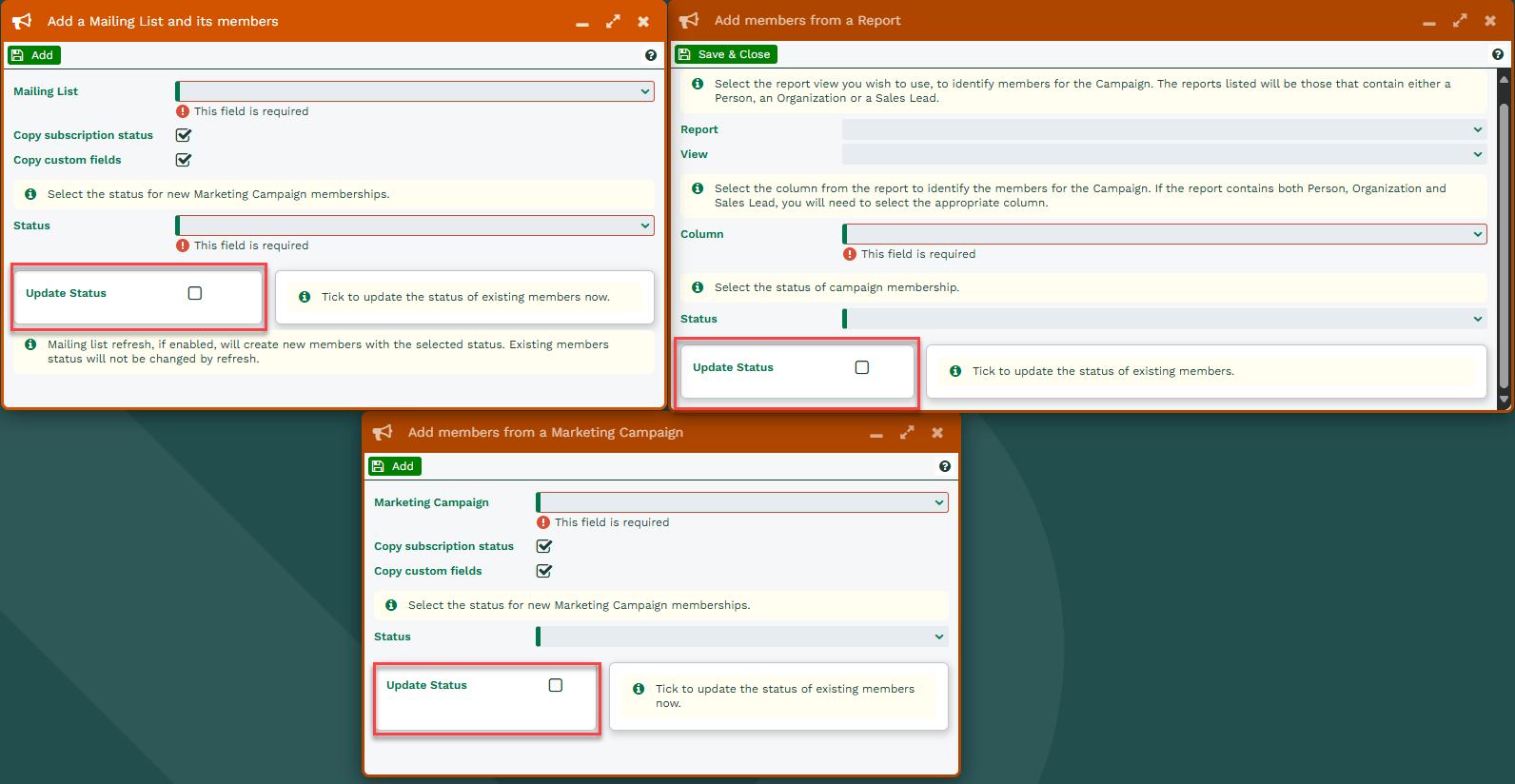
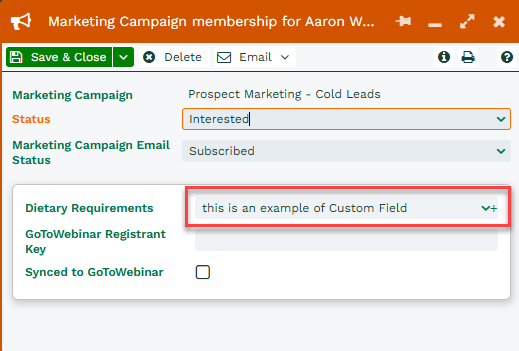
Custom fields can be added to the membership records, to enable better segmentation and categorisation for your Marketing activities. These fields can be created by customising Mailing List Member records. Once new fields have been added, the Membership record can be opened by clicking on the Member Status value in the Members tab within the Campaign.

You can select and edit the relevant custom fields allowing you to record more specific data that is relevant to the member for this Campaign, such as the Dietary Requirements that the member may have, as per the example below
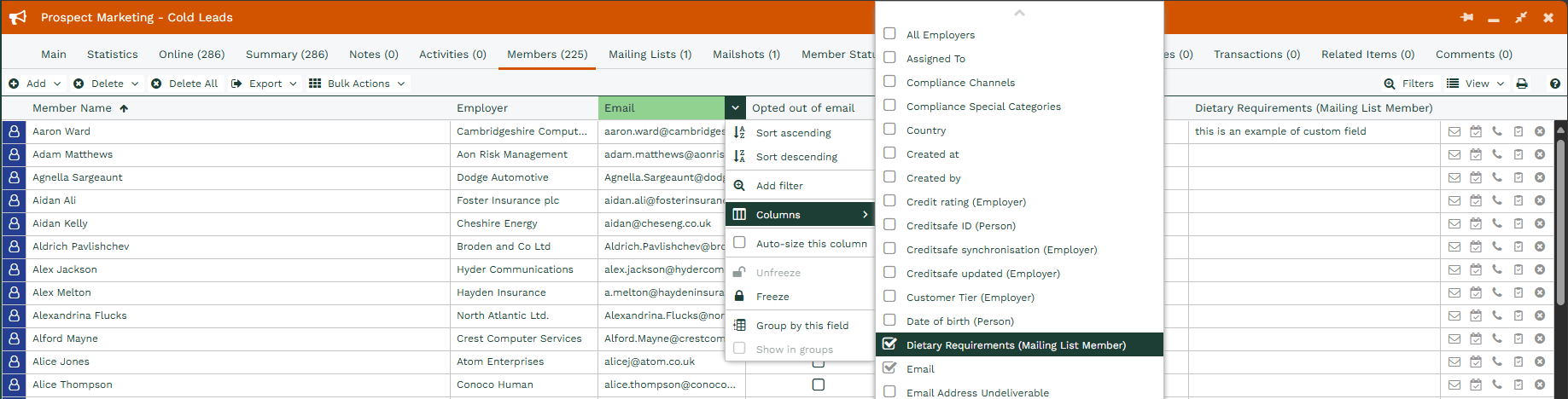
After creating these fields, they can then be added as columns in the Members View, which you can use to either filter against or sort by, depending on your requirements
These fields can also be updated using a Bulk Action. The ‘Assigned To’ column can be made visible and a filter applied, making it easier for the relevant user(s) to focus on following-up with the accounts that they ‘own’. The follow-up activities of a Campaign could be a telephone call, a personal email, a meeting or potentially a follow-up email as part of an email Campaign. All of these activities can be managed from the Campaign itself. A Mailshot can be sent from within the Mailshots tab.