









Worked Examples of Card Views
Initially when switching to View as Cards, you’ll see the most basic version. This can be configured and personalised on all different types of Landing Pages and Record Types by following the guide on the Landing Page Card View Knowledge Base page.
People Records
Here’s an example showing fields that can be added to a Person record Card View on the Multi-Card option.
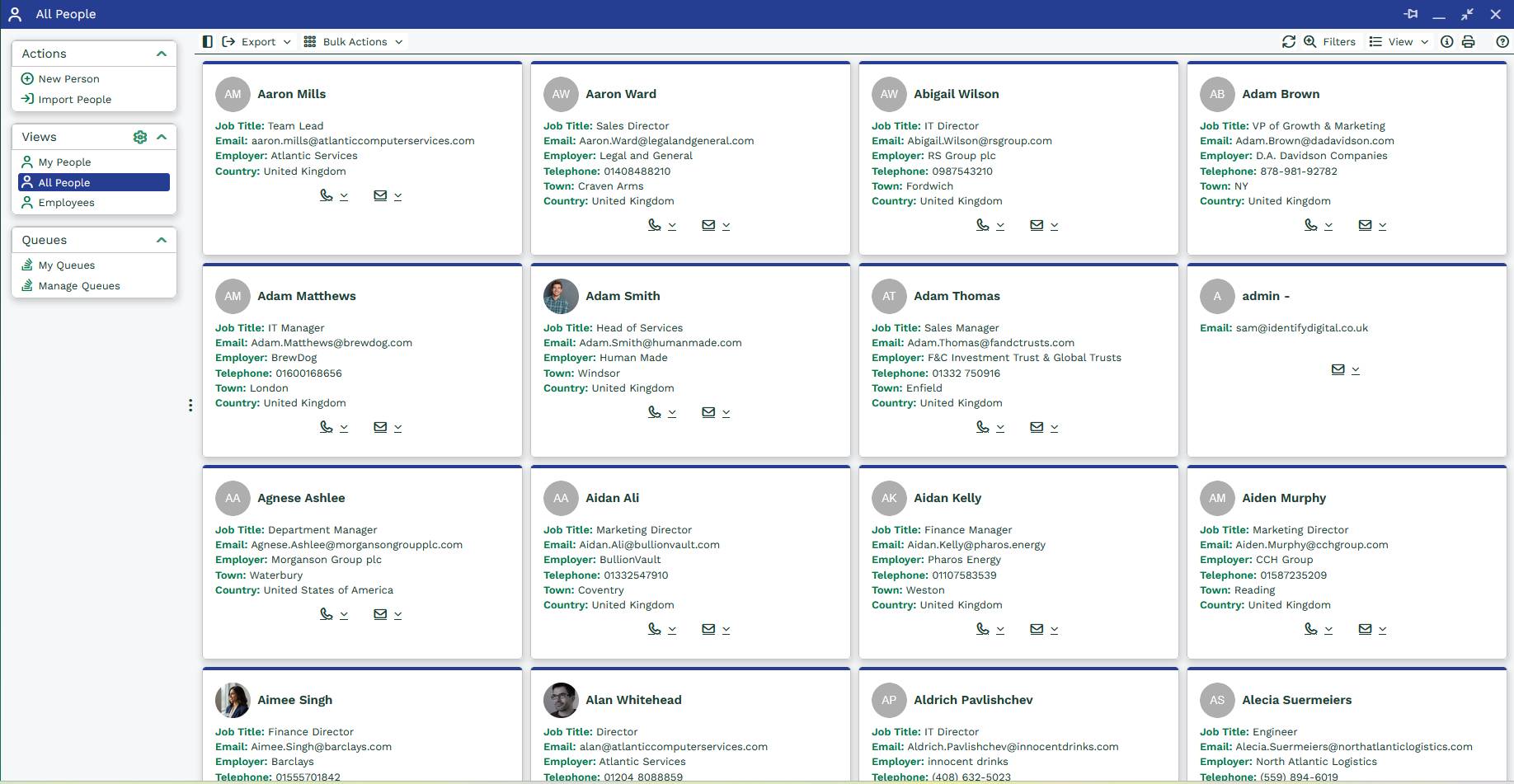
Here shows standard information on a Person record such as Job Title, Employer, Contact Details and Address. The icon can show:
- a photo of the User to whom the record is assigned is the initials of the Person and cannot be changed within this view;
- a photo of the User who created the record;
- the icon of the Employer’s Organisation record;
- the standard Person record icon;
- the Person’s photo;
- a photo of the User who last updated the record.
If photos aren’t available the initials of the User/Person/Employer will show instead.
Note
Columns will be sorted as standard on Landing Pages. Rather than having to click out of Card View, the Sort Columns function can be used within Card View to sort them however you like.
Organisation Records
This example suggests some fields that can be added to a Organisation record Card View using the Single Card option.
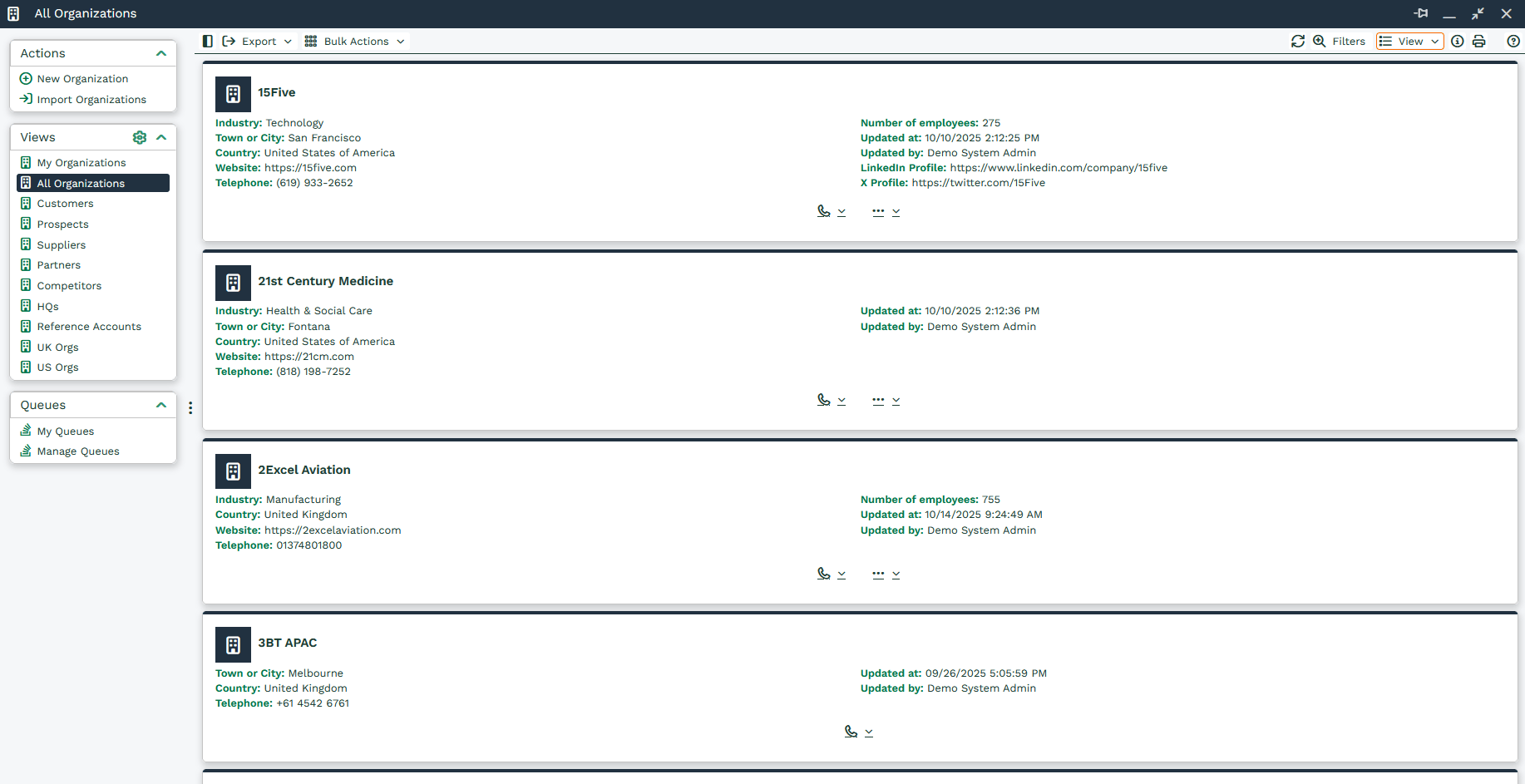
This is a more detailed view using two columns. One to show the Org’s Industry, Town or City, Website and the second column shows Number of employees, Linked Profile and so on.
Opportunity Records
This example shows fields that can be added to an Opportunity record Card View using the Single Card option.
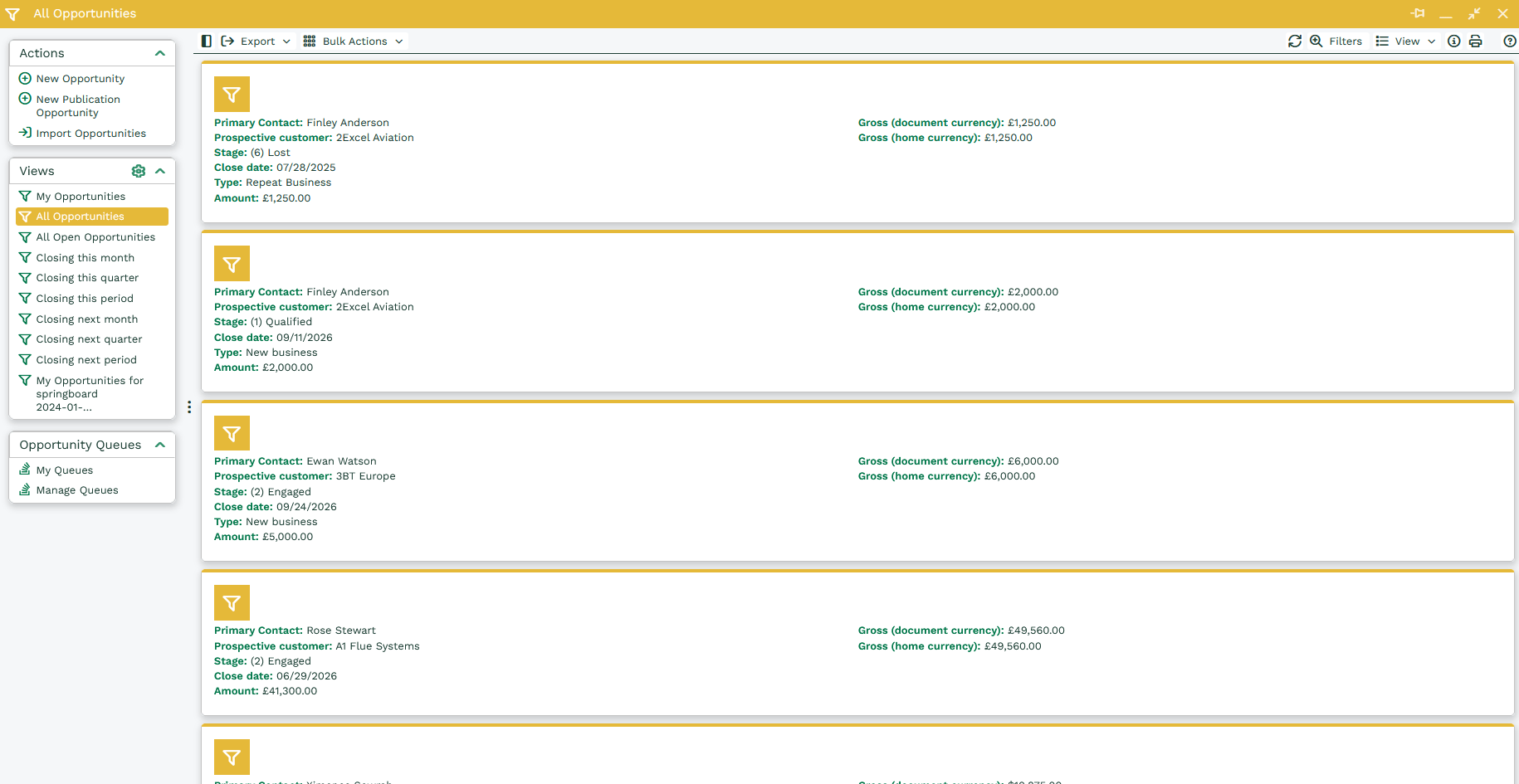
This is an even more detailed view of opportunities, again using two columns. One to show the Primary Contact, Prospective Customer and all information about the Stages and Type of the Opportunity. The second column gives information about the Gross(document currency) and Gross(home currency).