









Email Signatures
As with other email software, you can set up Email Signatures within Workbooks.
Email Signatures can:
- Include pictures (your company logo, for example).
- Be typed directly into the body of an email or be pasted in in HTML format.
- Be defined as the Default signature to apply automatically to any email you create in Workbooks.
- Be combined with Email Templates to make the template look as though it’s specific to an individual.
Tip
You can create multiple Email Signatures for use in different situations.
Creating an Email Signature
Click on Preferences > Email > My Signatures > New Email Signature.
Give your signature a name and enter the content in the Email Body, editing it as you would a normal email (for more information on editing emails, including information about adding images and hyperlinks, click here.)
Tick the box next to Default Signature if you want to use this signature on all emails. If you have multiple email accounts set up, you can select an email account in the from field picklist. This email address will appear in the from field as default when creating a new email.
To make this signature available for use, remember to click Activate, which will also close the window.
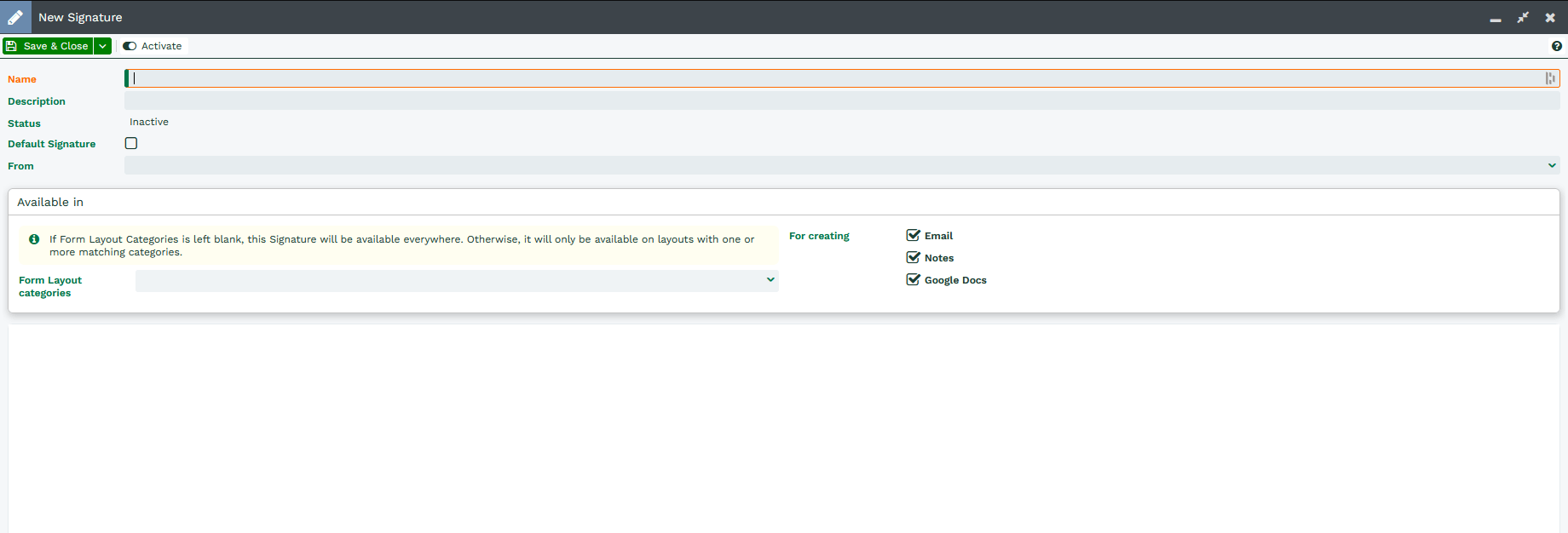
Default Signatures
If you have multiple Signatures saved within Workbooks it is possible to select a default Signature. The signature selected will be automatically added to any email you are forwarding or replying to, and will appear in the email body when you first go to write a new email.
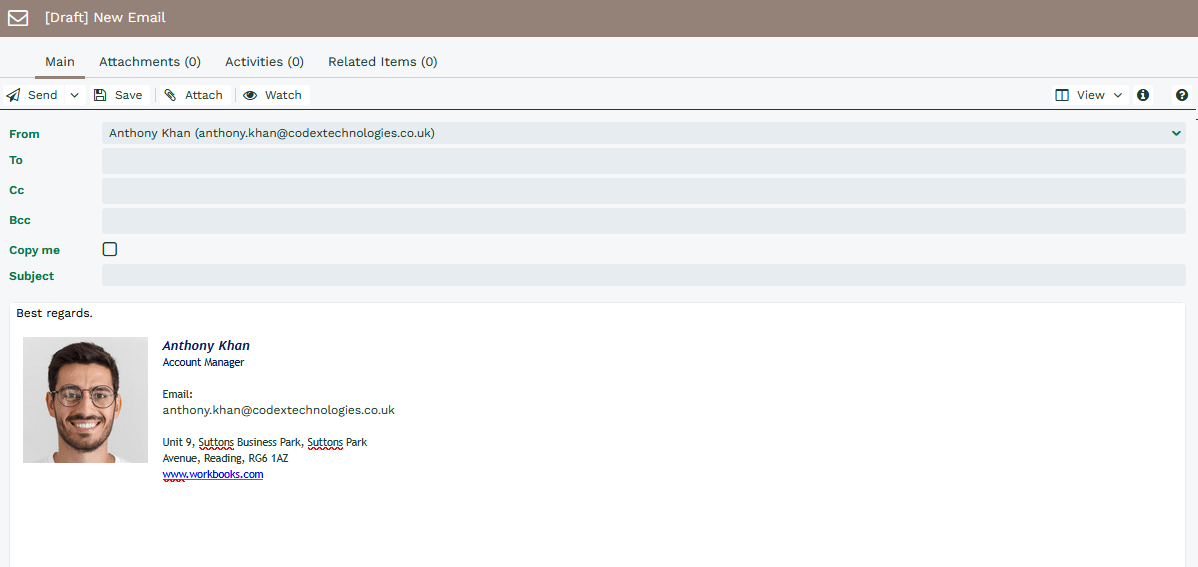
If you have a default Signature configured and then apply a Template using the Email Assistant, the existing Signature will be overwritten with the content of the Template. This is to prevent Users accidentally sending emails that have multiple different signatures at the bottom. For more information on the Email Assistant, click here.
NOTE: Your Default Signature will not be overwritten if you select another Signature in the Email Assistant – don’t forget to remove the Signature you don’t want from your email before sending!