









Workbooks & GatorMail for Transactional Emails
The Workbooks plugin for GatorMail transactional emails lets you use Workbooks reports as triggers to send automated email series through GatorMail. This is a custom integration that sits alongside the standard functionality available here.
This can be especially useful for scenarios like:
- Subscription Renewal Reminders e.g. 1 month before renewal, 1 week before, on the day and then once a subscription has expired (if a customer has not renewed before the expiration date)
- Invoice Payment Reminders e.g. Payment Due, Payment Overdue, Payment X days overdue etc.
- Training Course Reminders & Follow Up Emails e.g. Thanks for booking, 1 week before reminder, the day after (thanks for attending)
After an email is sent, you can configure the automation to update a record in Workbooks allowing you to track which emails have been delivered. The triggers and updated fields can be used in combination, allowing you to create a workflow of email communication.
This guide details how to install the Plugin and walks through each step explaining the options that are available on each page.
Pre-Requisites
To make setup quicker, have the following details ready before you start:
- Your Gator login email
- Your Gator password
- Your Gator Secret & Client name
- Enable the “DeDupe Audience” Setting on your GatorMail instance.
Note
The GatorMail Client Name, Secret and "De-dupe Audience" setting are not available within the GatorMail UI. You'll need to contact Workbooks Support via the Case Portal for this information before proceeding with this installation.
Note
GatorMail passwords expire every 90 days. When this happens, log in to GatorMail to update your password, then manually update it in your Workbooks process.
- Your GatorMail instance name (found in Your Account under Instance Name)
- A supported GatorMail email domain (found under Tools > System Defaults, in the Sender E-Mail Address (MAIL-FROM) dropdown — this may differ from your usual work domain)
- A configured email in GatorMail (this must be a GatorMail Creative, not an email template) created before you set up the process in Workbooks
Note
You can use 'Merge fields' in your GatorMail creative, populated from a Workbooks report. GatorMail supports up to 10 merge fields. These can be taken directly from the record driving your report or from calculated columns.
- A Workbooks Report that identifies which records should receive an email. At a minimum, include:
- Primary contact details such as: Person Id, Person Name, Person Email Address. You may need to create a DLI custom field to capture this (see here for more details)
- Any fields you want to use as merge fields in your email (for example, Renewal Date or Renewal Price)
- The Id and Lock Version of the record you want to update after sending the email (both are available when adding columns to a report)
- A calculated column that outputs the value to write back to the record after the email is sent. For example, you could update a record with “1st Reminder Sent” after sending an email, using a report formula based on your process.
You’ll add more columns to the report as you work through this guide
Installation of the Gator Transactional Emails Plugin
To get started, install the ‘Gator Transactional Emails’ plugin in your Workbooks database. A Workbooks System Administrator will need to do this.
Go to Start > Configuration > Automation > Plugins, then select Add Plugin. Choose ‘Gator Transactional Emails’ from the Script Library and select Install to add it to your Workbooks instance.
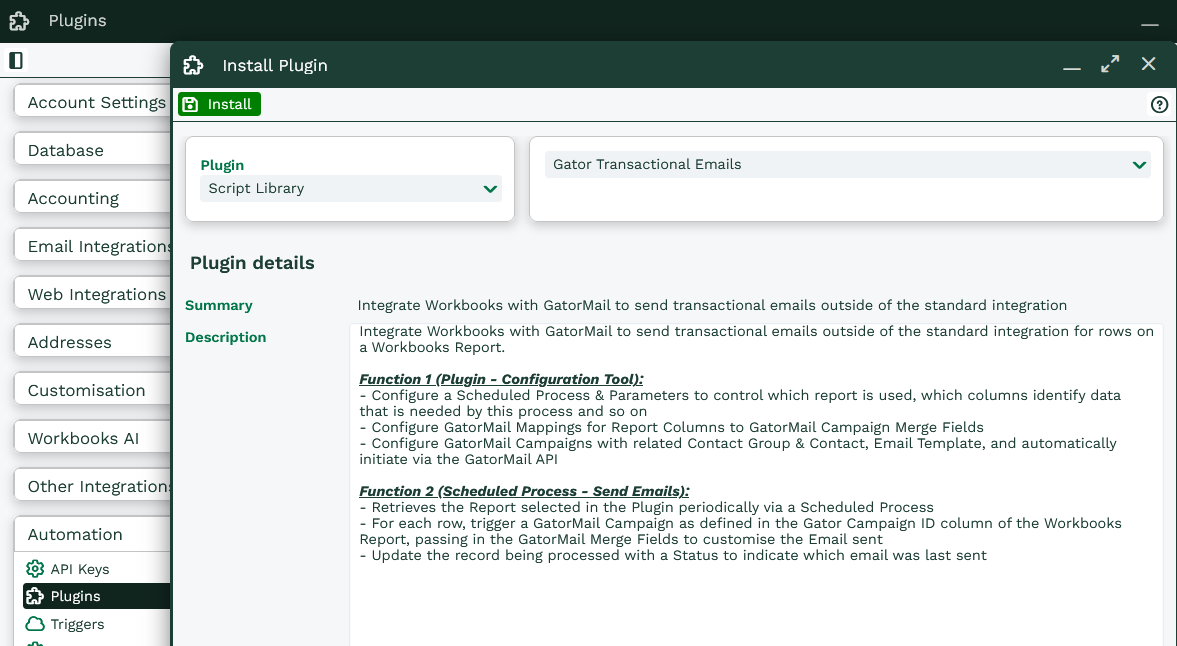
This is a short two-step installation wizard. On the first page, click Continue. Once successfully installed, you will see a success page. You can then close the plugin and the configuration window.
Walkthrough of Transactional Emails Plugin & Functionality
Now the plugin is installed, you can configure the integration to suit your needs. If you haven’t already, close and reopen the Configuration landing page.
Then go to Start > Configuration > Other Integrations, where you’ll see a new option called Gator Transactional Emails.
Note
If you've jumped straight to Step 2, there's no need to worry. If this is the first process you're configuring, Step 1 is skipped. You’ll be taken straight to step 2 to configure your process.
Step 1.
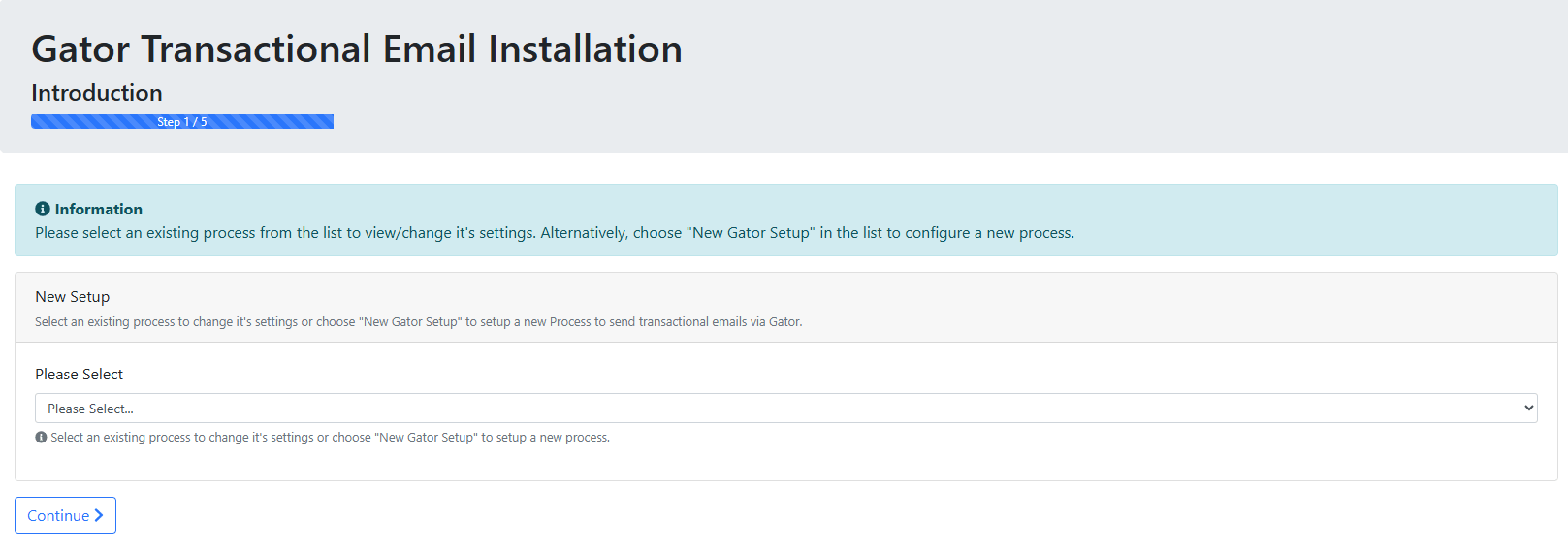
Select an existing process from the list (this shows scheduled processes that use the GatorMail integration only), or create a new one by selecting ‘New Gator Setup’, then select Continue.
Step 2.
This page lets you configure your GatorMail automation process. All settings are required and must be completed for the integration to work. Options 13–17 are only shown if you select Yes in setting 12 (recommended).
Note
If you selected an existing process in step 1, this page will show its current settings. You can review and update these settings using the plugin.
| # | Setting Name | Setting Type | Setting Description |
|---|---|---|---|
| 1 | Process Name | Text | The name of the Process to help identify it in Workbooks Configuration under Automation > Scheduled Processes NOTE: This field is read-only in update mode |
| 2 | Processing Batch Size | Picklist | Options of 10, 25, 50 or 100. This is the number of records that will be processed from the selected report on each run of this process. Depending on volumes of emails that you wish to send, you can tweak the number for performance. |
| 3 | Workbooks Report | Picklist | A list of Workbooks Reports from the current database where the category of the Report is set to “Automation”. NOTE: If you do not see your Report in the list, ensure that you have access to it i.e. you can find it on the Reports Landing Page and you can open it. Also ensure that the Category is set correctly. |
| 4 | Report Column (Person Id) | Picklist | This will be a list of columns available in the selected report from above. As described in the Pre-Requisites, you need to include a Primary Contact in your Report before starting the configuration of this process. This should be set to a column that contains the Id of a Person record. NOTE: The value in this column will be used by GatorMail to search for an existing contact. If this column is not set correctly, then you could end up with duplicate contacts in GatorMail |
| 5 | Report Column (Person Email Address) | Picklist | This will be a list of columns available in the selected report from above. As described in the Pre-Requisites, you need to include a Primary Contact in your Report before starting the configuration of this process. This should be set to a column that contains the Email Address of a Person record. NOTE: The value in this column will be used by GatorMail to send an email to your contact so it must be valid. |
| 6 | Report Column (Person Name) | Picklist | This will be a list of columns available in the selected report from above. As described in the Pre-Requisites, you need to include a Primary Contact in your Report before starting the configuration of this process. This should be set to a column that contains the Email Address of a Person record. NOTE: The value in this column will be used by GatorMail to send an email to your contact so it must be valid. |
| 7 | Gator Instance Name | Text | The name of the GatorMail Instance that this process will use. This can be obtained from the GatorMail UI, under Your Account > Instance Name |
| 8 | Gator Login Email | Text | The login email used to login to Gator via the Gator UI. Workbooks recommends that a separate user specifically for this integration is used. |
| 9 | Gator Password | Password | The password used to login to the account specified above. |
| 10 | Gator Client Name | Text | The GatorMail Client Name is used to authenticate to the Instance Name supplied above. It is not exposed via the GatorMail UI. Please contact Workbooks Support to request this information. |
| 11 | Gator Client Secret | Password | The GatorMail Client Secret is used in conjunction with the Client Name to authenticate to the Instance Name supplied above. It is also not exposed via the GatorMail UI. Please contact Workbooks Support to request this information at the same time as requesting the Client Name. |
| 12 | Enable Update Record After Email Send? | Picklist | After sending an email, choose whether you wish to update the processed record. We’d recommend that this option is used so that you can easily identify when an email has been sent by this process and thus exclude it from your Report automatically by applying Report Criteria. Select Yes (Recommended) to enable the functionality. Select No (Not Recommended) to disable this feature. |
| 13 | Record Type | Picklist | Select which record type will be updated once an email has been sent. This process currently supports all Transaction Document types and Activities. |
| 14 | Status Field | Picklist | A list of available fields on the selected Record Type. This field is updated when the row is processed on the report with the value held in the Report Column selected below in Option 15. For example, if you write a Calculated Column to output “1st Reminder Sent”. This value will be set in the selected field when the record is processed by this automation. |
| 15 | Report Column (Status Update) | Picklist | This picklist shows the Report Columns that are in the Report selected above. Your report should contain a Calculated Column which outputs a status that will be written to the record that was processed. For example, if you write a Calculated Column to output “1st Reminder Sent”. This value will be set in the selected field from above when the record is processed by this automation. |
| 16 | Report Column (Record Update Id Column) | Picklist | To update a Workbooks record via an automated process you need to know it’s Id and Lock Version which are hidden fields on the record itself. These fields can be exposed via the Workbooks Report as a column. Ensure this setting is set to the column that identifies the record’s Id. |
| 17 | Report Column (Record Update Lock Version Column) | Picklist | To update a Workbooks record via an automated process you need to know it’s Id and Lock Version which are hidden fields on the record itself. These fields can be exposed via the Workbooks Report as a column. Ensure this setting is set to the column that identifies the record’s Lock Version. |
Step 3.
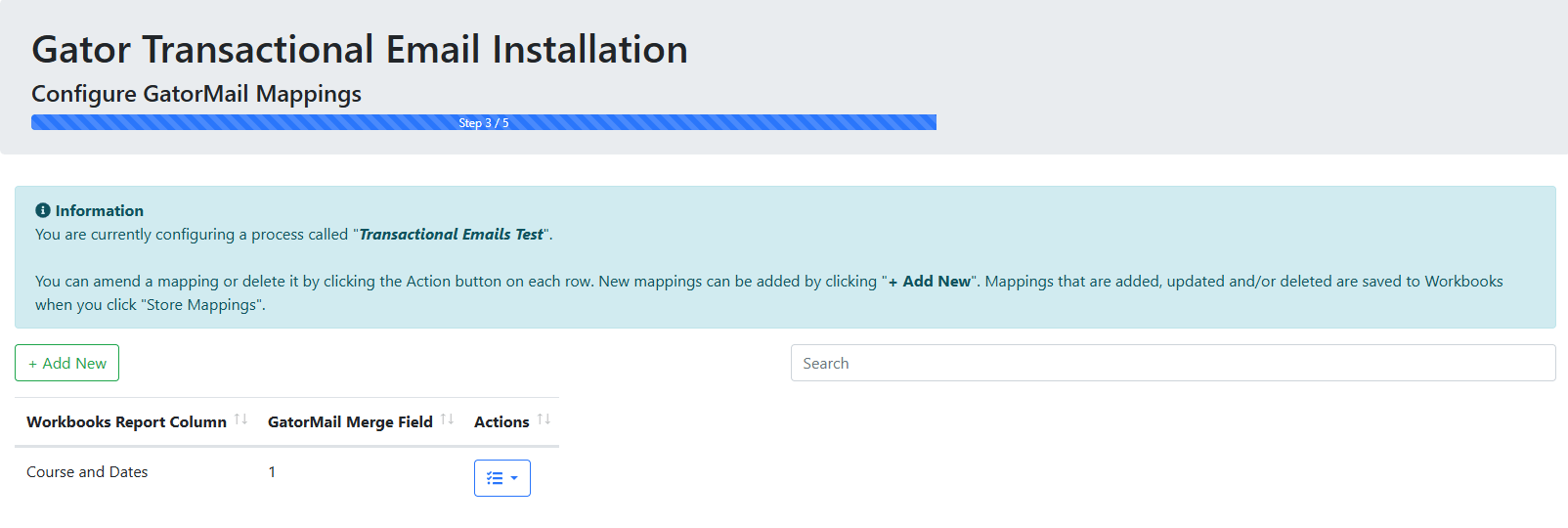
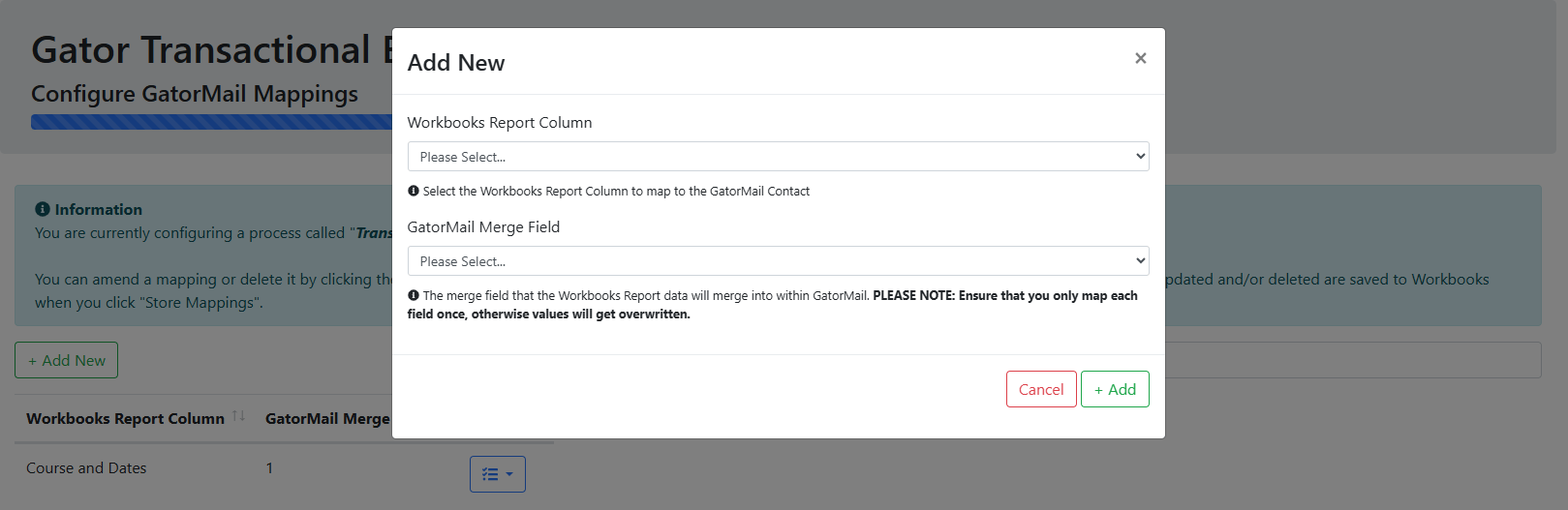
This step lets you map fields from your Workbooks Report to a GatorMail creative, so data can be included in the emails sent to the primary contact.
This uses Gator Merge fields in your campaign (not contact merge fields).
There are two limitations to be aware of:
- You’re unable to have more than 10 Merge fields in an Email
- You cannot use Merge field data in Dynamic Content
Select ‘Add New’ to create a mapping, then choose the Report column you want to sync and the corresponding Merge field. Once added, you can edit or delete a mapping using the options in the ‘Actions’ column.
Step 4.
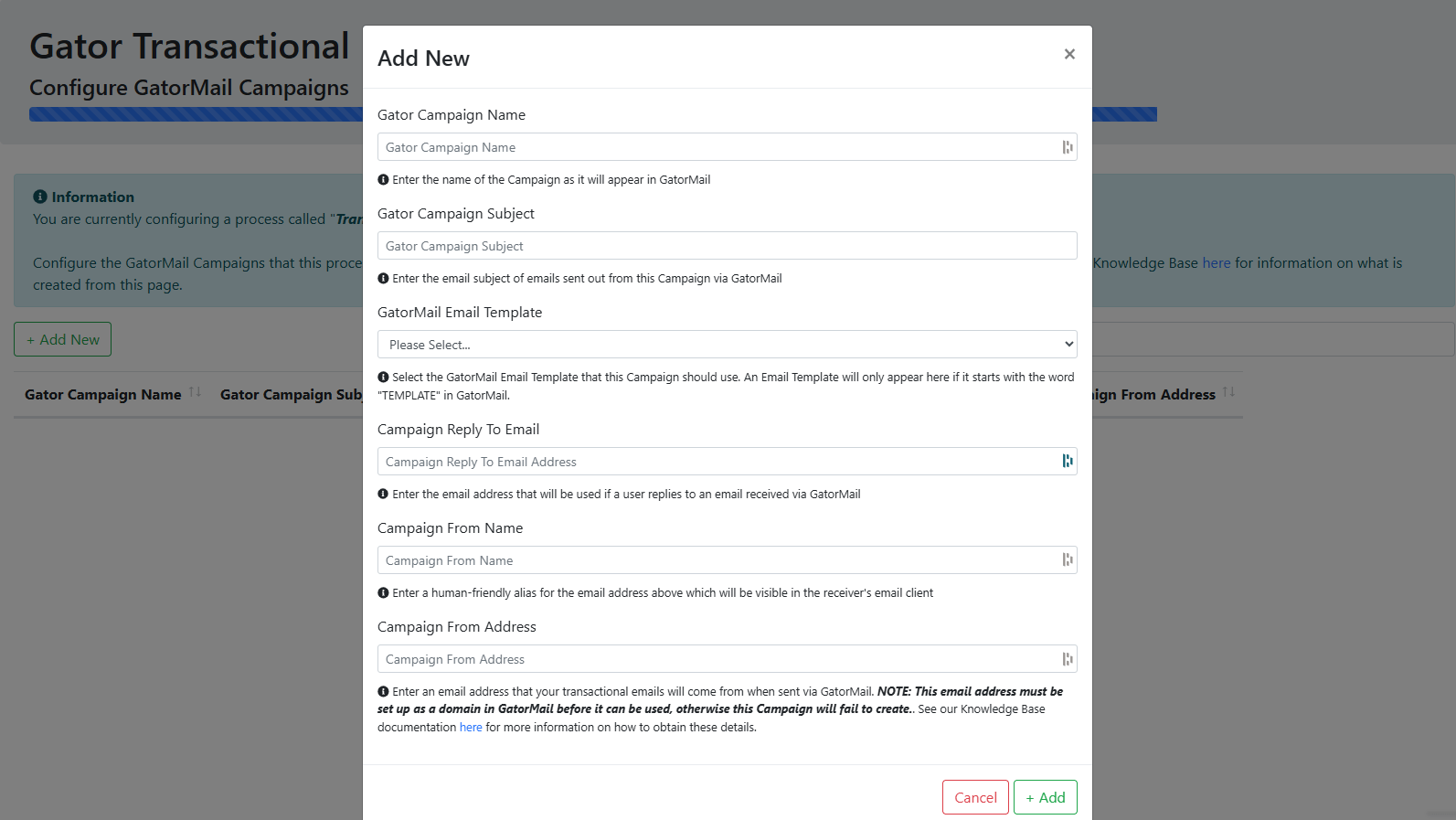
You can configure a GatorMail campaign directly from the Workbooks plugin.
Select Add New, then enter the required details:
| Field Name | Field Description |
|---|---|
| Gator Campaign Name | The name of the Campaign as it will appear in GatorMail under the Campaigns menu |
| Gator Campaign Subject | This text will appear in any emails that are sent out via this Campaign |
| Gator Email Template | Shows a list of GatorMail Creatives (not Email Templates) from GatorMail where the name starts with “TEMPLATE”. NOTE: If you don’t see your Email in the list, make sure that it definitely starts with the word “TEMPLATE” (case sensitive) and that the user you are using to drive this process can access it. |
| Campaign Reply To Email | If a user clicks “Reply” to your email notification, this is the email address that will be used |
| Campaign From Name | This is the alias that will be displayed in the recipient’s email client rather than an email address. |
| Campaign From Address | This is the email address that your email will come from. It must be a pre- configured domain in GatorMail otherwise the Campaign creation will fail See: https://help.communigator.co.uk/m/Setup/l/993225-domain-setup-guide-company-business-domain |
Step 5.
This page shows the result of your GatorMail campaign setup. If the campaign is created successfully, you can select ‘Copy to Clipboard’ to copy an example formula. This includes key details such as the GatorMail campaign name and campaign ID.
The automation uses the campaign ID to send emails via GatorMail when it runs.
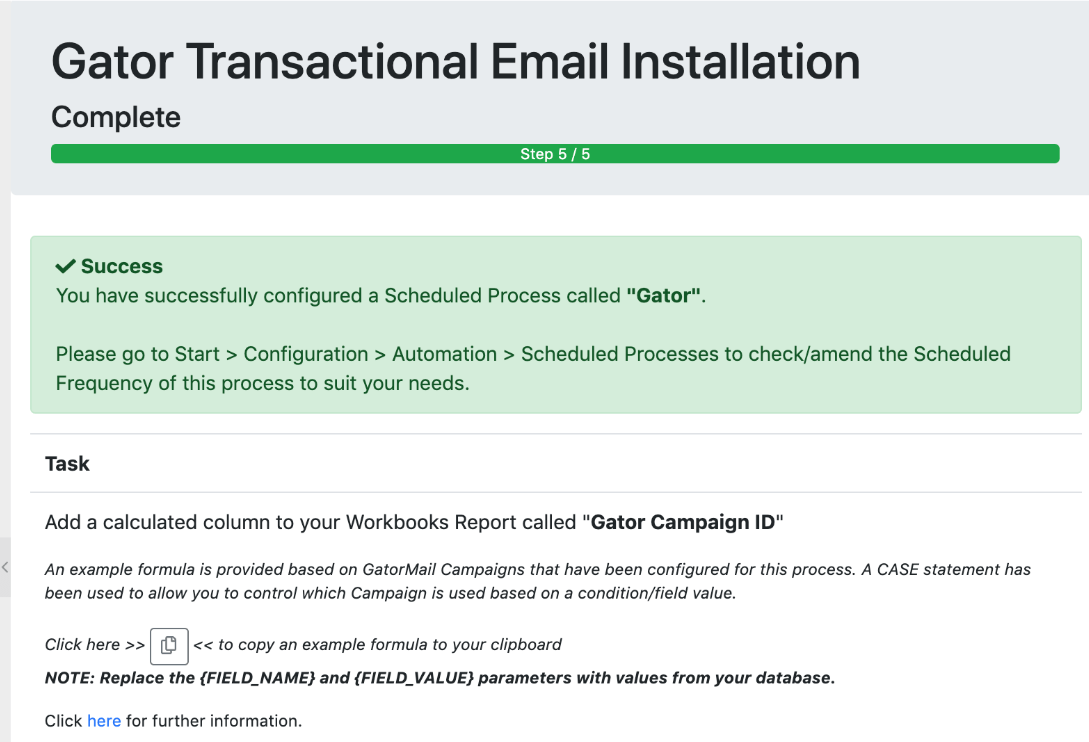
If any errors occur, they’ll be shown clearly at the top of the page in red. Where possible, you’ll also see links to help troubleshoot the issue. If you’re still having problems after reviewing these, please raise a Case with Workbooks Support via the Case Portal and one of our Support Analysts will investigate further for you.