









Export Database
The Export Database feature allows authorized users to download a complete offline copy of their Workbooks database in SQL format. This export contains all data you normally have permission to access in the UI, enabling you to retain records for auditing, migration, analysis, or backup purposes.
This guide explains how database exports work, how to perform one safely, and what to expect depending on your account status.
It is possible to export your database to take your own offline copy of the data you hold in Workbooks. This will be done in SQL format.
SQL is a standard way to represent the contents of a database.
- You can import your data into a database and it is then easy to use the full power of your database software(such as MySQL Workbench, or Microsoft SQL Server tools) to access and manipulate the data.
- The export bypasses row‑level security, meaning all exported data reflects what the logged‑in user is allowed to access at the time of export.
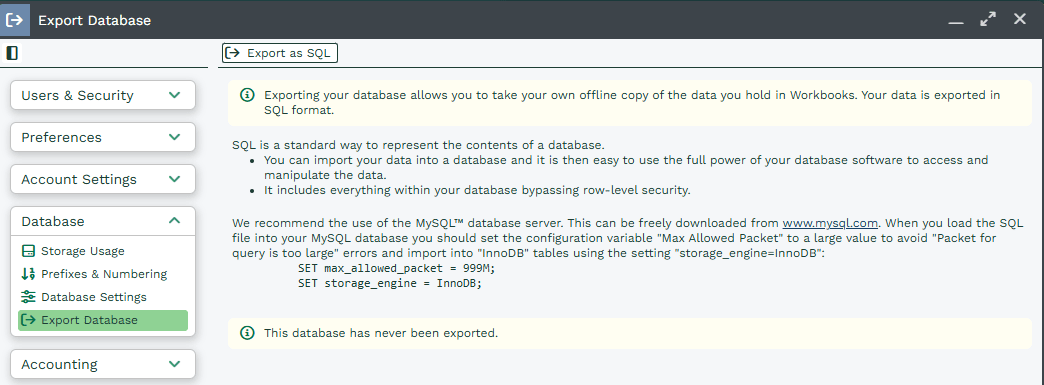
To export your database click Start > Configuration > Database > Export Database. Here you’ll see a button at the top of the page, which you can click to initiate the export.
You’ll be shown information on the estimated file size and a guide on how long the download is likely to take. Please ensure you save the file to a disk with sufficient space.
Note
- Only users with the Database Export Capability will be able to carry out a database export.
- You can only export data that you normally have access to. If you want to export ALL the data, make sure that you are logged in as a user with full access.
- If the database has been exported previously, a message will show which User actioned, with a date and time stamp. If not, the message will show that the database has never been exported.
- There is an export limit of 325GB. If your database size exceeds this, you will need to contact Workbooks Support for assistance.
If you have not Renewed / Account Expired
If you have decided not to renew your Contract and your Contract End Date has passed. Only Users who were a System Admin for your account will have the ability to log into Workbooks for a short period to export database data.
Once logged in, your view will be very limited. You will only be able to see two options as a popup on your Workbooks Desktop: Renew or Export your Data. By clicking Export your data as shown below:
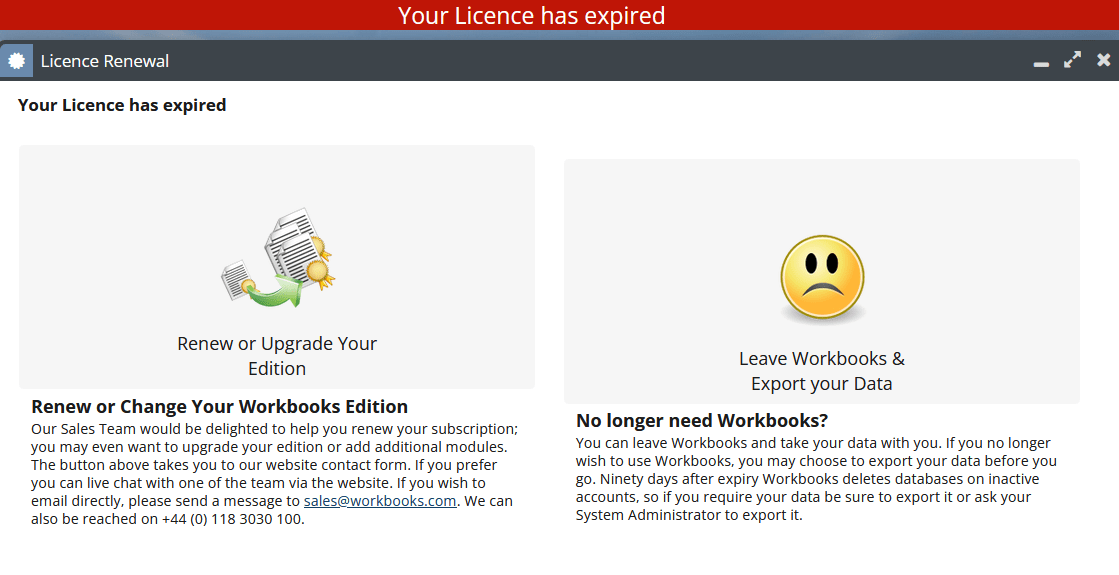
Clicking the ‘Leave Workbooks & Export your Data’ box, you will then see the Export your Database window as shown in the screenshot earlier in this article.