Installation
The GoToWebinar plugin enables seamless integration between Workbooks Events and GoToWebinar, allowing you to create, update, and cancel webinars directly from Workbooks, as well as synchronize key webinar data (attendance, questions, performance stats) back into CRM.
Note
Before you begin, you will require a license for Workbooks Events, GoToWebinar and System Admin capabilities. To purchase Workbooks Events license, please contact your Workbooks Account Manager. GoToWebinar can be purchased directly from LogMeIn and is not sold, or licensed by Workbooks.
Navigate to Plugins
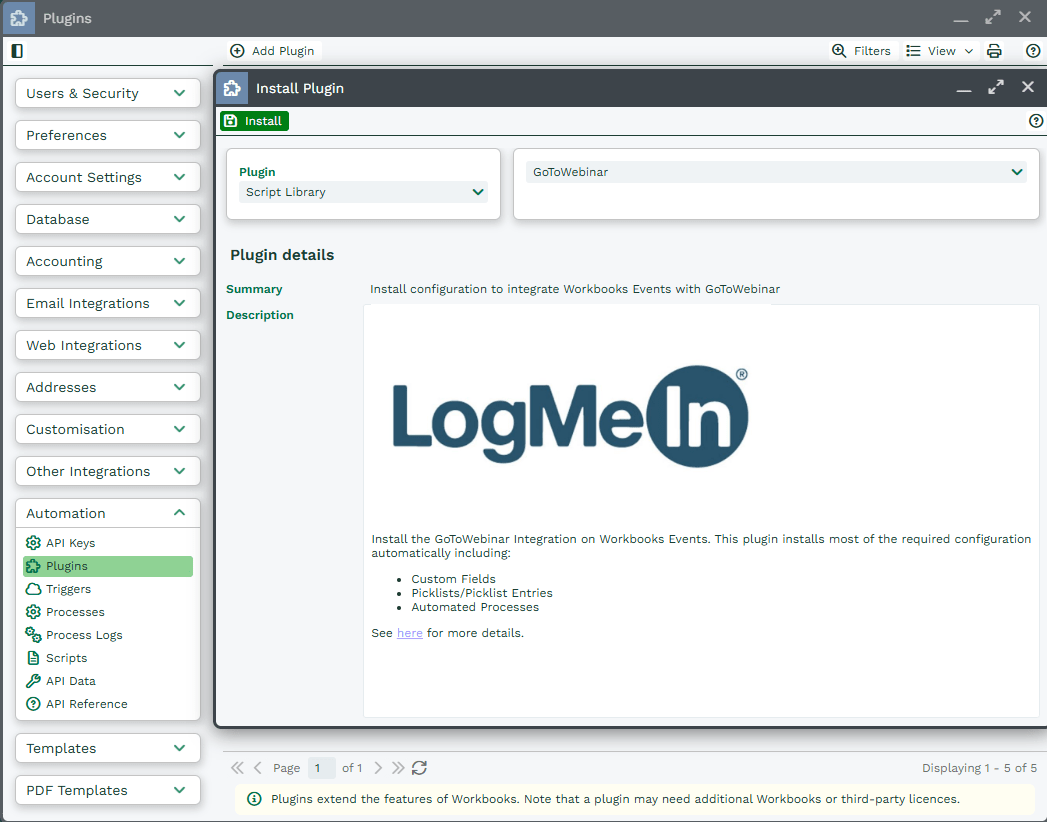
To set up the integration, let’s start by installing the GoToWebinar Plugin. As a System Admin, click Start > Configuration > Automation > Plugins > Add Plugin. From here, select Script Library and then GoToWebinar.
Click Install to begin the Plugin installation.
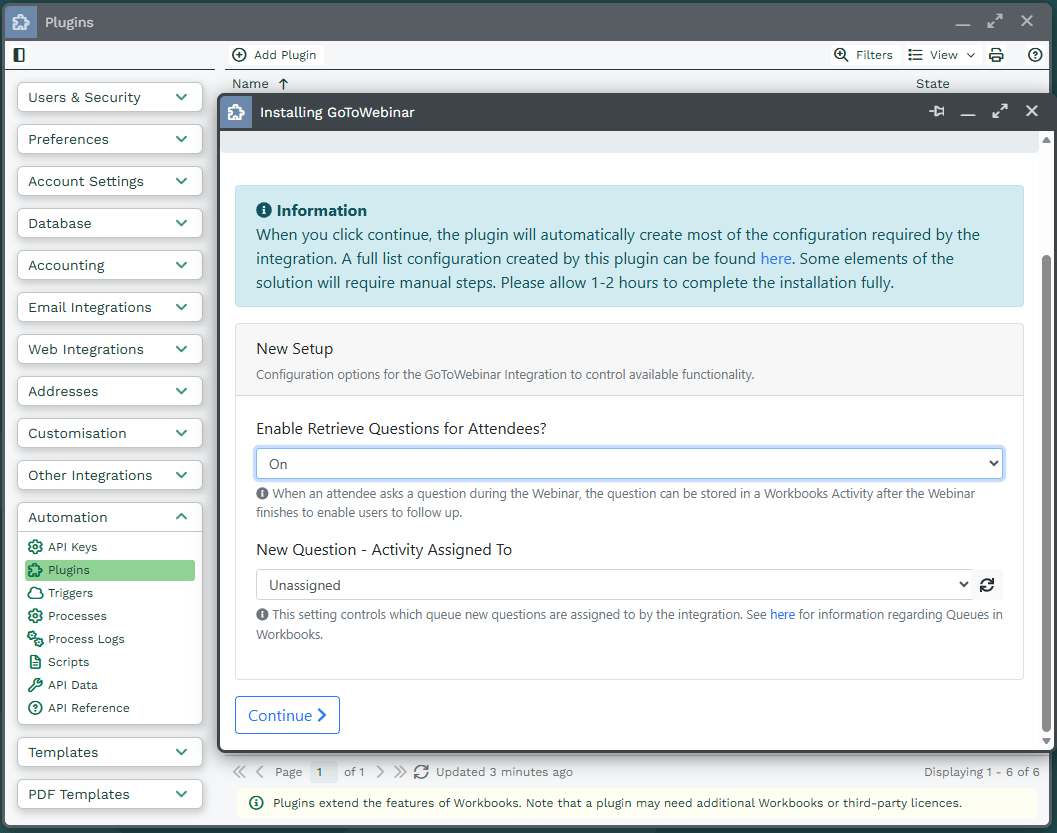
While installing, Plugin allows you configure some of the integration behavior around retrieving questions from GoToWebinar after a Webinar has completed as follows:
- Enable Retrieve Questions for Attendees: The default value is ON. You can turn the functionality off if this feature is not required.
- New Question – Activity Assigned To: Control which queue or user questions asked during a webinar are assigned to when they are created by the integration.
More information on this functionality can be found here. Once you are happy with the settings, click Continue.
Note
Before continuing with the installation of the GoToWebinar integration, ensure that you have your GoToWebinar login details to hand.
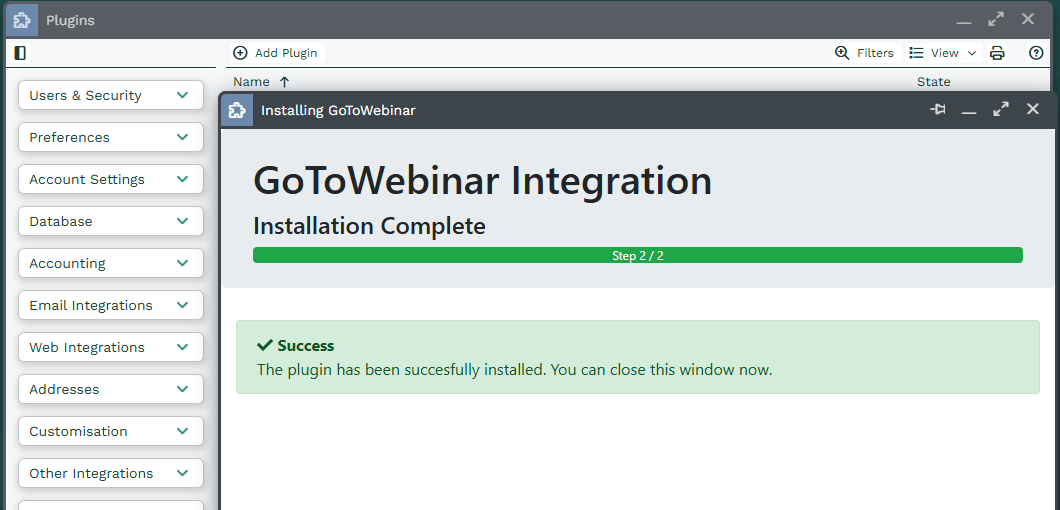
The Plugin automatically installs the configuration for use with the integration. The Custom Fields and Processes are listed here. You can close the Plugin window after seeing this message.