









Managing your GatorMail Account
Users with a Company Admin account within the Spotler Single Sign On (SSO) portal can manage their organisation’s Spotler access. This includes creating and managing users, controlling which environments they can access, and applying IP restrictions to improve security.
The SSO portal acts as a central hub for authentication and permissions across Spotler products such as GatorMail, GatorLeads, and GatorSurvey, while maintaining a secure connection to Workbooks.
Accessing the “My Company” Area
To access your company settings:
- Log in to the Spotler SSO Portal
- Hover over your username in the top-right corner
- Select My Company from the dropdown menu
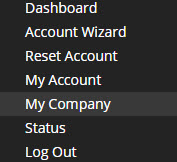
NOTE: This option is only available to Company Admins. If you are not set up as a Company Admin, a Support Contact can raise a Case to Workbooks Support via the Case Portal and we can amend the account type.
From here, you will be able to review and manage all of your organisation’s SSO and integration settings.
Company Details
This tab provides a high-level overview of your organisation’s Spotler account. In most cases, the details shown here will not need to be changed by users.
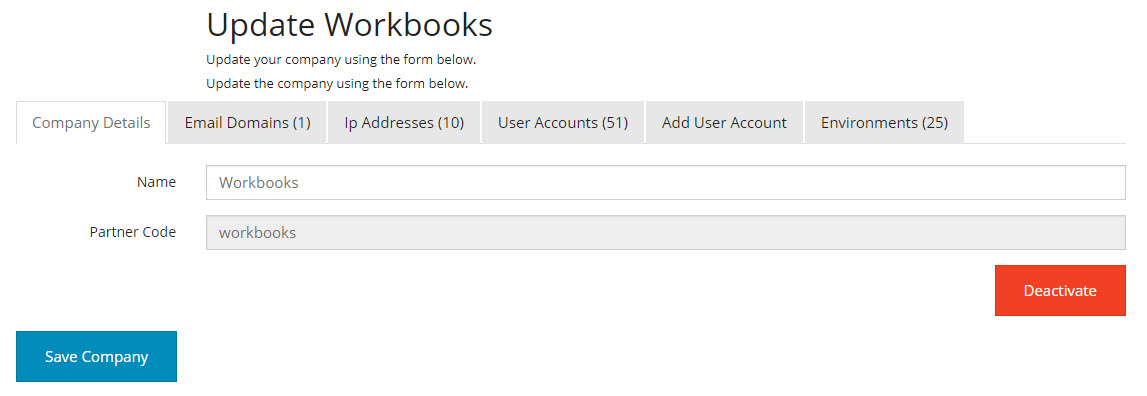
Name: Your company’s name as it appears in GatorMail.
Partner Code: This will be set to “workbooks” and is read-only. It tells Spotler that you are a Workbooks customer using the integration.
Email Domains
This section lists the email domains associated with your company within the SSO portal. These domains are used to determine which users belong to your organisation.
To add a new domain, enter it into the Add Domain box. Spotler will validate the domain before adding it to your account.
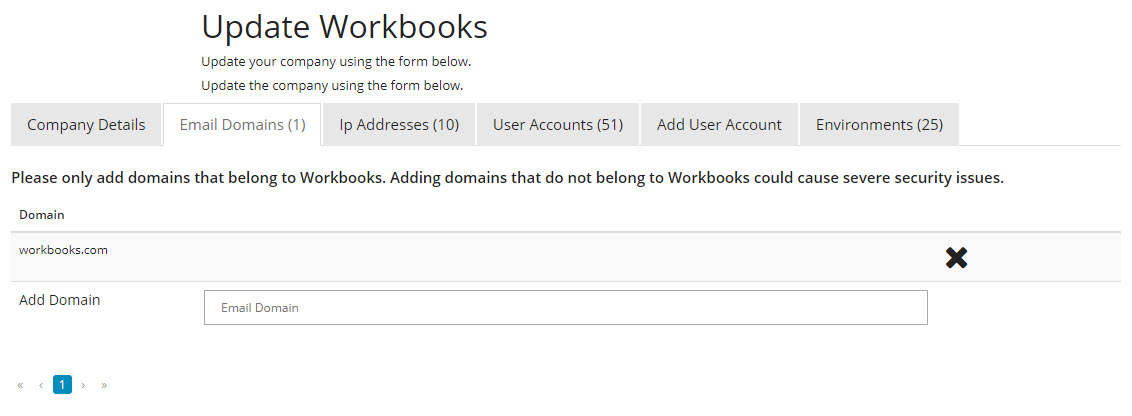
Tip: Only add domains that are genuinely used by your organisation to prevent unauthorised access.
IP Addresses
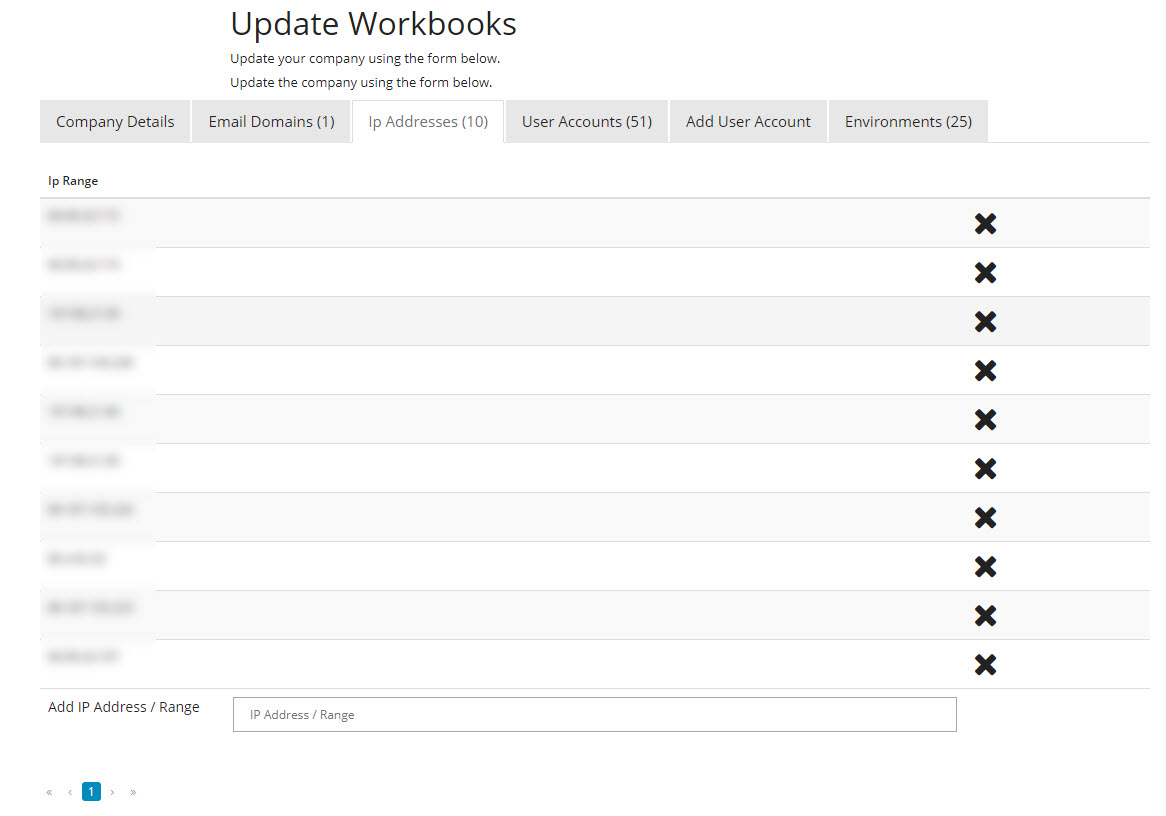
You can restrict access to Spotler by specifying the IP addresses or ranges that users are allowed to log in from. This helps improve security and reduces the need for IP confirmation emails.
Any IP address added here will automatically be trusted, meaning users logging in from that location will not receive the Confirm your IP email.
This can also be managed at an individual user level, so we recommend only adding your main office IP address(es) here.
User Accounts
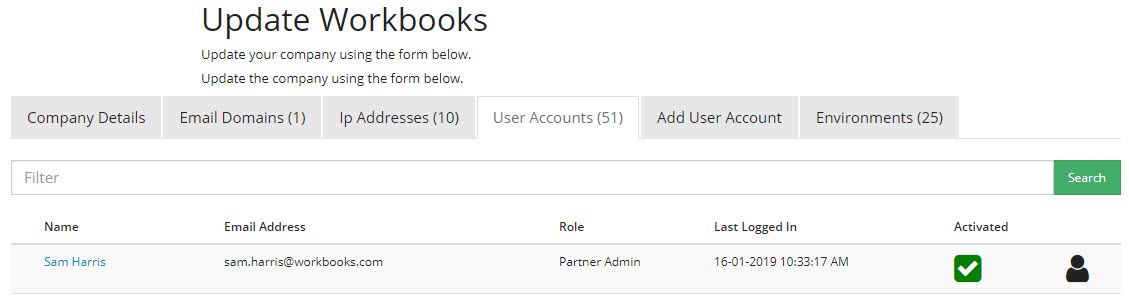
This section displays all users who have access to your Spotler account. From the landing page you can:
- See which users are active
- View the last login date and time
- Edit individual user permissions and access
- Deactivate users who no longer require access
Add User Account
Use this area to create new user accounts for Single Sign On. Once the form is submitted, you can select which environments and tools the user should have access to.
For example, you can grant access to:
- GatorMail
- GatorLeads
- GatorSurvey
- Any other integrated Spotler tools
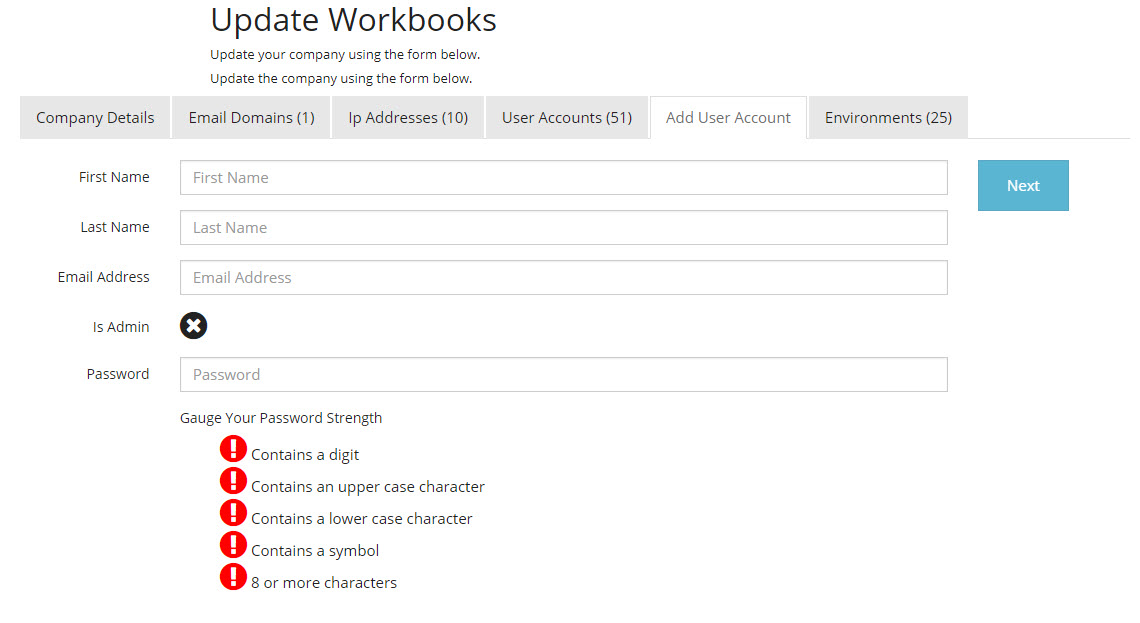
When setting up a new user, you can also choose whether they should be a Company Admin. Only admins can:
- Create and manage other users
- Set permissions
- Access the Company settings area
Leaving this unchecked will create a standard user with limited permissions.
Environments
This tab lists all environments and integrations available to your organisation. You should use this area to confirm that your Spotler tools are correctly connected to Workbooks.
If something expected is missing, please contact Support so they can review the integration setup.
