









Workbooks DQ
NOTE: Workbooks DQ is not available on mobile or tablet devices.
Introduction
Workbooks DQ is a powerful solution for merging People and Organization records in bulk. Developed in partnership with DQ Global, it is available as an optional extension for Workbooks.
The tool scans your entire database for duplicate records using advanced matching rules, including fuzzy matching and multi‑field comparisons. Once duplicates are identified, it compares data across matching records to create the most accurate and complete master record.
There are two versions of Workbooks DQ: Foundation and Master. The key difference is that the Master license includes:
- Auto-Mastering – Best record detection through definable rules.
- Auto-Filling – Auto-population of the master using data field values from duplicate records using definable rules.
- Auto-Merging – Safely auto-merge duplicate records
- Scheduling – Automatically run merge sessions on a schedule of your choosing, without the need for manual intervention.
Getting Started
Start by enabling the ‘Workbooks DQ’ module (Start > Configuration > Account Settings > Licences & Modules). Next, ensure the appropriate capabilities are enabled for each user, based on their role:
- Workbooks DQ Administrator – Provides full administrative access, allowing users to manage matching rules and mappings, set up match sessions, and perform all DQ administration tasks.
- Workbooks DQ Reviewer – Allows users to view existing match sessions, review match results, and approve and merge records.
- For detailed comparisons between these roles, please see the DQ Wiki.
- View Data Quality jobs and Manage Data Quality jobs – Grants access to the DQ Landing Page in Workbooks and allows users to complete record merges.
You can access Workbooks DQ by clicking Start > Bulk Actions > Data Quality.
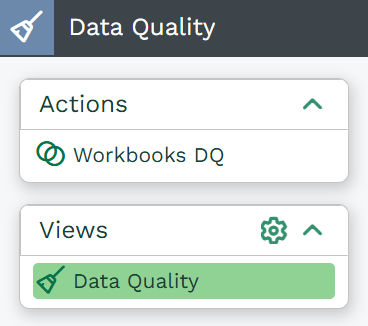
Select ‘Workbooks DQ’ to see the screen below:
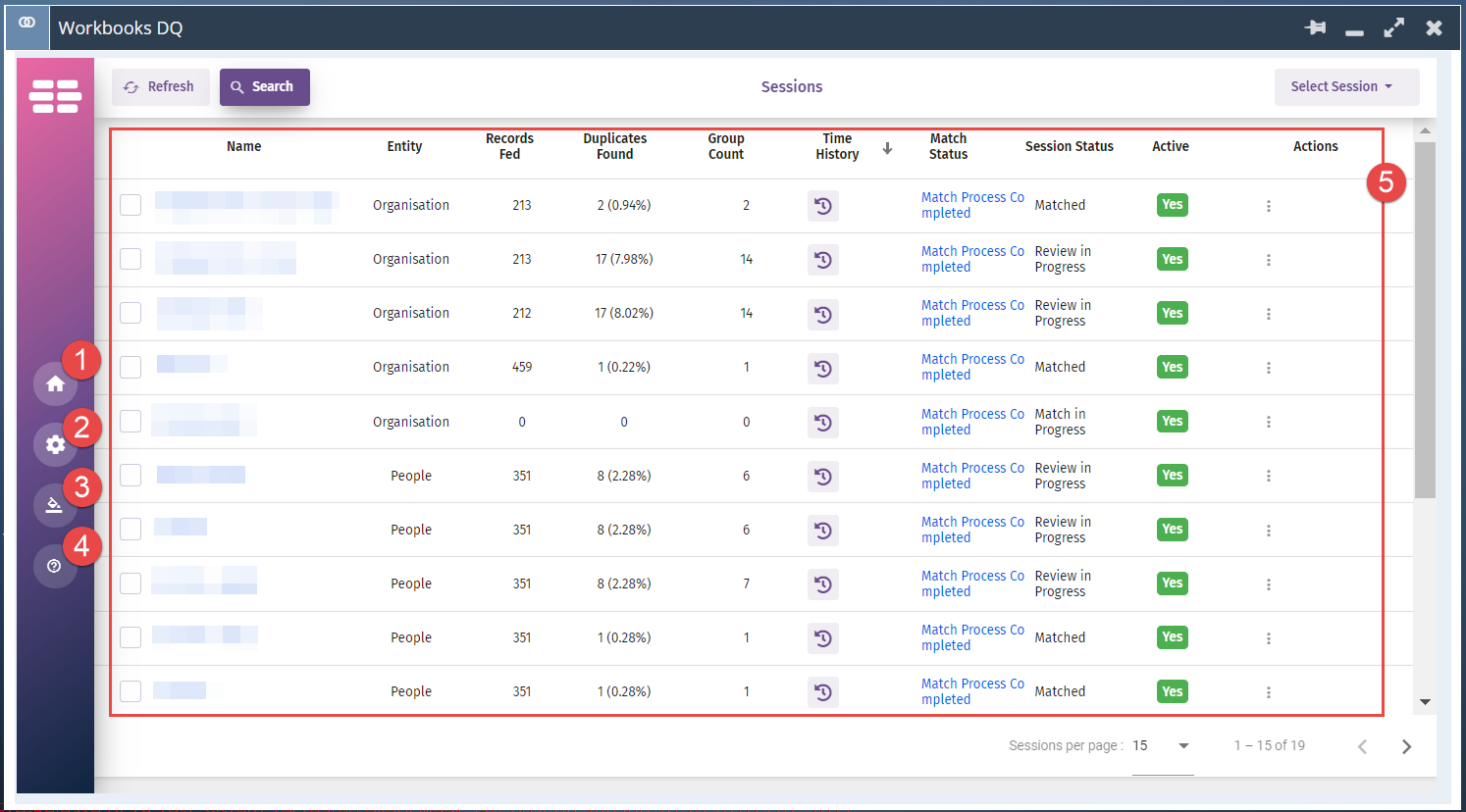
- Home – used to return to the Workbooks DQ home screen
- Settings – here you can access and amend your Match Groups, Master Record Rules, etc.
- Change Theme – choose from a number of pre-set styles for the side banner and highlight colour within the Workbooks DQ interface
- User Guide – the DQ Wiki can be accessed from here, providing detailed information on the functionality
- Home screen – when you first access Workbooks DQ, you will see a list of all of your previous DQ merge sessions and their statuses
How it works
NOTE: We highly recommend that you test this functionality on a copy of your database before using it on your live system.
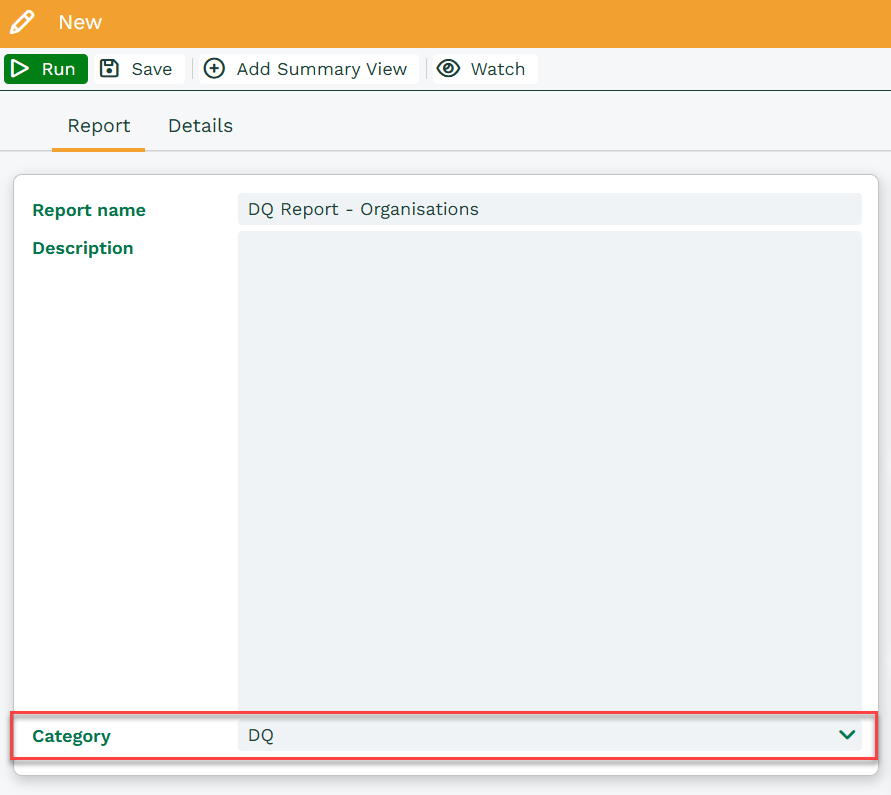
Workbooks DQ can be used to de‑duplicate and merge People and Organization records, but it does not support Sales Leads. You can run a merge session across all People or Organizations, or limit the session to a specific subset of data using reports. Any report used must have its Category set to DQ so it can be recognized by the tool. The report should include the Object Reference column for People or Organizations, as this is used to load records into the merge session.
You define your matching and merging rules within the Workbooks DQ interface. While these rules are configured in Workbooks DQ, the actual merge is carried out in Workbooks.
Best Practice
- To ensure your Workbooks DQ settings meet your requirements, we recommend testing against a subset of data first. You can do this by creating a report that limits the records included (for example, People whose name starts with “A”).
- If you have integrations with other systems that rely on unique IDs or reference numbers, be sure to include those fields in your matching rules. This helps prevent records used by integrations from being merged or removed unintentionally.
- If your system contains a large number of customer transactions, consider running a merge first on records linked to those transaction documents. This ensures those records remain as the master records, allowing you to safely merge other duplicates into them.
You can find more information on how to use Workbooks DQ and how to configure it on DQ Global’s help page here.
REMINDER: You will need to log into DQ when your contract renewal is due to ensure scheduled merges keep running.