









Sort Months Chronologically rather than Alphabetically
If you’ve used DATE_FORMAT() to display month names in a report, you may notice that the column sorts alphabetically rather than by date. This is because Workbooks treats the result as a text string rather than a set sequence.
For example:
| Month |
|---|
| April |
| August |
| December |
| February |
To sort months in chronological order, you have a couple of options. The first option is to add the numerical value to the start of the DATE_FORMAT () column e.g.
- 01 January 2026
- 02 February 2026
- 03 March 2026
You can do this by adding the following to your calculated column: DATE_FORMAT( _field label_, ‘%m %M %Y’)
Then sort by this column, it should appear in order by the months numerical value.
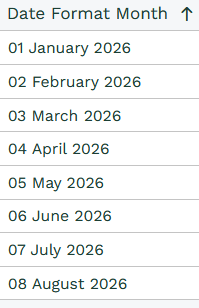
If you only want to display the month name, you can add a secondary DATE_FORMAT () column to use as your ‘sorting’ column and keep it hidden in the Report view.
To do this, follow these steps:
- Add calculated column > DATE_FORMAT( _field name_, %M %Y’). This will display the date value January 2026 etc
- Add calculated column > name it ‘Hidden Month’ > DATE_FORMAT( _field name_, ‘%Y %m %M’). This will display the value as 2026 01 January
- Sort your Report by ‘Hidden Month’
- Hide the ‘Hidden Month’ column by clicking on the dropdown arrow to the right of the column header > columns > untick ‘Hidden Month’
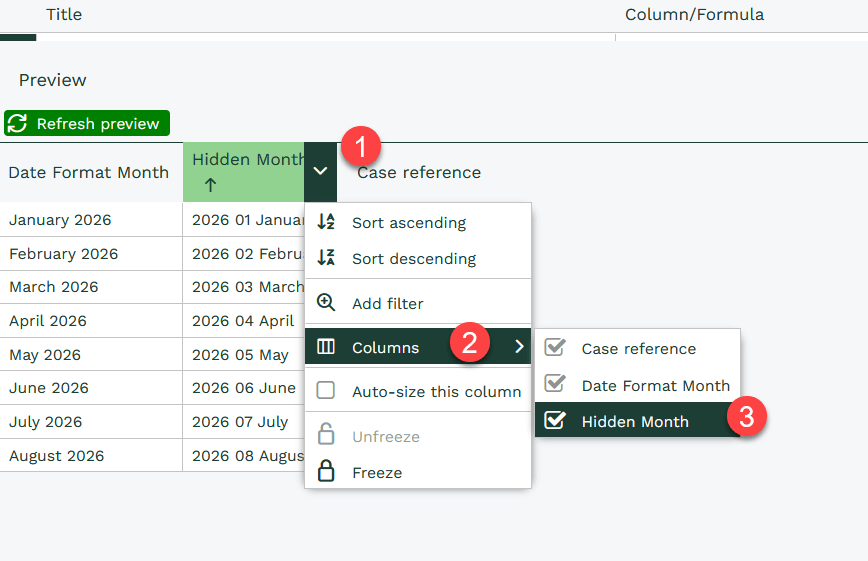
Once you’ve sorted by the correct column and hidden it from view, you should see the displayed Month column in correct order. This is particularly helpful when reporting over multiple years.
Date Formatting Tip
You can find other DATE_FORMAT options on the W3 Schools site here.