









Workbooks AI
An assistant that helps you get the most from your Workbooks system by understanding your business and processes, providing guidance, answers, and support tailored to your needs.
Workbooks AI Chat / Tab
Workbooks AI is available on most records as an additional tab. In a record tab, Workbooks AI is context-aware and focused on that single record. It has access to the record’s fields, related records, and its answers will reference this data directly.
Alongside this tab, Workbooks AI is available via the toolbar, alongside the Comments:
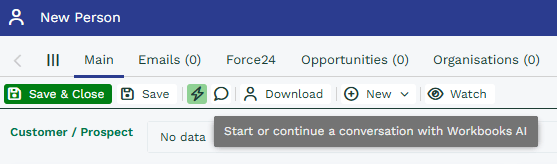
Which then opens the chat within the Main view:
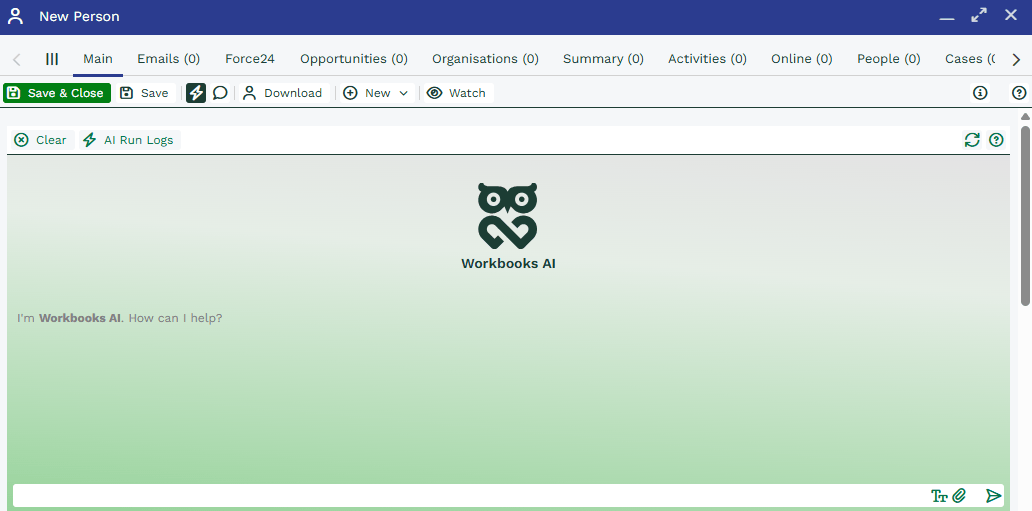
The general Workbooks AI chat via Desktop is a broader assistant that does not automatically have a single record context unless you open or reference one. It’s better for free-form questions, process guidance, running reports, or cross-record tasks that aren’t tied to one open record.
Because the record-tab assistant is tied to the record, it can perform record-specific actions (open the record, draft emails pre-filled with record data, show related contacts) and produce outputs that include the record’s object references and links. The chat assistant can still run searches and reports, but you’ll normally need to tell it which record or filter to use.
Workbooks Scribe
Workbooks Scribe is available on Activities and can be added to a meeting in several ways. You can:
- Add a Microsoft Teams meeting URL and choose when you’d like Workbooks Scribe to join
- Ask it to join immediately
- Add it directly from the Mail Sync Add-in. For more information on this method, please see ‘Managing Meetings with the Mail Sync Add-in‘
NOTE: The Mail Sync add-in option is available to customers with a Mail Sync license.
This will then provide Workbooks with an accurate transcription of the call, listing out each speaker’s name.
Access from External AI Systems
Workbooks supports the Model Context Protocol (MCP), an open standard that allows AI systems outside of Workbooks to securely interact with Workbooks data and tools.
MCP allows an external AI system to work with your live Workbooks data, rather than relying only on information that has been copied or provided to it. This means the AI can search and read Workbooks records, use existing reports, and perform actions such as creating or updating records, depending on the access available to the connected user.
Workbooks acts as a Model Context Protocol (MCP) server so that AI systems outside of Workbooks can be granted controlled access to data and tools. Your MCP URL is available within Start > Configuration > Workbooks AI > Overview.
NOTE: To use the Workbooks MCP, you must be licensed for Workbooks AI.
Examples of how MCP can be used include:
- Finding information across your CRM: Ask an external AI system to find relevant Cases, Projects, Contacts, or other records and summarize the information returned from Workbooks.
- Creating documentation from support history: An AI system can review a resolved Case and related Activities, check whether the information already exists in your Knowledge Base, and create or update an Article where appropriate.
- Creating Project Tasks from requirements: A requirements document or scope can be used to create the corresponding Project Tasks in Workbooks, reducing the manual setup required at the start of a project.
- Answering questions using live CRM data: The AI can look across multiple records to identify information or patterns that may not be documented in a single record, helping you answer questions using the information already held in Workbooks.
- Updating multiple records: An AI system can find records matching a particular condition and update specific fields across those records, where the connected user has permission to make those changes.
- Working with existing reports: The AI can access reports available to the connected user and use their results when answering questions or carrying out tasks.
Access and Permissions
Access through MCP is controlled by the Workbooks user account connected to the external AI system. The AI system can only access data and perform actions that the connected user would already have permission to access.
This means MCP does not provide additional Workbooks permissions by itself. For example, if the connected user cannot access a particular record or perform a particular action in Workbooks, the external AI system cannot do so through MCP either.
Actions performed through MCP are carried out on behalf of the connected Workbooks user. This makes MCP particularly useful for extending Workbooks AI capabilities into other AI systems while continuing to use your existing Workbooks data and permissions.
For more information about how to communicate with Workbooks, please see this page from GitHub.
Mentioning / Tagging Workbooks AI in Comments
This is possible upon clicking the lightning bolt at the start of the toolbar when typing within a Comment. This will cause “@Workbooks AI” to appear.