









Reporting on Web Insights data
It is possible to report on Web Insights data in the same way as any other data within Workbooks. Below are some useful reports to get you started with making the most of your Web Insights data.
Hot new Sales Leads on your website
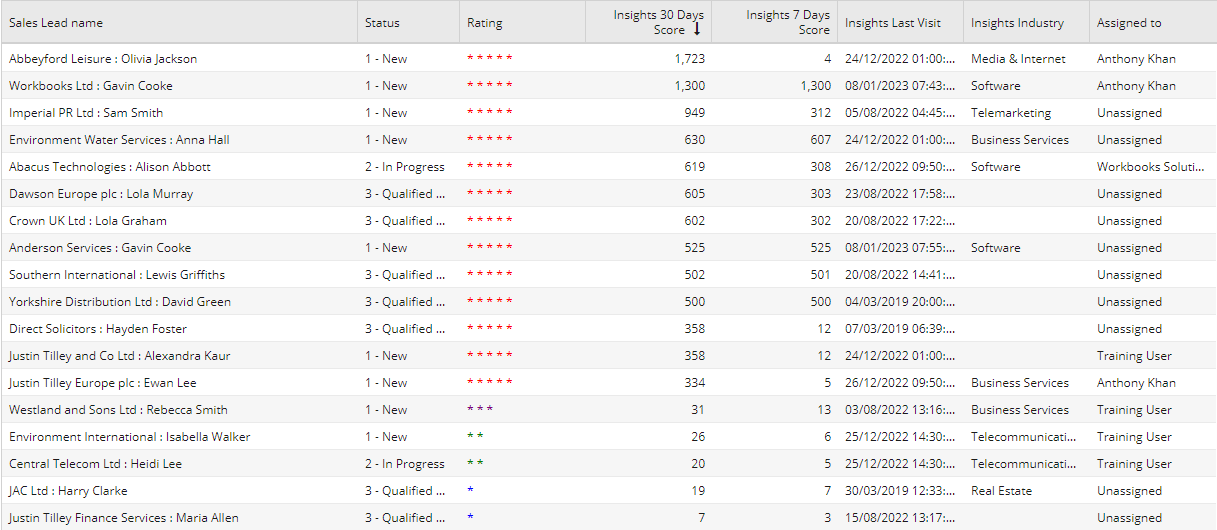
To build a report that displays leads that have visited your website in the last month you would need to use the report template ‘Template – Hot new Sales Leads on your Website’. You would also need to add the following columns:
- ‘Insight 30 Days Score’
- ‘Insight 7 Days Score’
- ‘Insight Industry’
- ‘Insight Last Visit’
- ‘Insight Total Score’
To apply a 5 star rating based on the Insights Total score, you would need to add a calculated column using a similar formula to the one below:
Adding criteria where the Status is not converted and the Insight 30 Days score is > 0 will show you the Leads you want.
People on your website with open Opportunities
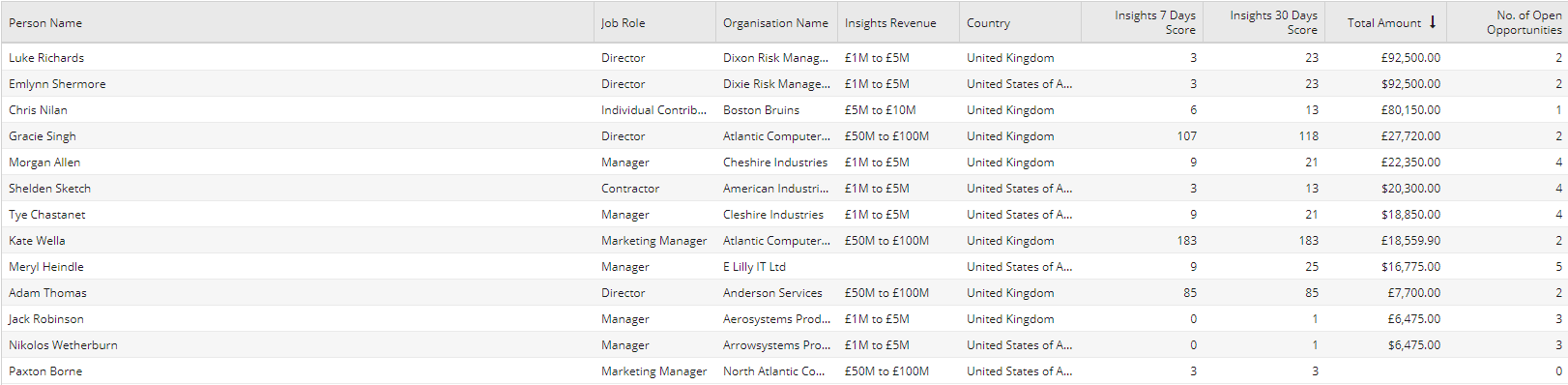
To build a report which shows Online Activity of People already in your sales pipeline and also show who currently have an Opportunity, and have been on your website recently, start by using the report template ‘Template – People on your website with open Opportunities’ and add the following columns:
- Insights 30 Days score
- Insights 7 Days score
- Insights Last Visit
- Insights Revenue
- Insights Total Score
Apply criteria to show where the Opportunity record state is Open and the ‘Insights Last Visit’ is not blank. In the Summary view, add value columns for Insights 30 Days score, Insights 7 Days score, Insights Last Visit and Insights Revenue. You will also need criteria where the Insights 30 Days Score > 0 and No of Opps > 0.
People on your website with closed Opportunities
For a report which shows Online Activity of People already in your sales pipeline and do not currently have an Opportunity, but have been on your website recently create a new report using the template ‘Template – People on your website with closed Opportunities’.
Add the following columns:
- Insights 30 Days score
- Insights 7 Days score
- Insights Last Visit
- Insights Revenue
- Insights Total Score
- Opportunities > State
You can also add a calculated column to show if they have been on your website since an opportunity closed using the formula:
IF(cf_person_insights_last_visit > opportunities.close_date,1,0)
Remove the existing criteria and add one for where the ‘Insights Last Visit’ is not blank.
Create a Summary View with a Grouping column for Person Reference. Add value columns for Insights 30 Days score, Insights 7 Days score, Insights Last Visit, Insights Revenue Person Name and Organisation Name.
Add a calculated column to concatenate the state of Opportunities using a formula similar to:
GROUP_CONCAT( DISTINCT PARENT(‘State’))
You will now need to place a calculated criteria using this column where the value is closed.
Add a summarised column showing the total of the calculated column from your details view and display this as a checkbox. Also add a summarised column showing the Maximum value of the Opportunity reference.
You now have a report that shows People who do not have an Open Opportunity and see if they have visited your website since it was closed.
