









Creating & Modifying User Groups
Creating a new User Group
To create a new User Group (or modify the Capabilities granted to an existing group):
- Follow the path Start > Configuration > Users & Security > User Groups
- Click New Group.
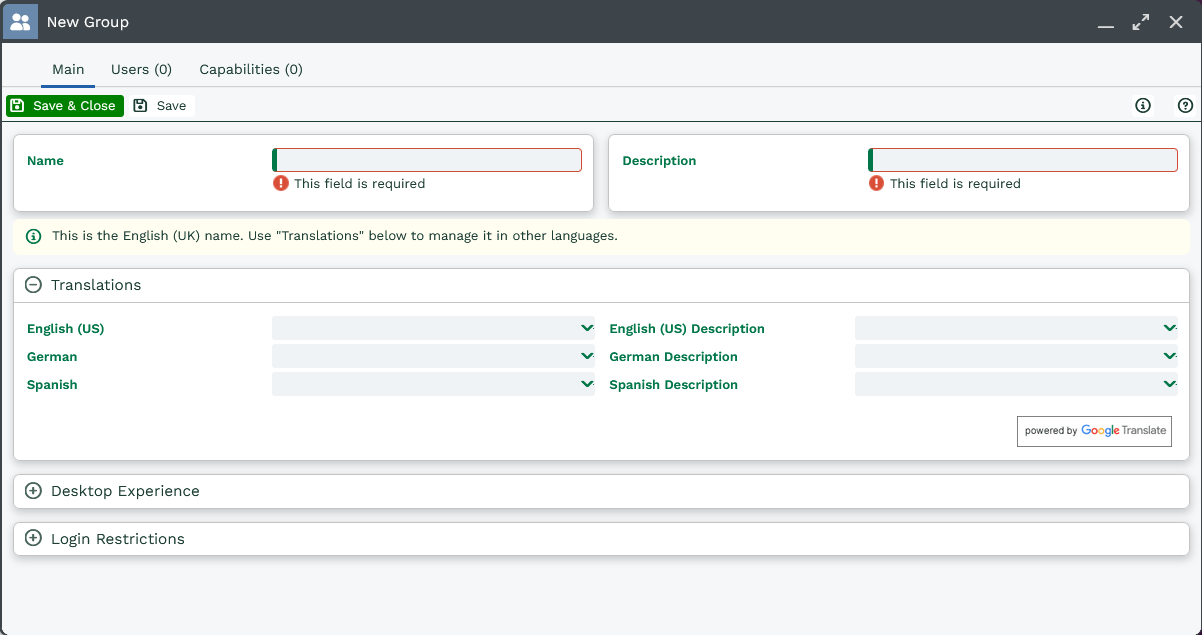
- Within the Main tab enter a Name and Description for the group.
- Open the Capabilities tab and click Add Capability – this opens a list of all the Capabilities available in Workbooks.
- Select the Capabilities you want to grant to this group by ticking the checkbox on the appropriate row(s).
- When you’ve added all the ones you want, click Save & Close.
NOTE: an individual User’s Capabilities are the cumulative total from each User Group they belong to.
Modifying an existing User Group
- Follow the path Start > Configuration> Users & Security > User Groups
- Click on the name in the table and make your required changes.
Adding users to a group
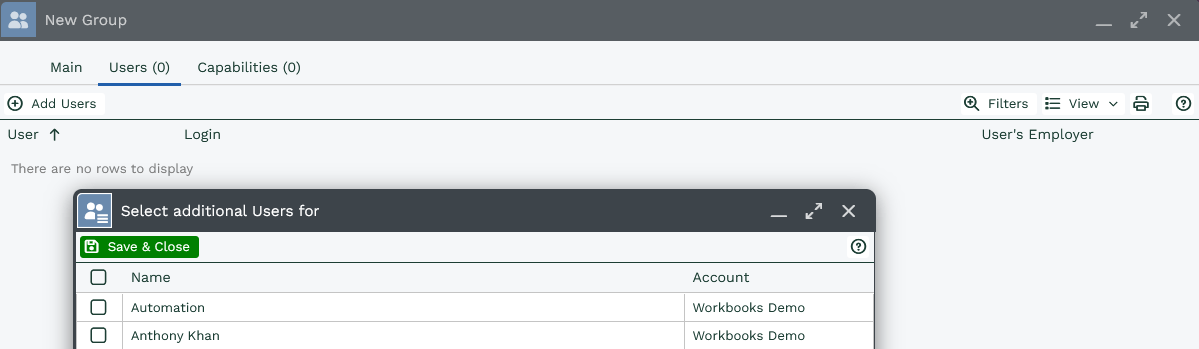
To add a User to a group, open the Users tab click Add Users and tick the checkbox next to the appropriate User.
Restricting login to specific IP Addresses
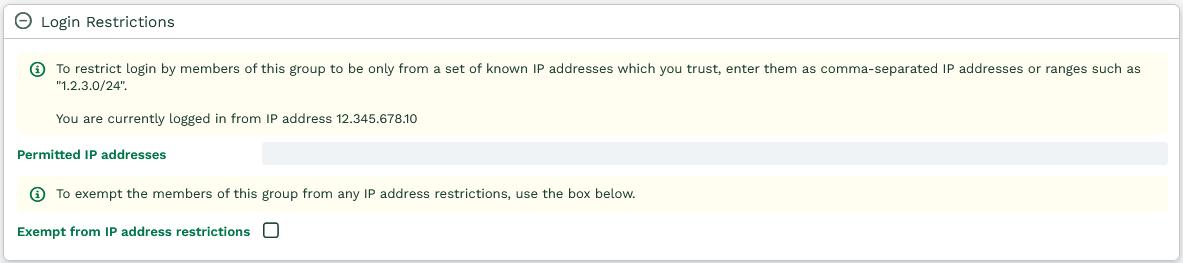
If you want to limit the location from which members of this group can login to Workbooks you should open the Login Restrictions reveal. In the Permitted IP addresses field, you should enter the IP address or addresses from which the group members are allowed to log in.
Once you’ve restricted Users to specified IP addresses, you might find that you want some Users to be exempt from this restriction. In this instance, you should create a new group, add the exempt Users only and check the box next to Exempt from IP address restrictions. This setting will override the limitation on IP address access that may be applied to any of the other groups that the User belongs to.
Desktop Experience
You are also able to disable the Start menu within Workbooks for specific User Groups.
This prevents the whole menu from being opened. Instead, Users will need to work purely from their Springboard.

This is helpful for configurations which require specific groups of Users to have only very limited access.