









Managing Emails with the Mail Sync Add-in
When viewing an email within your Outlook client, the Mail Sync Add-in will automatically look up all of the contacts from the To and CC fields. It then uses the email address to retrieve any Person or Sales Lead Record within Workbooks that share that email address as well as all of the additional information stored on that record. If a Lead or Person Record is not found using the email address you will be able to create a new record in Workbooks directly within the Add-in.
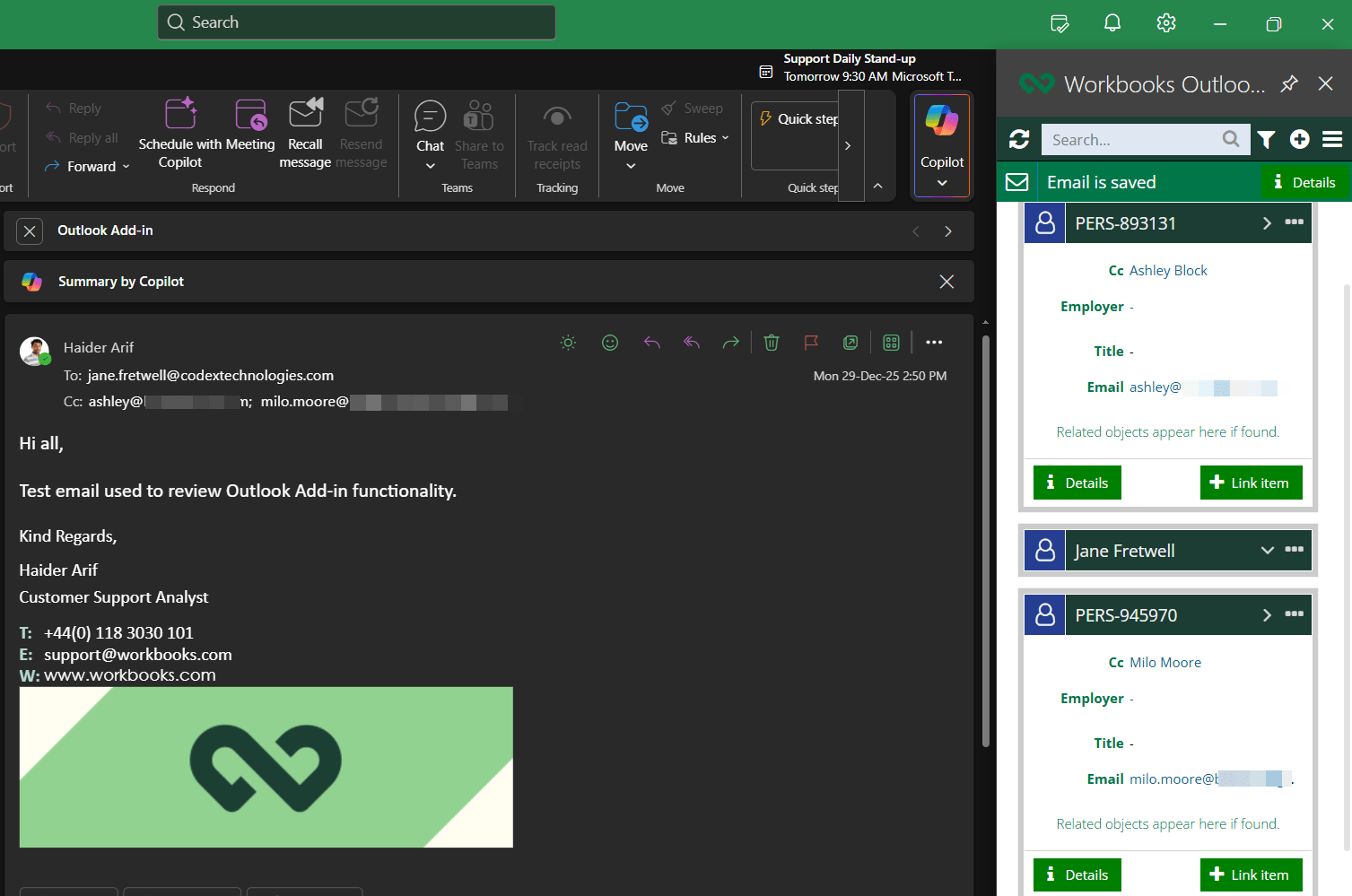
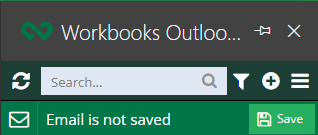
If this is a new email and has not already been synced to Workbooks you will see that the banner across the top of the Add-in will say that the “Email is not saved”.
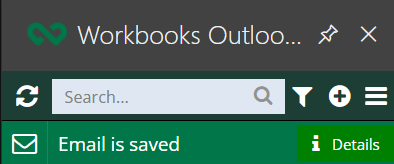
Using the Save button will change the banner’s wording to “Email is saved” and the Save icon is replaced with a Details button. Saving the email will also mean that it appears immediately within Workbooks and it will be attached to all of the recipients’ records.
Viewing saved Emails in Workbooks
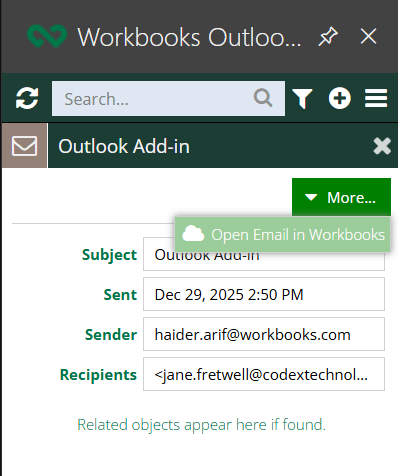
To quickly access this Email within Workbooks press the Details button, this will change the view from the Contact Cards to show the basic information of the email such as the subject, the date it was sent and the sender and recipient information.
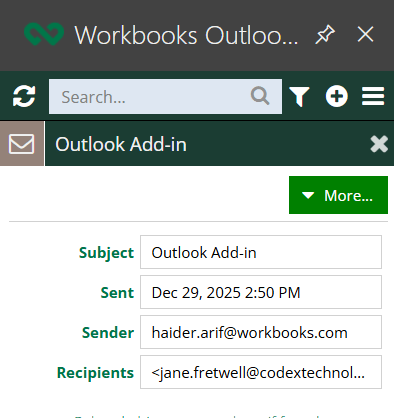
To access the Email within Workbooks open the More Picklist and select Open in Workbooks.
If you are logged into Workbooks the Email will be opened automatically for you within your instance of Workbooks.
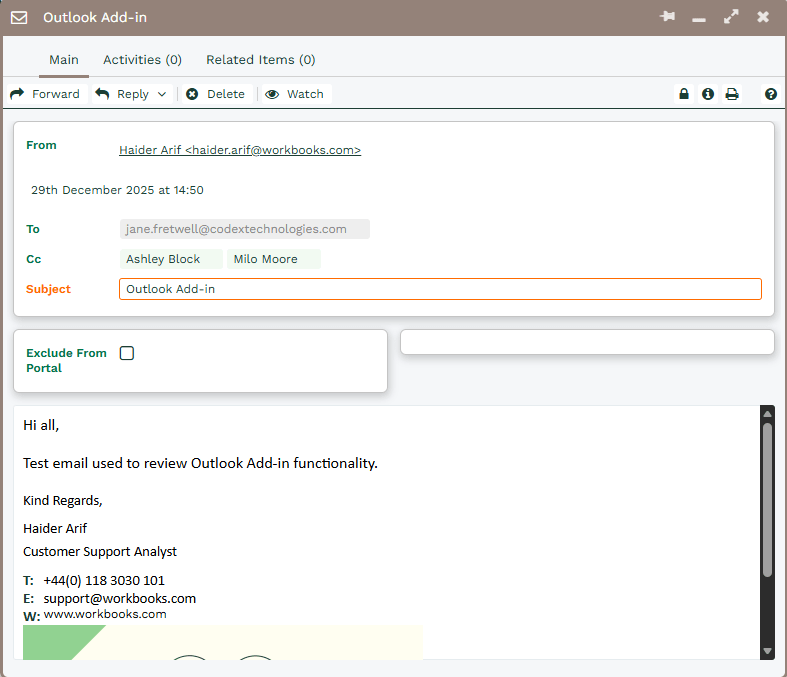
If a Person already exists within Workbooks you will also be able to find this Email on the Emails tab available for review.