









How to Create a Report that shows Records Assigned to the User viewing It
In Workbooks, you can create a single report that automatically shows only the records assigned to the person viewing the Report. This avoids the need to create separate reports for each user and works well for Dashboards and shared reporting.
When to use this approach
This is useful when you want each user to see their own records, for example:
- My Open Support Cases
- My Opportunities
- My Overdue Tasks
- My Accounts Needing Attention
The same Report can be shared with multiple users but each person would see different data.
Step-by-step instructions
1. Create or edit your Report
Create a new Report or open an existing one.
Choose the appropriate record type (for example: Cases, Opportunities, Activities).
Add the columns you want to see, such as Reference, Status, Assigned To, Amount, or Due Date.
2. Add a criteria based on “Assigned to”
On the Details tab of the report add the following criteria
Column: Assigned to name
Operator: is current user’s name
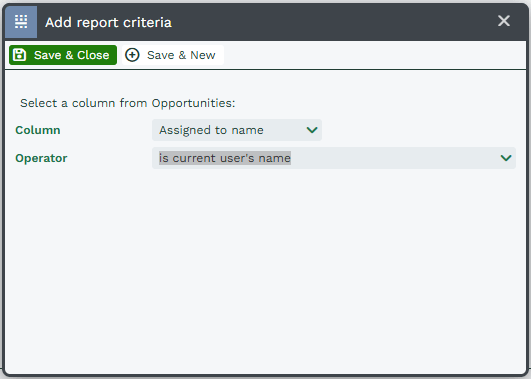
This is the key step. The Operator “is current user’s name” is dynamic, meaning Workbooks automatically substitutes the name of the person viewing the Report.
Example:
If Sarah views the Report, it shows records assigned to Sarah.
If Tom views the same Report, it shows records assigned to Tom.
3. Ensure the Report runs as the Current user
On the Main tab of the Report, check the Run as setting:
Set Run as to Current user (this is the default)
This ensures the Report evaluates the criteria using the person who is viewing it, not the person who created it.
Note
If you change Run as to Report owner, everyone will see the report owner’s assigned records instead.
4. Share the Report
You can now safely share the report with:
Individual users, or a User Group (recommended)
Each user will:
Only see records assigned to them
Only see records they already have permission to view
Using this Report on Dashboards
This type of report works well on Dashboards:
Each user sees their own data when viewing the Dashboard as the Criteria set in the Report still applies.
Note
Dashboard permissions control who can see the Report, but the data shown still respects the current user logic, as long as the Report runs as the current user.