









Inbound & Outbound Calling from Workbooks
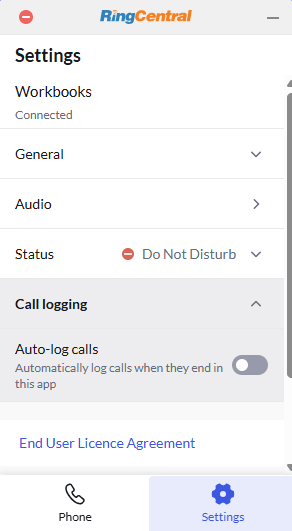
The RingCentral Integration allows Users to make and receive calls without having to leave Workbooks via a RingCentral widget. This not only streamlines the process of talking to customers, leads and other connections on your database, but also means that their data in Workbooks is readily accessible during the call without losing any functionality from the RingCentral application. Within this, you can choose whether calls are automatically logged as Activities with all relevant information once the call ends, using the toggle directly in the widget interface.
Inbound Calls
When receiving an inbound call, a widget will pop up in Workbooks. If the phone number is attached to an existing Person Record in your Workbooks database, their name, company, and profile picture (if they have one) will appear in the widget.
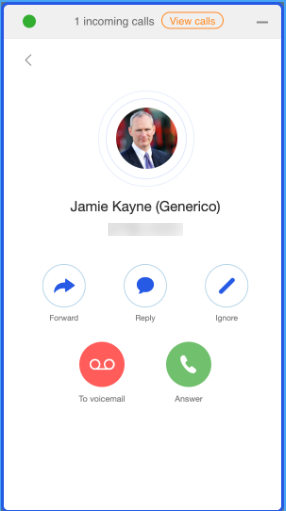
If the Person Record is not set to open automatically, clicking on the name or profile picture will open the Person Record in Workbooks.
TIP: You can configure the Person record to open automatically so that you can immediately view relevant details without extra clicks (this can be configured in Start > Preferences > Telephony > Automatic open).
This gives quick and easy access to the information you have stored on the Person, as well as their related records like Opportunities, Emails and Transaction Documents. Having this information readily available during a call means less time spent searching for details and a more informed, professional interaction.
Once you complete a phone call, you can choose to log it as an Activity in Workbooks, this can also be configured within the widget to appear automatically when you accept a call, allowing you to take notes whilst on the call.
If AI transcription is enabled, the transcript will also appear here, making it easier to review call content or share notes with colleagues.
TIP: Please do note that this functionality is currently not available but will be following the upcoming release
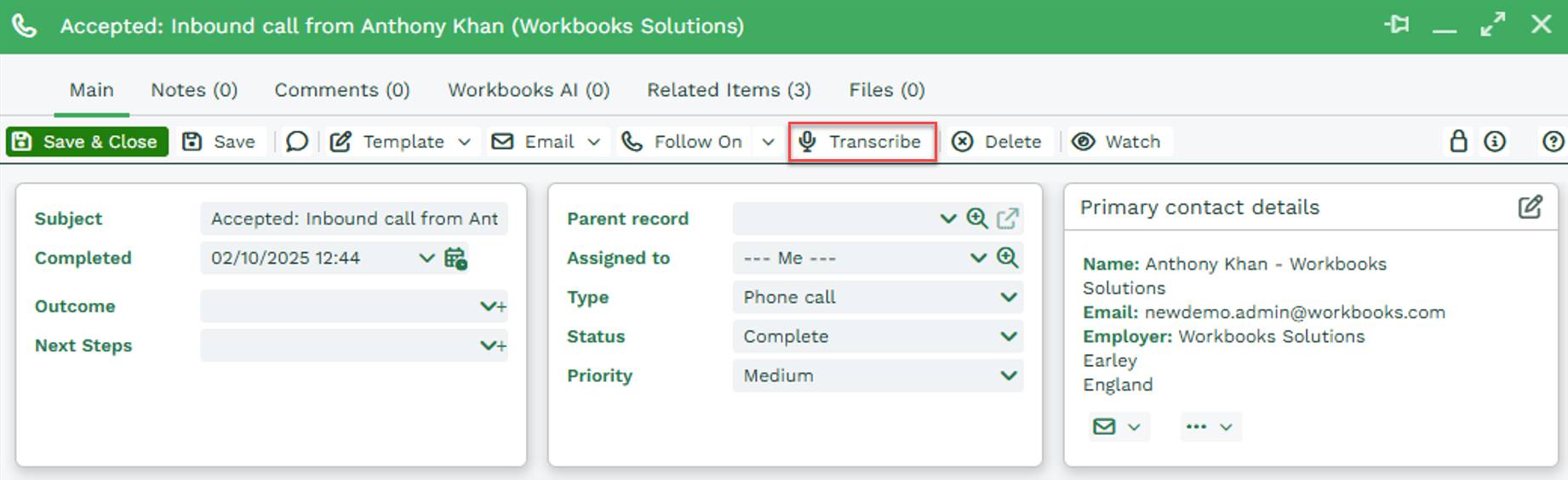
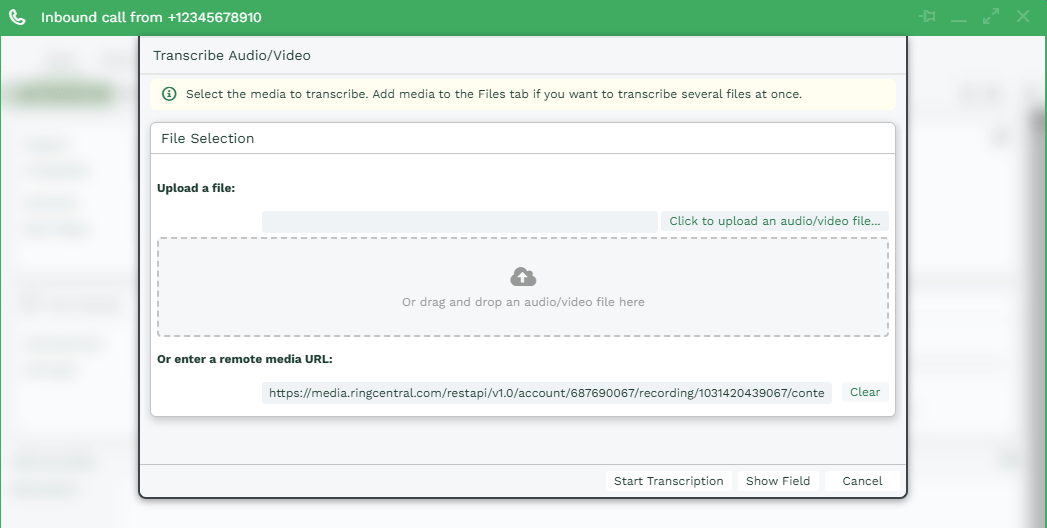
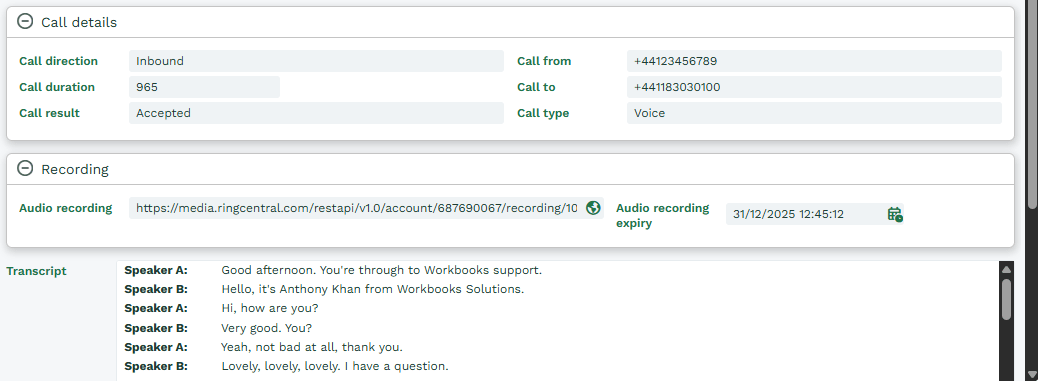
TIP: You can configure Activities to start transcription automatically once the call has finished via Start > Preferences > Telephony > Automatic Transcription. You are then notified that this has been completed.
Note: If your recordings are stored in RingCentral and linked to Workbooks via the Audio Recording field, Users who require to listen to other Users recordings will need the ‘Company Call Log – Access Recordings‘ permission to be granted to them in RingCentral.
If an Activity has been created, it will automatically be assigned to whoever received or made the call. This Phone Call Activity will be linked to the Primary Contact’s Person and Organisation records on the based on automatic contact matching via phone number, populates the call length, and provides a link to the recording.
In addition to this, it will also populate the following fields for Inbound and Outbound Calls:
| Workbooks Field | Data Type | Workbooks Field Value |
| Subject | Text | Inbound calls will be concatenated with ‘Inbound RingCentral call from + Number’. For outbound calls, it will be the same but instead concatenated with ‘Outbound’. |
| Due Date | Date | Date of when the call is received. |
| Completed Date | Date | Date of when the call is received. |
| Type | Picklist | Set to type Phone Call. |
| Call result | Picklist | Set to ‘Connected’ during calls and ‘Answered’ when complete. |
| Priority | Picklist | Set to Medium. |
| Call Duration | Number | Total number of seconds the call lasted. |
| Call Direction | Text | Inbound or Outbound. |
| Call From | Text | The phone number the call originated from. |
| Call To | Text | The phone number the call was placed to. |
NOTE: No Phone Call Activities will automatically created for any missed calls even with the auto-log calls setting enabled.
Outbound Calls
You can make phone calls directly from Person records by clicking on the Person’s phone number. This will bring up the RingCentral widget within Workbooks and connect you directly to the call.

The Dialpad tab in the RingCentral widget also allows you to search not only for People, but also Organisations by name, and provides access to recent call history.