









Exporting and Importing Form Layouts
You can export a Form Layout to a .JSON file and import it into another Workbooks database. For example, you can build and test a layout in a test copy of your database, then import it into your live database once you are happy with the changes made.
This works for custom record types as well as standard ones.
What the export includes
The export file holds the whole layout:
- Its tabs, sections and fields, including each field’s settings such as mandatory, read-only and default values
- Its Process Buttons, and the Script each one runs
- Its Layout Rules, which decide which records the layout is used for
The file refers to custom fields, Picklists and Scripts by name. Before you import a layout into another database, make sure the custom fields, Picklists and Scripts it uses exist there with the same names.
Any tab views you’ve customised for this layout aren’t included. After the import, those tabs show their default view.
Export a Form Layout
- Go to Start > Configuration > Customisation > Record Types and open the record type.
- Select the Form Layouts tab, then open the layout you want to export.
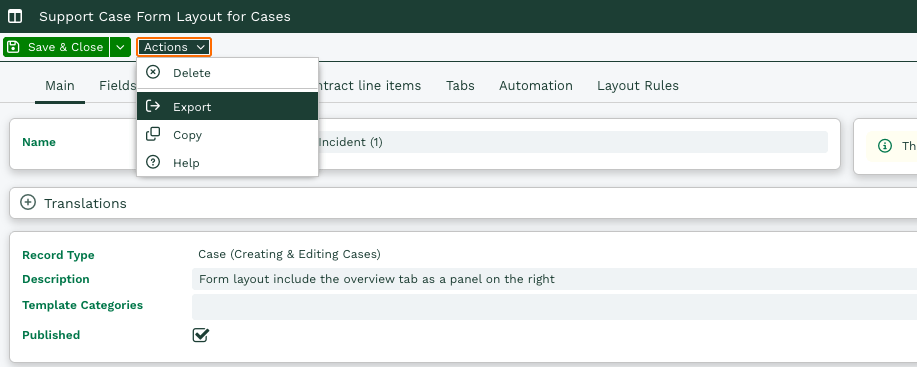
- Click Actions, then Export.
The layout downloads as a JSON file.
Import a Form Layout
- In the database you want to copy the layout into, go to Start > Configuration > Customisation > Record Types and open the same record type.
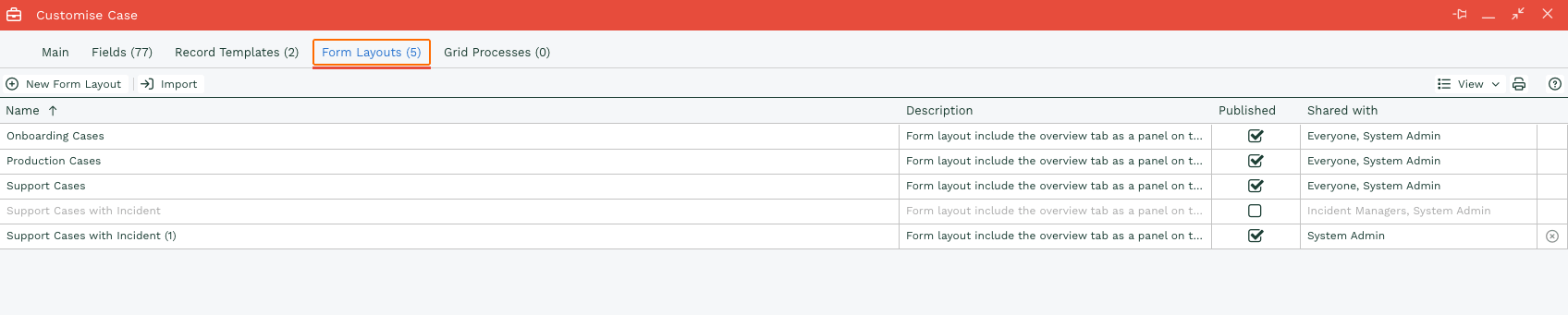
- Select the Form Layouts tab and click Import, next to New Form Layout.
3. Click Browse, choose the file you exported, then click Import.
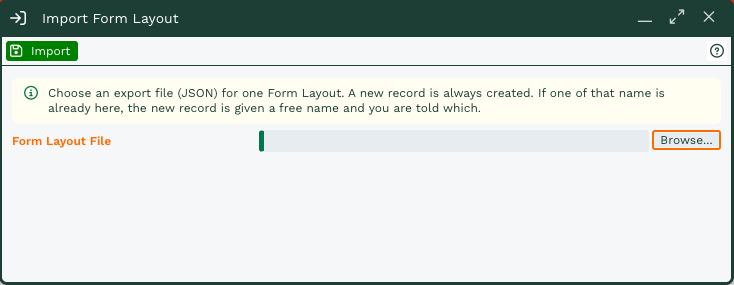
An import always creates a new Form Layout and never overwrites an existing one. If a layout with the same name already exists, the new layout is given a different name, for example “Support Cases (2)”, and a message tells you the name it was given.
Before your users start seeing the new layout, open it and check its Layout Rules, whether it’s Published, and who it’s shared with.
If something can’t be imported
- If a Process Button runs a Script that the database doesn’t have, the layout is still imported, but without that button.
- If the file isn’t a Form Layout export (for example, it’s a Report export), it’s refused and nothing is created. The message tells you what the file contains.
- If the layout has mandatory fields inside a hidden section, the import is refused. This is the same check the Form Layout editor makes when you save.
Form Layouts and Workbooks AI
Workbooks AI can also read and change Form Layouts. For example, you can ask the Configure Workbooks builder to create a new layout for a record type. A layout that Workbooks AI creates starts with the record type’s default fields and sections and isn’t published, so you can review it before anyone uses it. For more information, see Workbooks AI Agents.