









Setting Exchange Rates
Workbooks supports working with multiple currencies by applying exchange rates to Transaction Documents and Opportunities. Exchange rates are maintained manually and are applied based on defined date ranges.
It is important to understand how exchange rates are set up and how changes may affect existing records.
Note
Exchange Rates must be amended manually so remember to update them as frequently as your business requires.
Where to manage exchange rates?
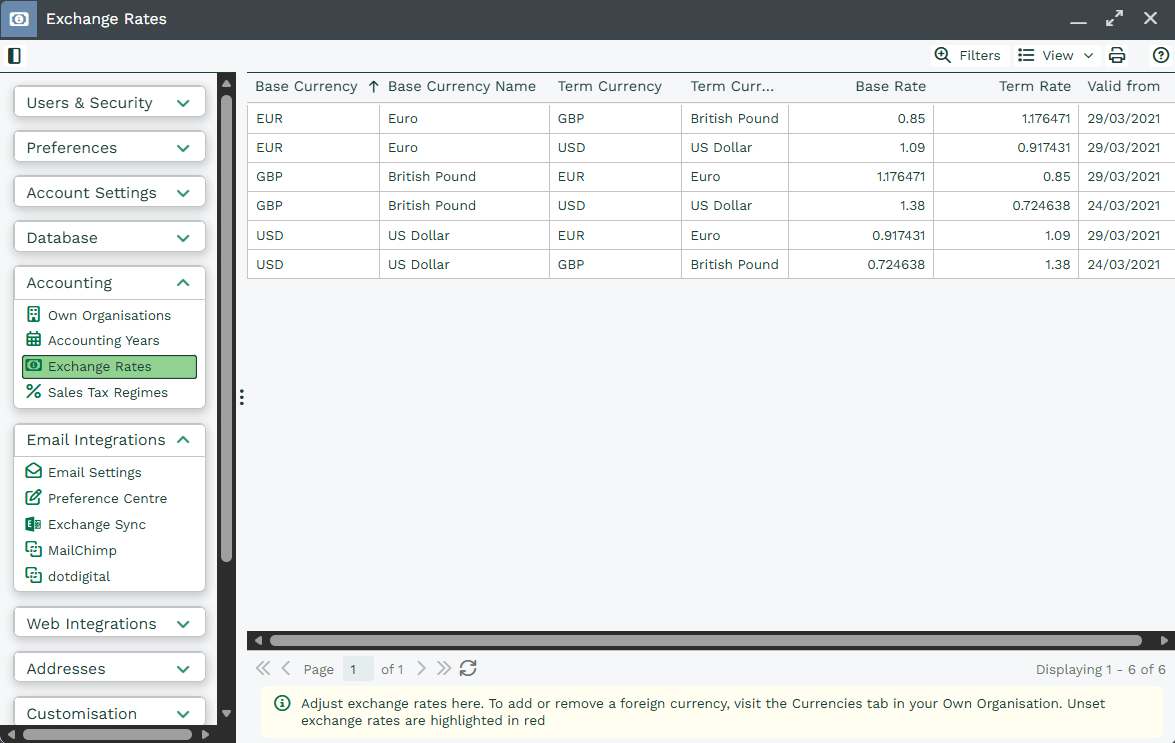
To see the Exchange Rates currently in place click Start > Configuration> Accounting > Exchange Rates. The grid on the right shows:
- All the ‘foreign’ currencies that have been added to the Currencies tab on your Own Organisation record(s).
- The current rate of exchange between each pair of currencies (and the reverse rate).
- The date from which the rate shown applies.
Only currencies that have been enabled on an Own Organization record will appear here.
How exchange rates work
Exchange rates are defined using date ranges:
- Each rate has a Valid From date
- The Valid Until date is automatically managed by Workbooks
- The rate with the most recent Valid From date (and no Valid Until date) is treated as the current rate
Example
If you add a new exchange rate with a Valid From date later than an existing rate:
- The existing rate will automatically have its Valid Until date set
- The new rate becomes active from its Valid From date onwards
This allows you to maintain a clear historical record of rate changes.
Adding or amending exchange rates
To update an exchange rate:
- Click the relevant currency row in the Exchange Rates grid
- Select Add Exchange Rate Period
- Enter:
- The new exchange rate
- A Valid From date
- Save your changes
You do not need to manually populate the Valid Until date. As this is automatically populated by the system when a new Exchange Rate Period is added.
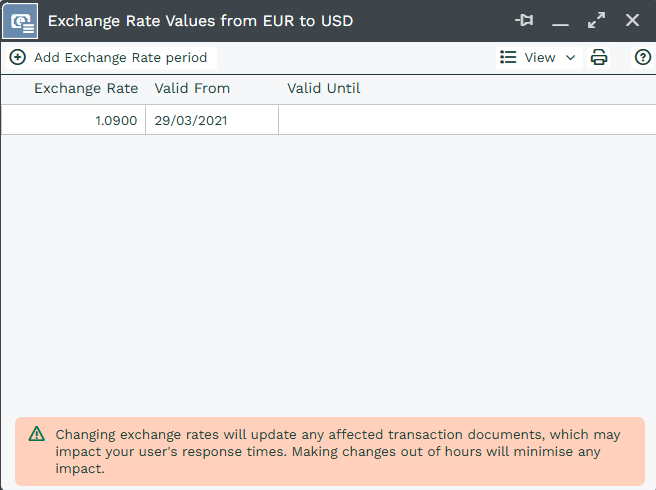
In this example, Exchange Rates have been set from March 29th onwards. The top row shows a rate with a ‘Valid From’ date of March 29th but there is no date in the ‘Valid Until’ field, i.e. this is the current rate. The Valid Until field will only be populated with a date if you add a new Exchange Rate period that has a Valid From date which is later than the current Valid From date. For example, if you add an Exchange Rate with a Valid From date of 1 December, Workbooks will auto fill the Valid Until the date on the top row with 30 November.
To add a new rate, click ‘Add Exchange Rate‘ period and enter your rate and a Valid From date.
What happens when you change the Exchange Rate figure or date range?
It is important to understand what happens when you make amendments to either the Exchange Rate or the date range for which the rate applies.
Transaction Documents use the Exchange Rate in place that corresponds with the document date. If the Exchange Rate for a time period is changed, any Draft documents with a document date in that period will also change. Similarly, if you change the date range for the Exchange Rate, any Draft documents with a document date that falls into the new time period will adopt the Exchange Rate for that new period.
These recalculations are carried out in the background and could impact the performance of your database if you have a very large number of Transaction Documents affected by the change. For this reason, we advise making any changes out of your usual business hours to minimize impact.
Note
Opportunity records do not have the concept of Draft and Posted states. They will use the Exchange Rate related to the Close Date at the time that the Close Date is selected. If the Close Date is changed to a date in which a different Exchange Rate applies, the Exchange Rate for the new period will be applied. However, if the Close Date is not changed but the Exchange Rate for the relevant period is changed, the Exchange Rate will remain as per the one in place when the original Close Date was set.