









Email Dropbox
The Workbooks Email Dropbox is a built-in feature that allows you to store emails in a simple and reliable way which have been sent or received outside of Workbooks directly against the appropriate Record. Every User will be allocated a unique Dropbox email address when setting this up in User Preferences.
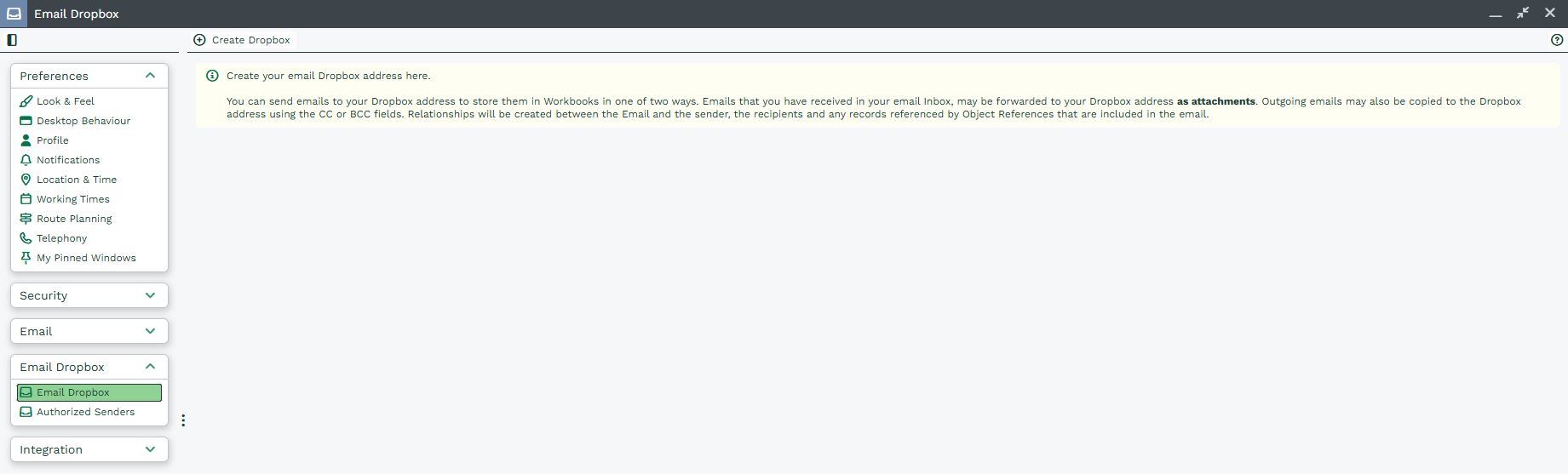
Put simply, the Dropbox is a special email address, and will be different for each Workbooks user. When emails (up to 16MB each) are received by that address, they are sent into your Workbooks database. Workbooks then searches to find the right record(s) to store the email against.
You can store the same email against many different records within Workbooks (up to a maximum of 500 per email). For example, you might want to store one email against not only a Person but also against a Case that the Person has raised. This can be achieved easily by including Object References in the emails you forward to your Dropbox.
The Workbooks Email Dropbox feature allows users to specify which email addresses are permitted to send Emails into Workbooks using the Email Dropbox address.
Note
As an alternative to using the Dropbox, you might want to use the Workbooks Exchange Server Sync (Mail Sync) functionality to get your emails into Workbooks.