





Databases
The Database menu in Configuration lets you manage settings that apply to the database you’re signed into. If you have more than one database, you need to change these settings in each one separately.
To open it, go to Start > Configuration > Database.
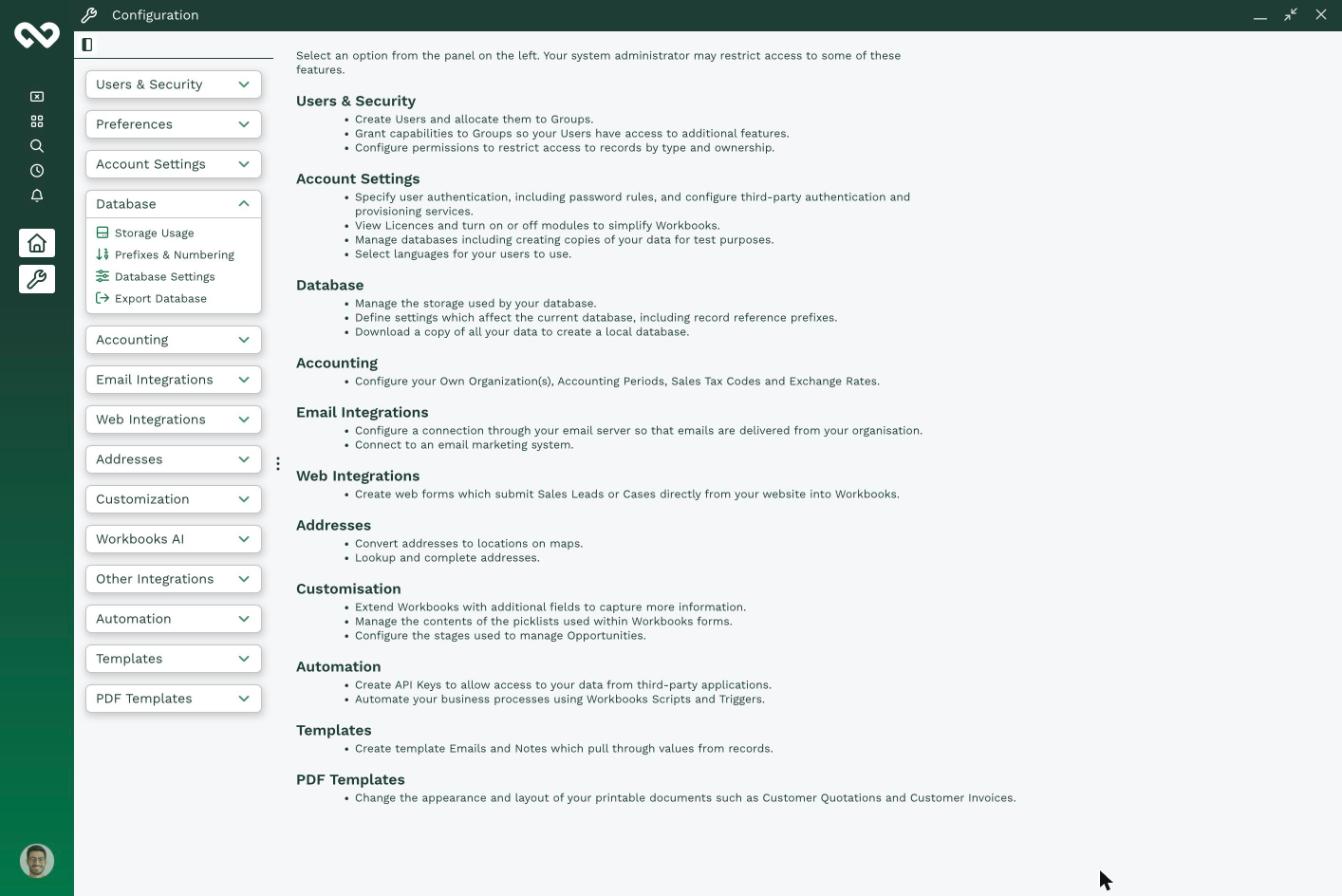
| Storage Usage | See how much storage you're using and which areas use the most. |
| Prefixes & Numbering | Manage the reference prefixes and numbers given to records. |
| Database Settings | Change how some features behave across the whole database. |
| Export Database | Download an offline SQL copy of your data. |
To create, rename or archive databases, or to change a login domain, see
Storage Usage
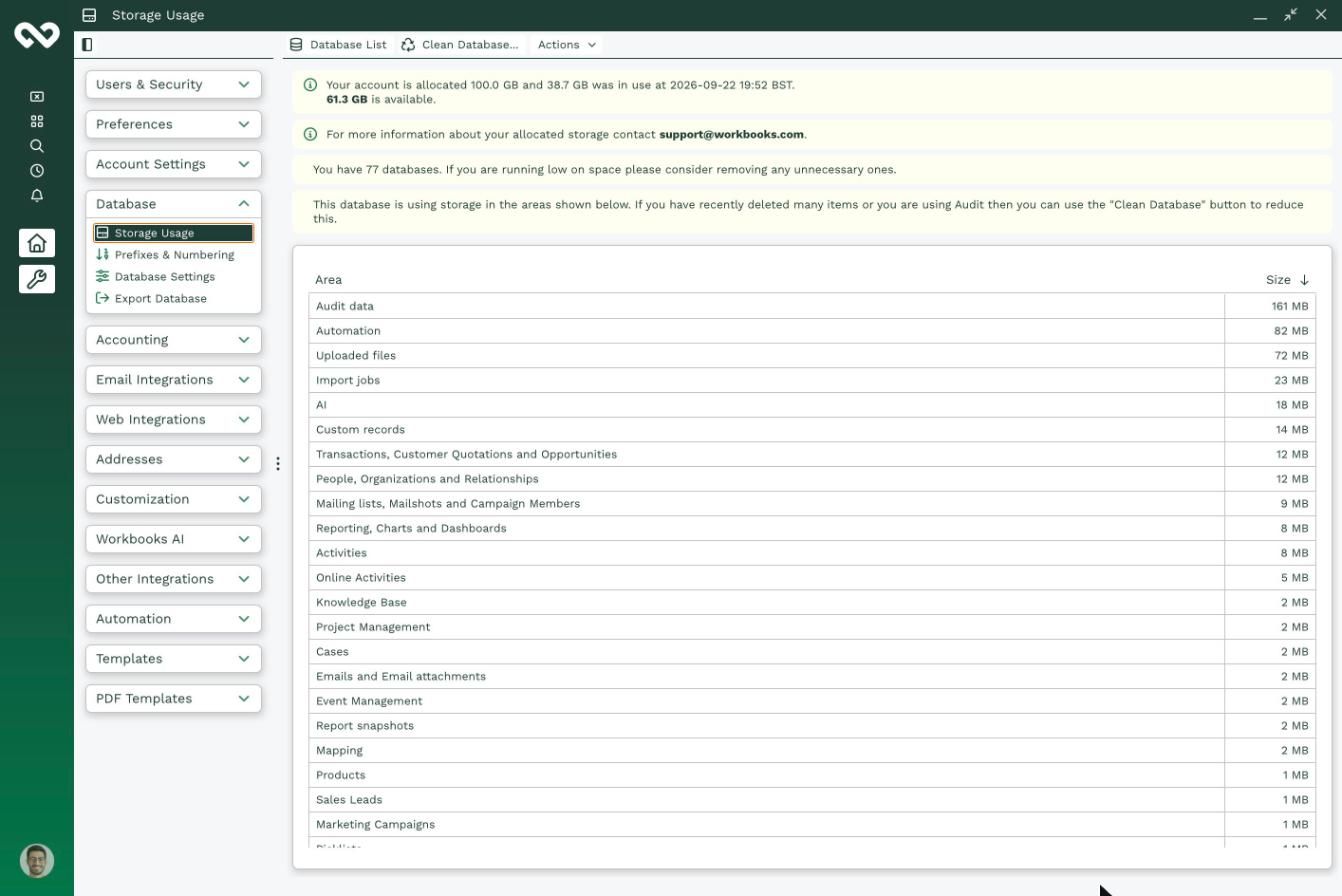
Shows:
- How much storage your account is allocated, how much is in use and how much is left.
- How many databases your account has.
- A breakdown of which areas use the most storage in this database, for example Audit data, Uploaded files and Import jobs.
If you’ve recently deleted a lot of records, or you use Audit, click Clean Database to reduce the storage used.
Prefixes & Numbering
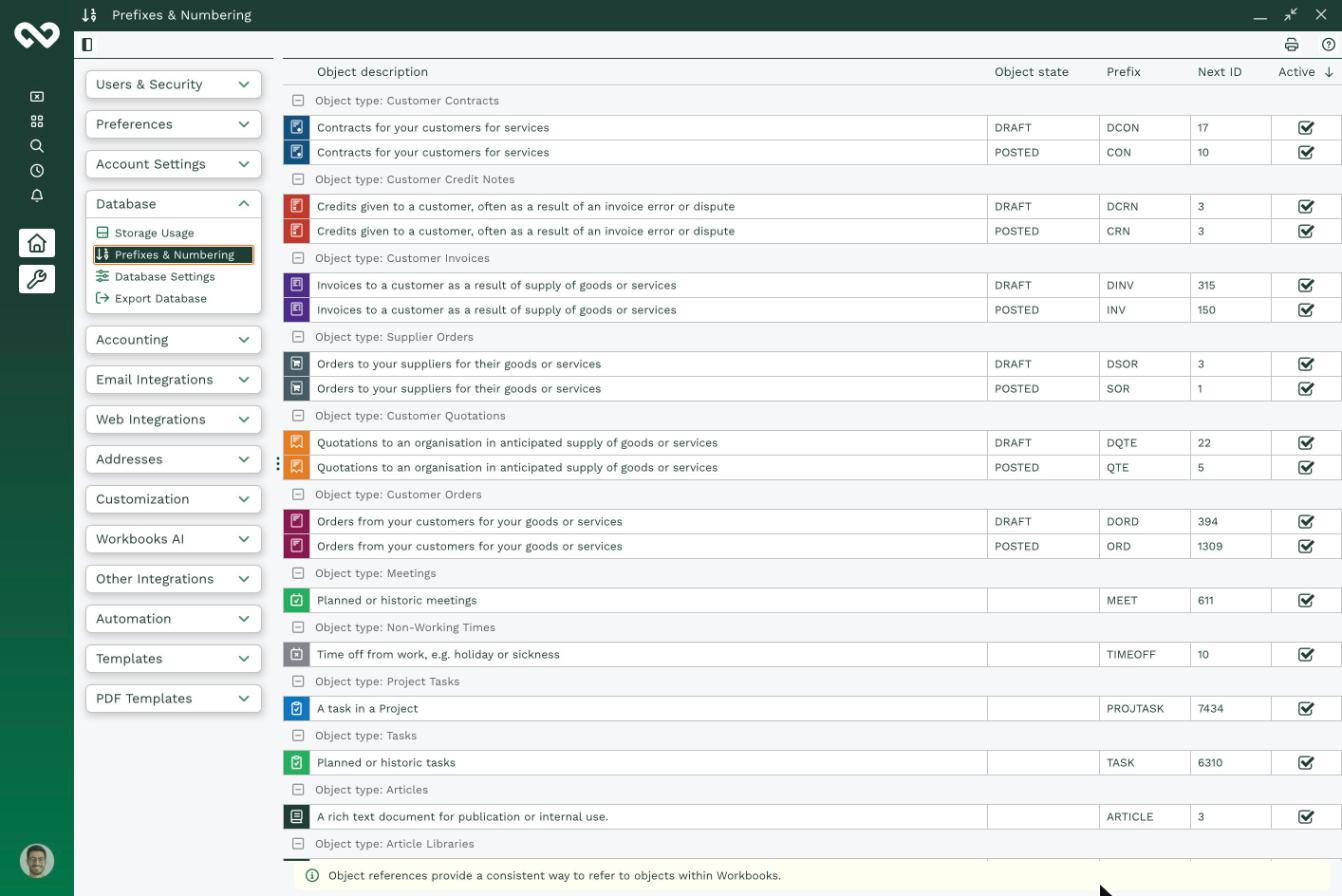
Every record type has a reference made up of a prefix and a number, for example INV150 for an invoice. Here you can see and manage:
- Prefix: the letters at the start of the reference.
- Next ID: the next number that will be used.
- Active: whether the reference is in use.
Transaction documents have separate prefixes for DRAFT and POSTED, for example DINV and INV.
Database Settings
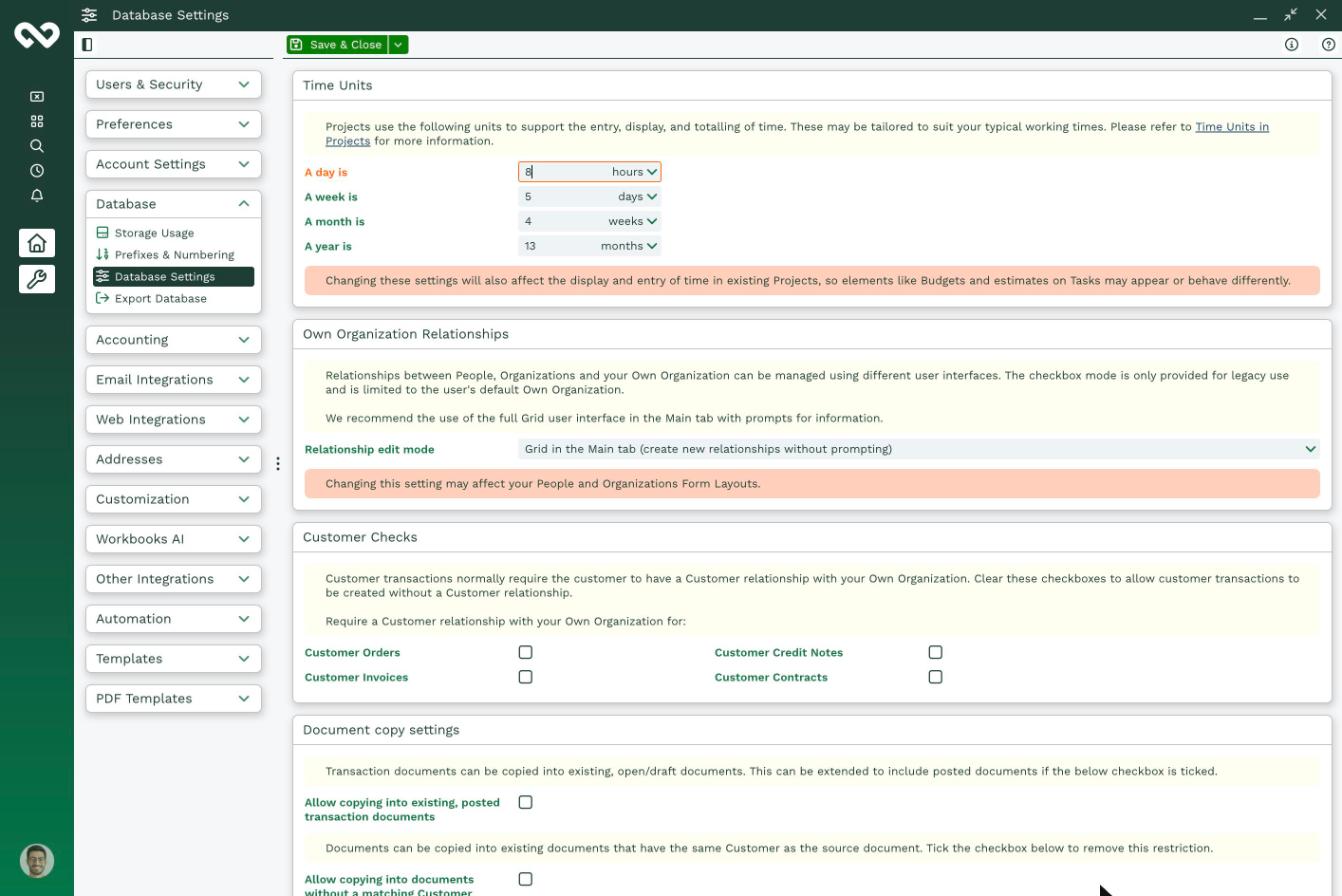
Settings that change how some features behave across the database. The main areas are:
- Projects: set how many hours make a day, days make a week, and so on (Time Units).
- People & Organisations: choose how relationships with your Own Organisation are edited.
- Transaction documents: customer checks, copying documents, posted document rules, supplier orders, how discounts are calculated, Primary Contact fields, delivery addresses and customer type (B2B, B2C or both).
- Meetings: show Primary Contact details and an attendee tracking tab.
- Sales Leads: choose what gets created when a lead is converted, and who it’s assigned to.
- Emails: choose whether the Emails tab also shows emails with related People.
- Marketing & compliance: Mailing List preference centre, GDPR mode and assigning Online Activities to Marketing Campaigns.
- Notifications: choose the group that gets notified when something goes wrong, for example a Process fails.
Note: Some settings affect existing records or form layouts. Read the warning under each setting before you click Save & Close.
Export Database
Download an offline copy of all the data in this database, in SQL format. The page also shows when the database was last exported.
Important: The export includes everything in the database and bypasses row-level security. Store the file securely.