









Understanding your Campaign results
Once your Marketing Campaign is complete, you can review its performance in Workbooks in a number of different ways:
- On the Statistics tab of the Marketing Campaign and Mailshot
- On the Online tab of the Marketing Campaign and Mailshot
- On the Online tab of individual Person records
- Within a Report
Statistics tab
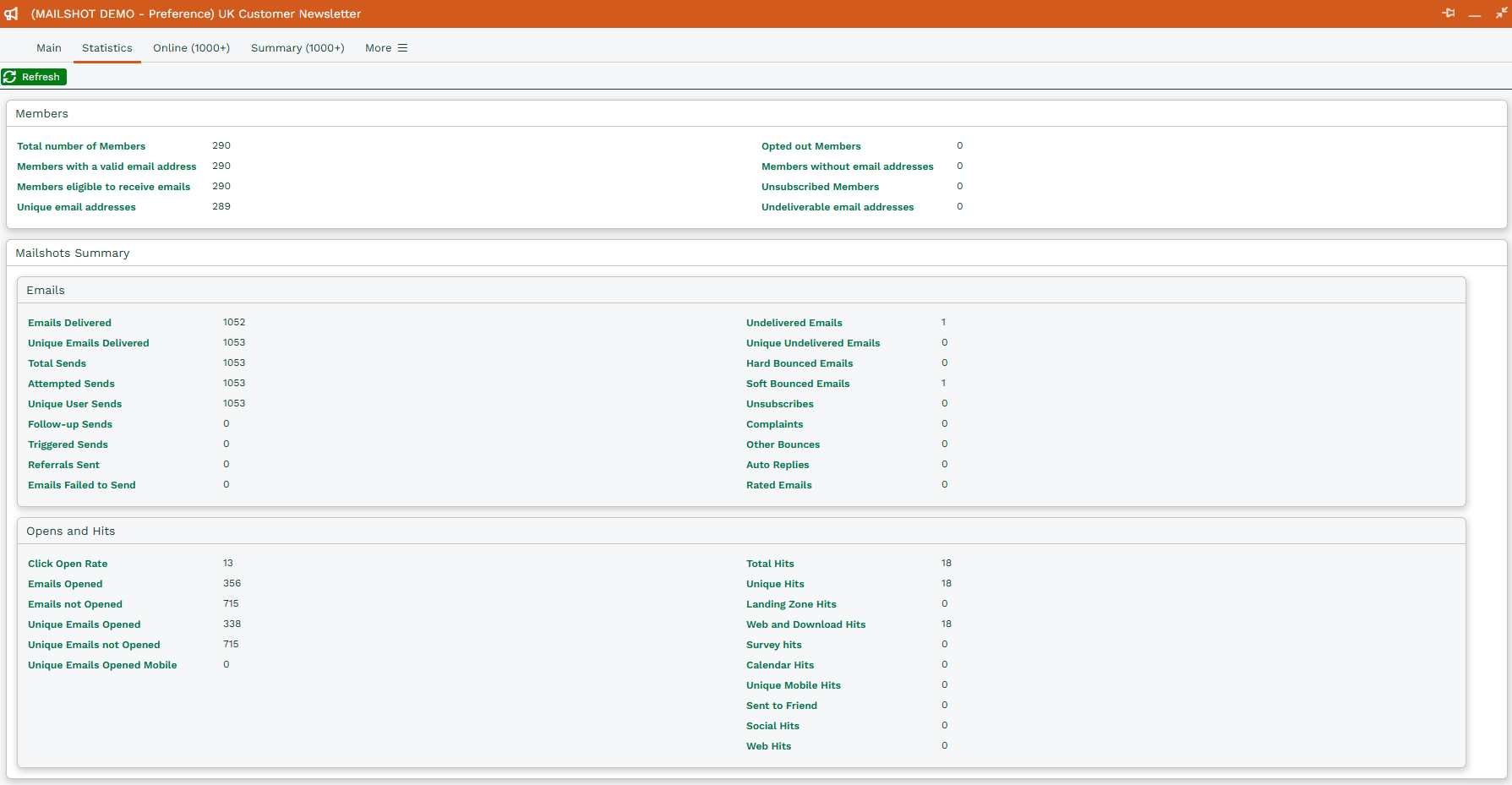
The Statistics tab can be found on Marketing Campaigns and Mailshots, and displays summarized data pulled from GatorMail.
Data is separated into the following sections and sub-sections:
- Members
- Mailshots Summary
- Emails
- Open and Hits
Viewing your results in a Workbooks Report
Workbooks’ Reporting tool is a great way to review Marketing Campaign results – especially if you want to compare the performance of multiple Campaigns.
You can create your own Report, or use one of the built-in Template Reports. To do this, go to Start > Reporting > New Report > ‘Create a report from a template report’. You’ll then see a list of Templates that Workbooks comes with. In order to find the Templates relating to Marketing Campaigns, apply a Filter on this window for ‘Description > Contains > Campaign‘:
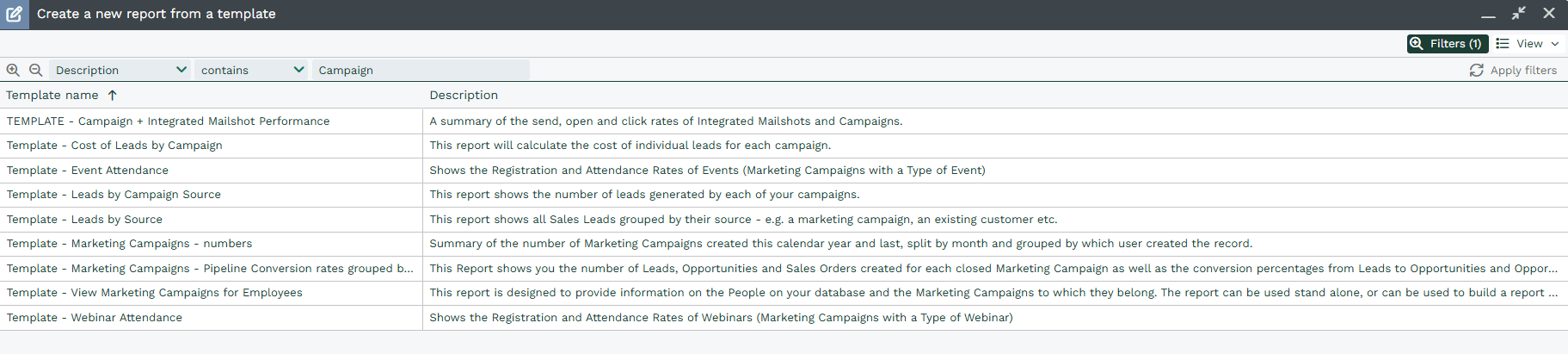
These reports have preconfigured columns and filters based on their purpose, making them a quick and easy way to get an overview of your Marketing Campaign performance.
Viewing your results in GatorMail
You can also review your Marketing Campaign results directly in GatorMail. For more details, see the guidance available on Spotler’s Help Center here.