









SFTP/FTP Automated Import Summary Script
If you’re using our SFTP/FTP Plugin, Stage 1 of this guide is completed automatically, so you can skip it. For more information, see Setting up an automated Import/Export Process using an SFTP/FTP Server. If you’re using a custom-built SFTP/FTP Process, follow every stage of this guide.
This Script lets you create a Scheduled Process that summarizes the results of automated Imports created by an SFTP/FTP Process. You can then report on this information and send it in a Scheduled Email to the relevant people in your organization, so they can keep an eye on the status of your imports.
Stage 1 – Create the Process
To create a Scheduled Process, go to Start > Configuration > Automation > Processes > Scheduled Processes and click New Scheduled Process.
From here, complete the following fields:
- Name: This can be anything that helps you identify the process, but we recommend “SFTP Summary Process”.
- Script: Choose the Script Library option, then select the SFTP Summary Report Script in the second picklist. Using the Script Library version means you’ll automatically get any future changes made by our development team.
- Schedule: This is up to you. Consider how often your SFTP/FTP Process creates Imports, how many processes you have, and how quickly you want to know about any potential issues.
- Run as: Set this to the Automation User. This avoids User-related issues, such as accounts or passwords no longer being valid, which reduces the chance of the Process not running.
Finally, decide what you want the Process to do if it fails, such as whether it should run again or disable itself, and which User should be notified.
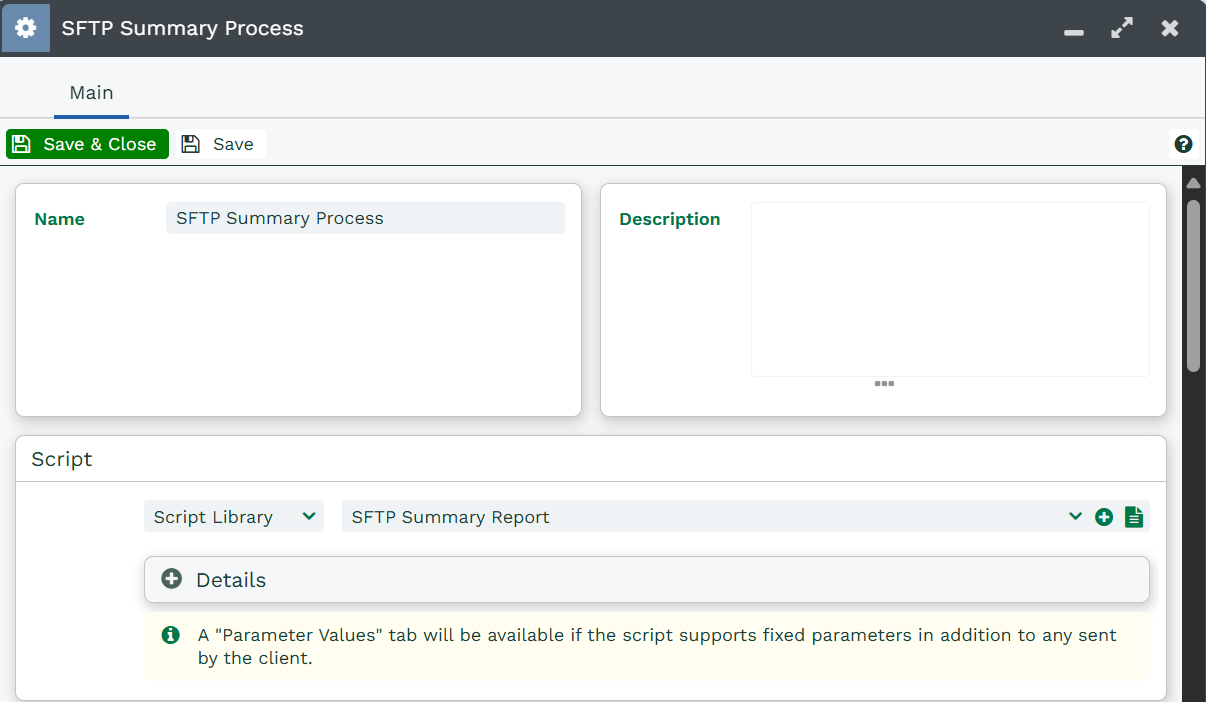
This process automatically retrieves any completed Import Jobs that were approved automatically. Import Jobs can only be set to “Auto-Approve” if they’re created through the Workbooks API, so this process will only find Import Jobs created by the SFTP/FTP Scheduled Process, and will ignore any created from the Workbooks Desktop.
Stage 2 – Configure the Report
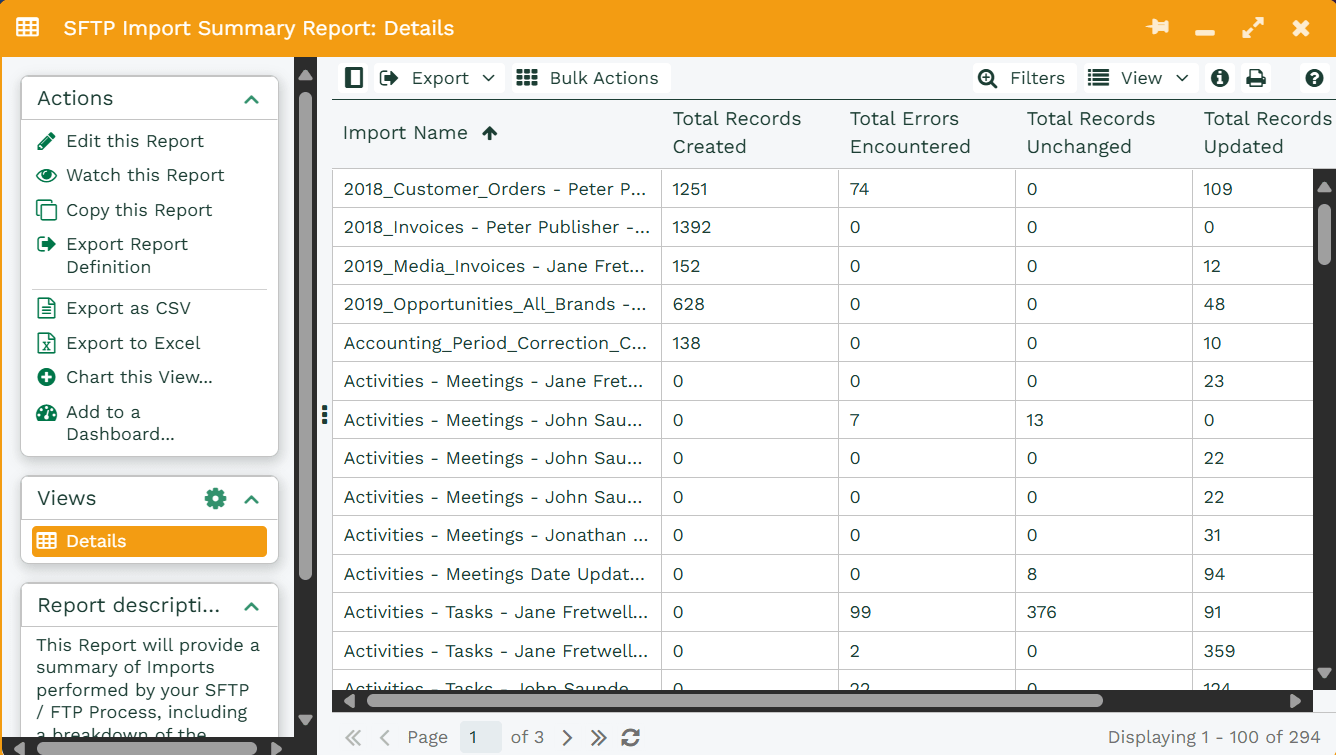
We’ve created a Template Report for this Process to work with, but you may want to adjust the Report Criteria to suit your requirements.
To find the Report Template, go to Start > New > Report > Create a Report from a Template Report, then select Template – API Data – SFTP Import Summary Report.
This will load the Report shown below:
Criteria you may want to consider:
- Only show Imports with errors: The Report contains a Calculated Column, Errors Encountered, which sums the Total Errors and Total Warnings columns.
- Only show Imports created in a given time frame: You can add a Criteria on the Created at field to only show Imports created today, or within the last 2 hours. The right Criteria will depend on how often your SFTP/FTP Imports run, how many SFTP/FTP processes you have, and how often you want to review the errors and warnings.
Stage 3 – Setup a Scheduled Email (optional)
Rather than checking the Report regularly to review Imports, you can set up a Scheduled Email to send a summary of automated Imports to the relevant Users in your organization. For details on setting up and configuring Scheduled Emails, see Emailing Scheduled Reports.
When you set up the Scheduled Email, think about how often you want to be notified of errors. This needs to fit with your Report’s criteria and how often your processes run. For example, if you have lots of processes handling specific files that run every hour, your report needs to take this into account. If you added a criteria that only shows Imports from the last hour, you could lose visibility of important Import information. We’d also recommend only sending the Report when it isn’t empty, especially if it runs frequently.
Stage 4 – Setup a Scheduled Bulk Action (optional)
You can configure a Scheduled Bulk Action to automatically remove API Data records that are no longer relevant. You can set this up from the API Data landing page under Configuration > Automation > API Data. As with the Scheduled Email, think about how often your SFTP/FTP scripts run and how many you have on your database. For example, you wouldn’t want to delete API Data records that haven’t been sent out in a Scheduled Email yet. For more information, see Scheduled Bulk Actions.
Together, these tools give you a better way to monitor your SFTP/FTP Imports and any issues they might run into.