









Setting up Mail Sync with Google
Workbooks Mail Sync allows you to connect your Google Workspace mailbox account so that calendar items and emails processed through Gmail can be automatically linked to records within Workbooks.
Connecting Mail Sync to Google
Before Mail Sync can begin, your Gmail account must first be authorized.
Authorizing Your Gmail Account
To connect Gmail to Workbooks, open Start > Configuration > Email Integrations > Mail Sync. From there you will have the option to “connect this database to the Mail Sync Service”.
Once connected, please navigate to the Organizations tab and you will be able to select the Mailbox type of “Google Direct Logon” or “Google Service Account”.
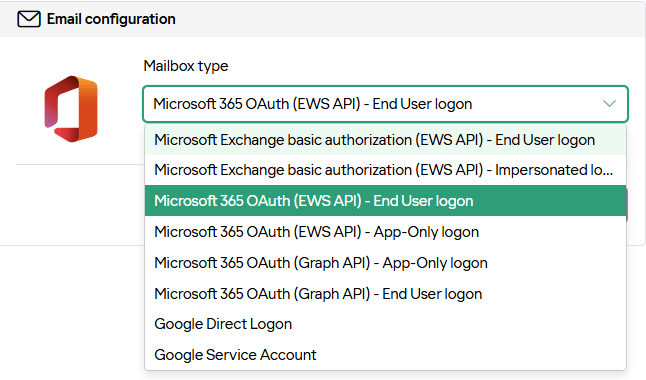
You will be redirected to Google’s authentication page where you can sign in and grant the necessary permissions.
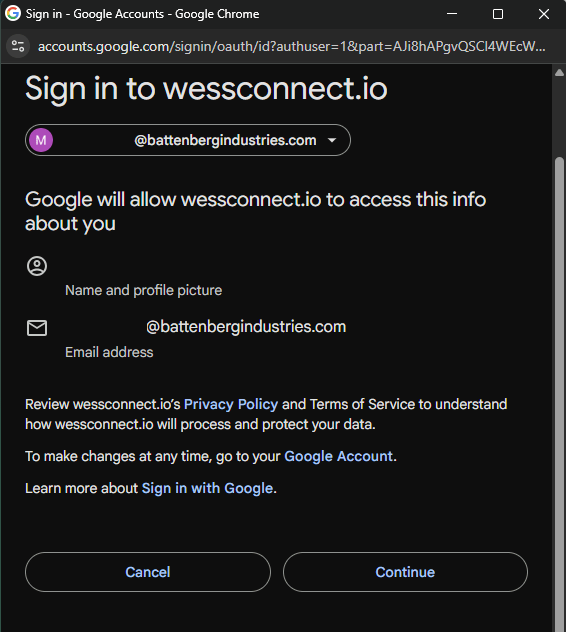
Once authorized, Workbooks will securely connect your Google Workspace mailbox.
Required Permissions
When connecting Gmail, Google will ask you to grant permissions to wessconnect.io that allow Workbooks to access your mailbox. These permissions are required so that emails can be read, matched to records, and logged appropriately inside the system.
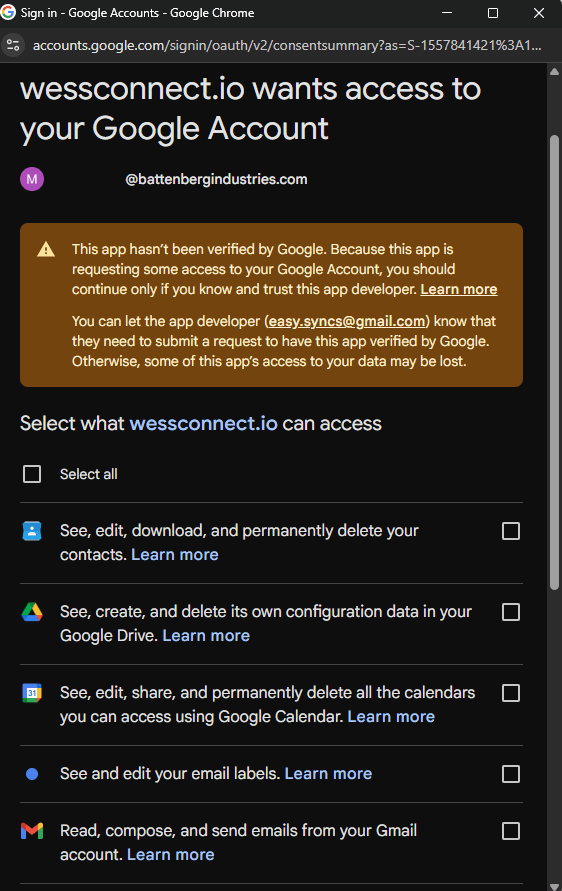
You may see prompts requesting access to read, compose, and manage email messages, as shown above. These permissions ensure Workbooks can correctly associate emails with contacts and activities.
Installing the Gmail Add-in
You’ll need to install the Workbooks Extension from the Chrome Store for the add-in to appear within your Gmail account. Click here for a direct link to the extension.
Note: The Workbooks Gmail Add-In can only be installed via the Chrome store and used within the Chrome browser.
How Mail Sync Works
Once Google Workspace has been successfully connected, you will then have a new add-in within your Gmail instance where you will have the following add-in appear:
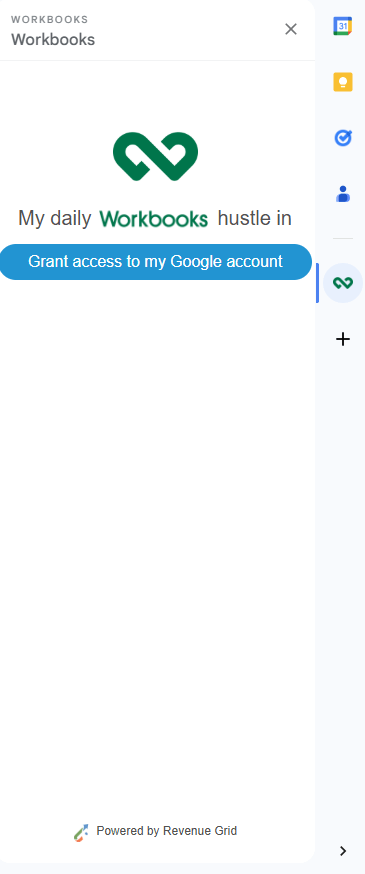
For more information on synchronizing items via the add-in please click here.
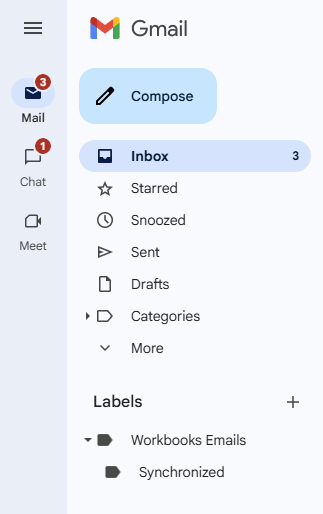
Alongside this, you will also have the following labels created to help organize your synchronized items:
Synchronizing calendar items from Gmail to Workbooks
Within Google you will need to apply the Blueberry category to calendar items:
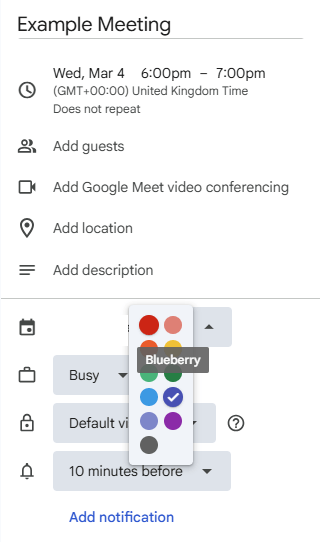
This will allow the integration to identify this for synchronization. Upon the next refresh, this record will then appear in Workbooks as a Meeting.

Disconnecting Gmail
Once Mail Sync is active, you can manage or disconnect your Gmail account at any time at an Organization level via Start > Configuration > Email Integrations > Mail Sync > Configuration > Organization > Disable synchronization.
Alternatively, you can also do this on a user basis by going to Start > Preferences > Integration > Mail Sync > Pause.
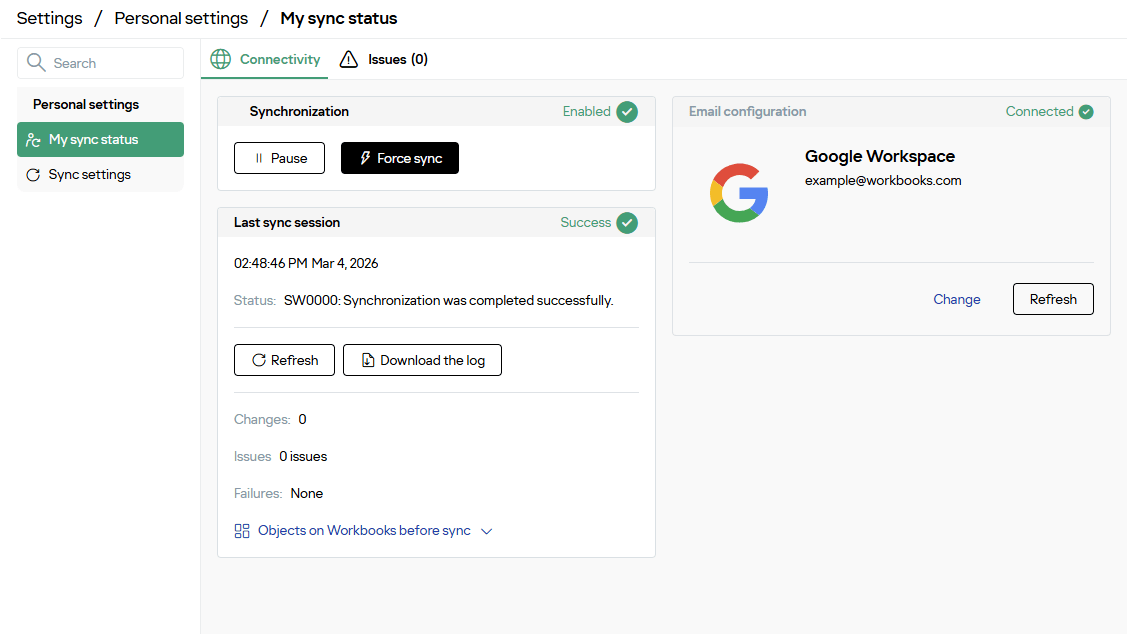
If you choose to disconnect your Gmail account, Workbooks will stop syncing any new emails and calendar items. Existing logged emails will remain in the system, ensuring that previously recorded communication is not lost.