









GatorMail Field Mappings
You can map both standard and custom fields between GatorMail and Workbooks for People and Sales Leads.
Field mappings work in both directions. You can use them to:
- Pull information from Workbooks into your emails to create more personalised content
- Update fields on Person or Sales Lead records in Workbooks when someone submits a form
This gives you a simple way to keep your data up-to-date and tailor your email communications accordingly.
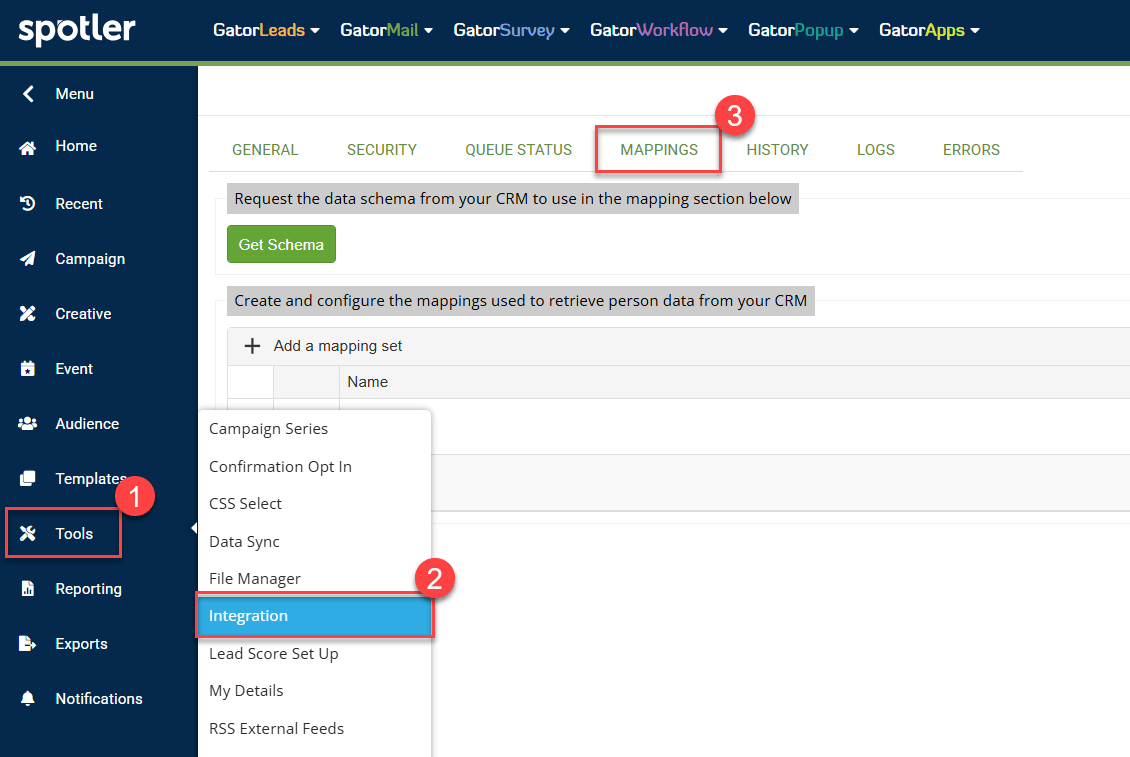
You can find the Field Mappings screen in GatorMail by going to Tools > Integration > Mappings:
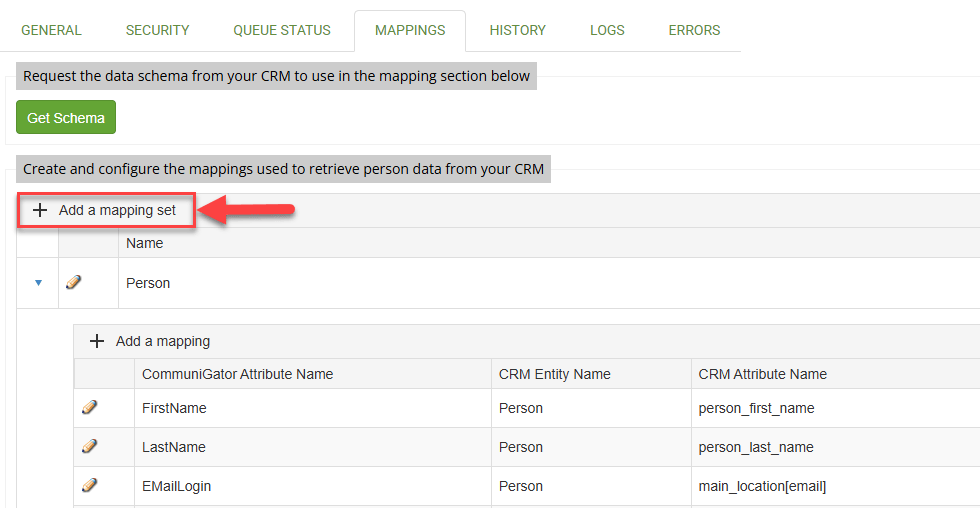
You’ll see a range of standard field mappings already set up for both People and Sales Lead records. To add a new field mapping, expand the record type you want update and click the ‘Add a mapping’ button.
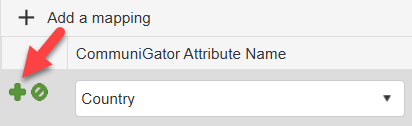
This will create a new field mapping line that you can then edit:

In this example, we’ll map the GatorMail ‘Country’ field to the Country field on a Person record in Workbooks. When creating a field mapping, you only need to update:
- CommuniGator Attribute Name > Country
- CRM Attribute Name > home_location[country]
The CRM Entity Name and CRM Attribute Data Type fields set automatically.

The final part to update is the ‘Data Cleanse’ checkbox on the right hand side. This option is available for GatorForm fields.
When Data Cleanse is enabled and a form field contains a value, that value will be used to update the corresponding field in Workbooks. This allows information submitted through a form to overwrite existing data and keep your records up to date.
Note
If data cleanse isn't enabled on the field mapping, no form data will feed back into Workbooks for that field.
If you’re using these field mappings for Emails only, then you won’t need Data Cleanse enabled.
Once you’re happy with the new mapping, select the green + icon on the left-hand side to add it to the list of mappings.
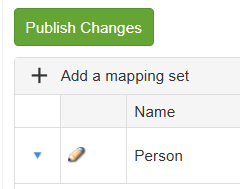
Once you’ve finished setting up your field mappings, select ‘Publish Changes’ above the field mappings list to save and apply your changes. Your new mappings will then be available for use in GatorMail.
If you’ve recently created custom fields in Workbooks and can’t see them in the CRM attribute name list, select Get Schema to refresh the available fields. The refresh can take a few minutes to complete, so your new field may not appear straight away.
