Queues
Queues are a concept in Workbooks which enable you to assign records to a specific group of Users and allow you to notify those Users when record are added to or removed from the Queue. You could say a Queue is similar to a department ‘Inbox’.
Tip
Get into the habit of using Queues to assign records to groups of Users and to help manage your workflow.
Queue Types
Queues are ‘record type’ specific and are available for most Record Types, which means, for example, that if you want to assign both Leads and Cases to a Queue called Support, you need to create that Queue twice – once on the Leads Landing Page and once on the Cases Landing Page. You can choose to subscribe the same or different Users to each Queue.
By default, one Queue is defined for each record type which is the ‘Unassigned’ Queue. Records can only be assigned to a Queue for that record type, for example, Leads can only be assigned to Lead Queues.
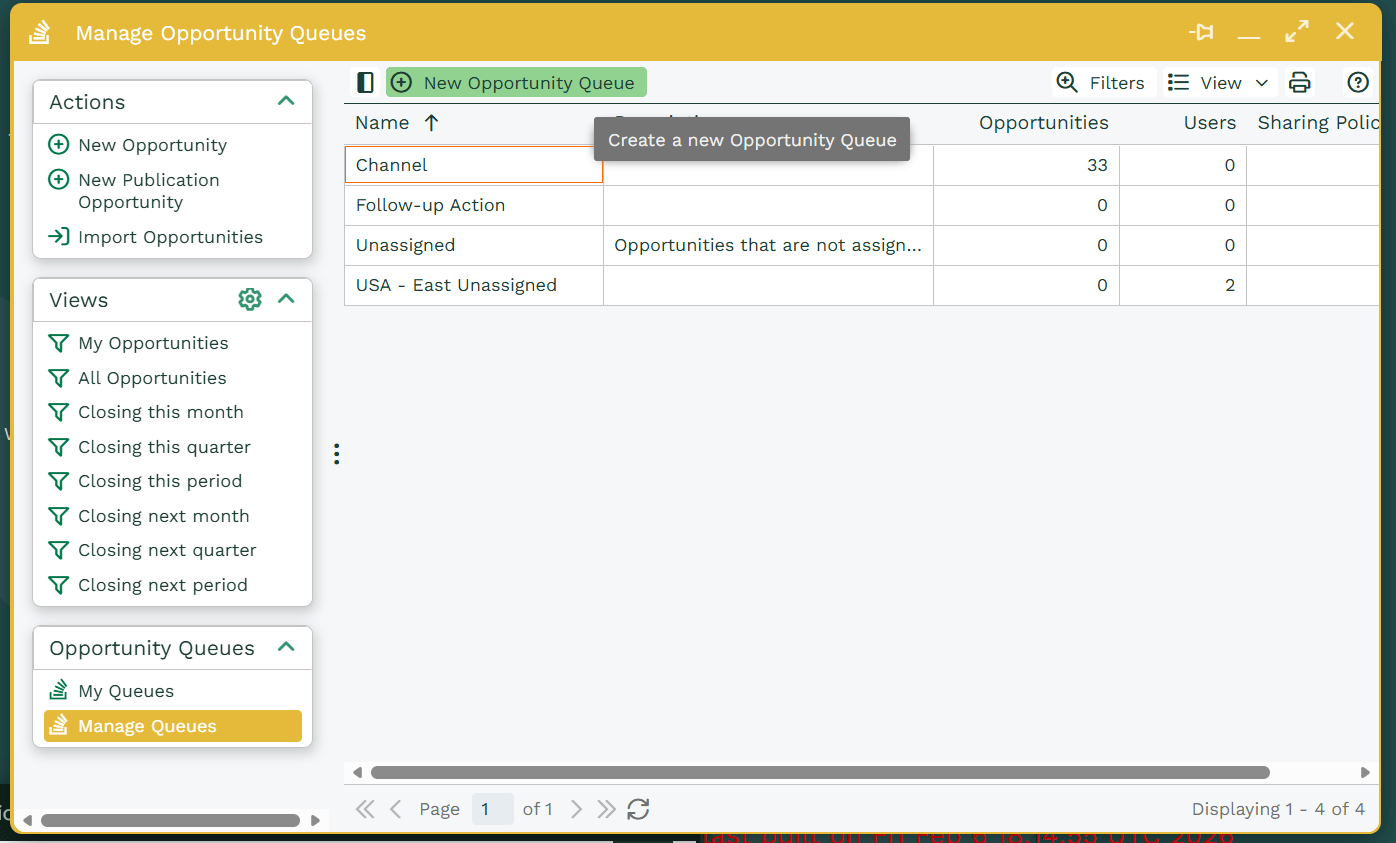
To create a new Queue open the Landing Page of the record type for which you want to create a Queue and click Manage Queues in the left-hand menu. You can then create a new Queue using the button at the top of the grid or edit an existing Queue by clicking on its name in the grid.
Subscribing Users to Queues
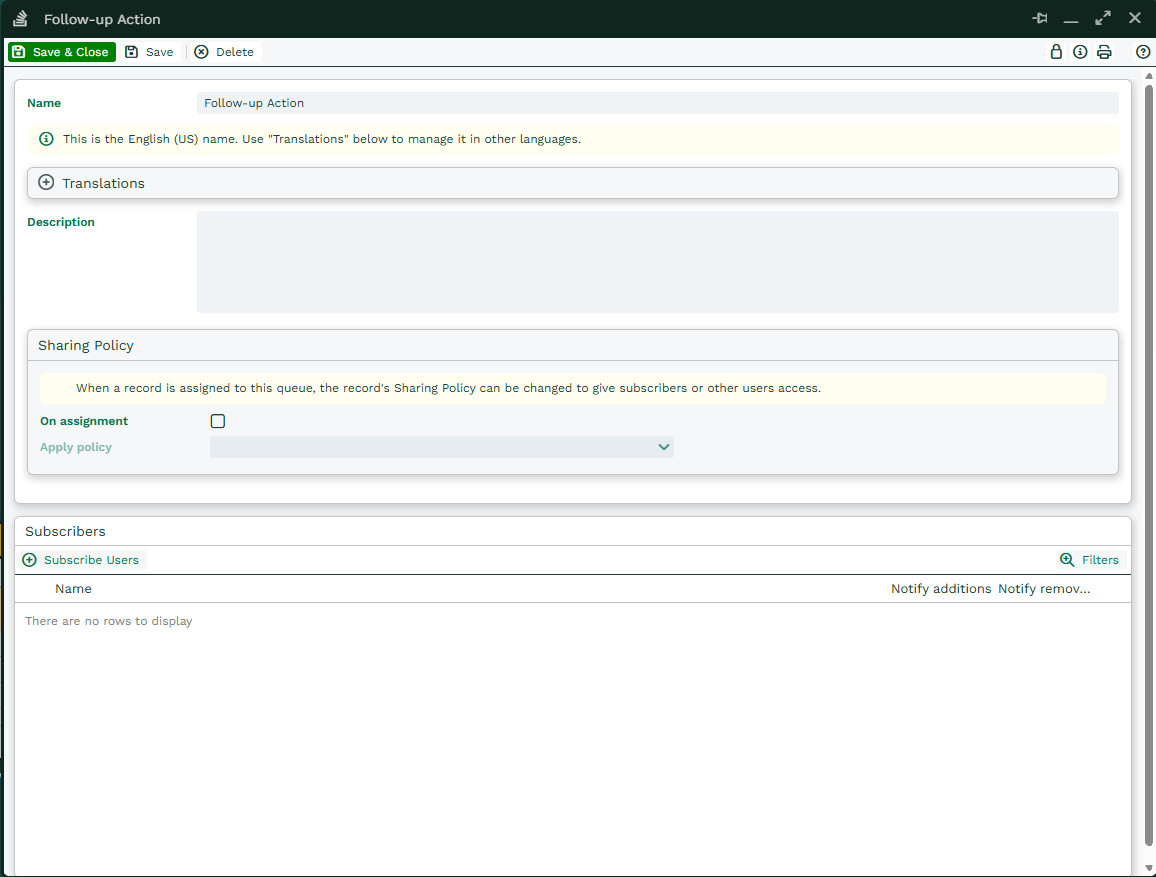
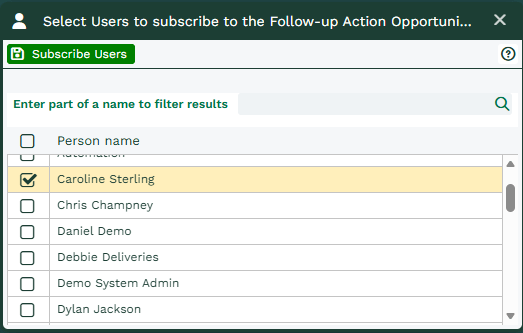
Users can be subscribed to Queues and, by default, they are notified when a record is added to that Queue. You can subscribe a user to a Queue from the Manage Queues menu. Open the desired Queue > click Subscribe Users. From here, you can filter on your Users and select multiple ones to add them in bulk.
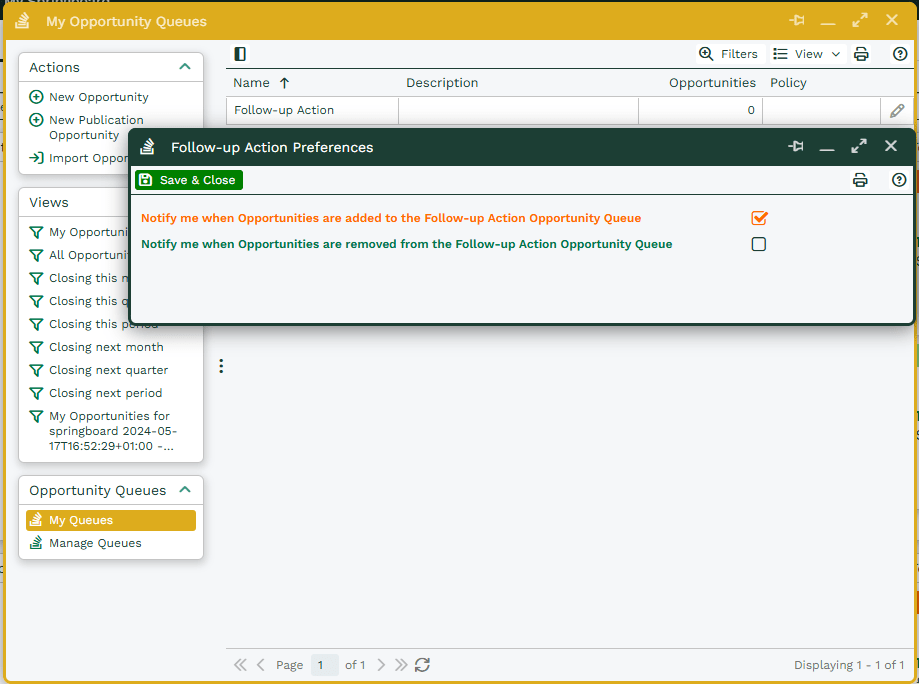
Users are notified as defined by their notification settings within their Preferences, either email and/or pop-up alert. More information on setting up your Notification and Reminders can be found, here. A User can modify their individual preferences for a Queue by clicking My Queues and clicking on the pencil icon: