








Create Task Set for Cases
Workbooks can automatically create a set of Activity records against a Case once it’s been created, based on a set of templates. This is useful when there are several actions that one or more team members need to complete once a Case is raised.
This type of automation is useful in lots of scenarios, for example:
- Customers using the Create Cases from Order Line Items functionality. The Case record is used to track fulfillment of an Order Line Item, and there might be several tasks that need completing for the Product purchased.
- Support teams provisioning new client accounts, where there are several steps to complete to make sure the account is set up correctly and nothing is missed.
- HR teams onboarding new staff. Use a Case to track the new starter, and automatically create Activities for a smooth enrollment process.
- … and many other scenarios!
This article focuses on how to configure a follow-on process for the Create Cases from Order Line Items functionality.
Use Case
In this example, we’ve created an Event record in Workbooks, which has a Product related to it under the Products tab. When this Product is sold, a Customer Order is created with a Line Item for the Product. We’ve already set up the Create Cases from Order Line Items automation, so a Case record is created automatically for every Order Line Item.
Note
It's important to make sure the Event and Product fields are added as field mappings in the Create Cases from Order Line Items script, so that these values are available on the Case record.
Next, we need a set of template Activities for the Product sold, so the team knows which actions to complete. In this example, there are 5 Activities that need actioning every time this Product is sold.
Step 2 below provides the templates we’ll use for this example. You can’t create the templates until you’ve configured the custom fields in Step 1.
Step 1: Configuration
The following custom fields are required for the process automation to work correctly:
| # | Field Name | Data Type | Record Type | Description | Notes |
|---|---|---|---|---|---|
| 1 | Template Task | Checkbox | Tasks | Used by the Create Activities for Cases process. Used to indicate a Task is actually a Template record. | This field must be set to TRUE for the process to find records used as templates. See Step 2 for more information. |
| 2 | Base Date Modifier | Picklist | Tasks | Used by the Create Activities for Cases process. Used to calculate a new Due Date on the created Task. | When creating the Picklist, use the values "Add" and "Subtract" only. |
| 3 | Base Date Field Name | Text | Tasks | Used by the Create Activities for Cases process. Used to indicate which field to use when calculating a new Due Date on the created Task. | Set this to the Report Column's API Name when creating template Activities. See Step 2 for more information. If left blank, today's date is used instead. |
| 4 | No of Days | Integer | Tasks | Used by the Create Activities for Cases process. The value stored is either added to or subtracted from the Base Date Field Name. | This is the number of days to add to the Base Date Field Name's value if specified, or today's date if no field name is specified. If blank, or 0, then Today's date is the resulting Due Date. |
| 5 | Event | Dynamic Linked Item | Tasks | Used by the Create Activities for Cases process. Identifies a list of valid Events that a Template Task can be linked to. | The report used to drive this field's picklist values should be a report of ALL relevant Event records in Workbooks. Consider your criteria carefully. |
| 6 | Product | Dynamic Linked Item | Tasks | Used by the Create Activities for Cases process. Identifies a list of valid Products that a Template Task can be linked to. Constrained by Event. | The report used to drive this field's picklist values should be a report of ALL relevant Product records in Workbooks. Consider your criteria carefully. When configuring the field, constrain it by the Event field to only select Products for a selected Event. |
| 7 | Tasks Created | Checkbox | Cases | Used by the Create Activities for Cases process. Set to TRUE once a Case is processed and used as a criteria to exclude a record from the Report. |
The example above uses the Event and Product fields as the matching criteria to find the right templates to copy. This lets you configure a different set of template Tasks depending on the Event, and therefore the Product sold.
For a different scenario, you can use any fields on the Case record as matching values on the Activity. For example, you could use Case Type or Product Category instead. In that case, create Case Type and/or Product Category fields on the Activity instead of the Event and Product fields, and make sure these custom fields use the same picklists as their Case record counterparts.
Note
While the Description isn't a required field when creating a Custom Field, we recommend filling it in with a useful description of how the field is used in your system. This helps system admins avoid accidentally deleting configuration that's used in automation.
Step 2: Create Template Tasks
Now that the required Custom Fields are configured, we need to create Template Tasks that are related to the Events and Products we sell.
Example templates:
| # | Subject | Due Date | Type | Priority | No. of Days | Base Date Field Name |
|---|---|---|---|---|---|---|
| 1 | Team Intros | N/A | To-do | High | 1 | |
| 2 | Follow-up | N/A | To-do | High | 2 | |
| 3 | Request designs | 01/10/2020 | To-do | High | ||
| 4 | Review designs with client | N/A | To-do | Medium | 5 | design_deadline |
| 5 | Project close down | 14/11/2020 | To-do | Low |
If you know the date a Task needs to happen, you can fill in the Due Date field on the template, and that value is kept on the newly created Task. If you haven’t set a Due Date, it can be calculated using the Base Date Field Name, No of Days and Base Date Modifier fields.
If the Base Date Field Name is blank, today’s date is used. The Base Date Field Name can be set to a DATE column on your Report. However, the column must be stored on the Case record itself, and can’t be part of a breadcrumb drill-through to another record type, otherwise the script won’t work correctly. Dates are calculated by adding or subtracting days, by setting the Base Date Modifier field to Add or Subtract.
More on the examples above:
- For the “Team Intros” Task, we want the Due Date to be 1 day after today. So we set No of Days to 1, leave the Base Date Field Name blank and set the Base Date Modifier to Add. Leaving the Base Date Field Name blank uses today’s date as the base date.
- For the “Request designs” Task, we know our Event starts on 01/12/2020, because we’ve already created a record in Workbooks to track the Event and its Attendees, Speakers and so on. Our Terms & Conditions say we must receive designs 2 months before an event’s start date, to give the team plenty of time to complete the project. So we can hardcode a Due Date into the template Activity.
- For the “Review designs with client” Task, our Event record says all designs must be reviewed with the client at least 5 days before the Design Deadline, to allow for final amendments. For this example, assume the Design Deadline is 02/11/2020. Design Deadline is a field on the Event, but the Create Cases from Order Line Items script also stores it on the Case record, so we can add it to our report in Step 3. We then reference the column’s API Name (under the Advanced tab of the Report Column) in the template Activity, and set the Base Date Modifier to Subtract. The resulting date on the new Activity is the Design Deadline minus 5 days, so 28/10/2020.
You can also fill in the Description field with detailed notes about the Task, and these are copied to the new Activities. Custom Fields can be copied from the template Task to the new Task too. There’s more on that in Step 5.
Step 3: Build a Report
Next, build a Workbooks Report that finds the Cases created by the Create Cases from Order Line Items functionality. You can adjust this to suit the scenario you’re setting the automation up for.
By default, the automation needs your report to have the following columns:
- Id: Rename the column to Record Id before saving.
- Lock Version: Rename the column to Record Lock Version before saving.
- Contact > Id: Rename the column to Primary Contact before saving.
- Event > Name (custom field): Rename the column to Event before saving.
- Product > Product Code (custom field): Rename the column to Product before saving.
- Design Deadline (custom field): Leave this as the default name.
Any columns you want to use as matching fields on your Task, or as Base Date Field Names, must also be added to your report. In this example, we’ve added Event and Product, but you might use Case Type, Product Category or any other field that suits your scenario. We also use a column called Design Deadline.
Next, on the Criteria tab, add criteria to limit which Cases the automation picks up. In this example, we’ll find Cases created by the Create Cases from Order Line Items script that haven’t already been processed by this script:
- Created Through starts with Action Create Cases from Order Lines
- Tasks Created is false
You can add further criteria, or use completely different criteria from this example. The key is that each Case only appears on the Report once. Adding a flag that the process sets to TRUE excludes a record once it’s been processed.
Once you’re happy with the results, save the report with a suitable name, as you’ll need it in Step 5. In this example, we’ve saved the Report as “API – Create Activities for Cases” and left the default view name as “Details”.
Step 4: Set Up Scheduled Process
A Scheduled Process automatically processes the data on the Report you created in Step 3. Create a new Scheduled Process from Start > Configuration > Automation > Processes > Scheduled Processes, and set the following fields:
- Name: Create Activities for Cases
- Script: Set to Script Library, then select Create Activity Set for a Record.
- Schedule: Set this to suit your business requirements. Think carefully about the volume of Cases and Activities here.
- Enable: Check this box.
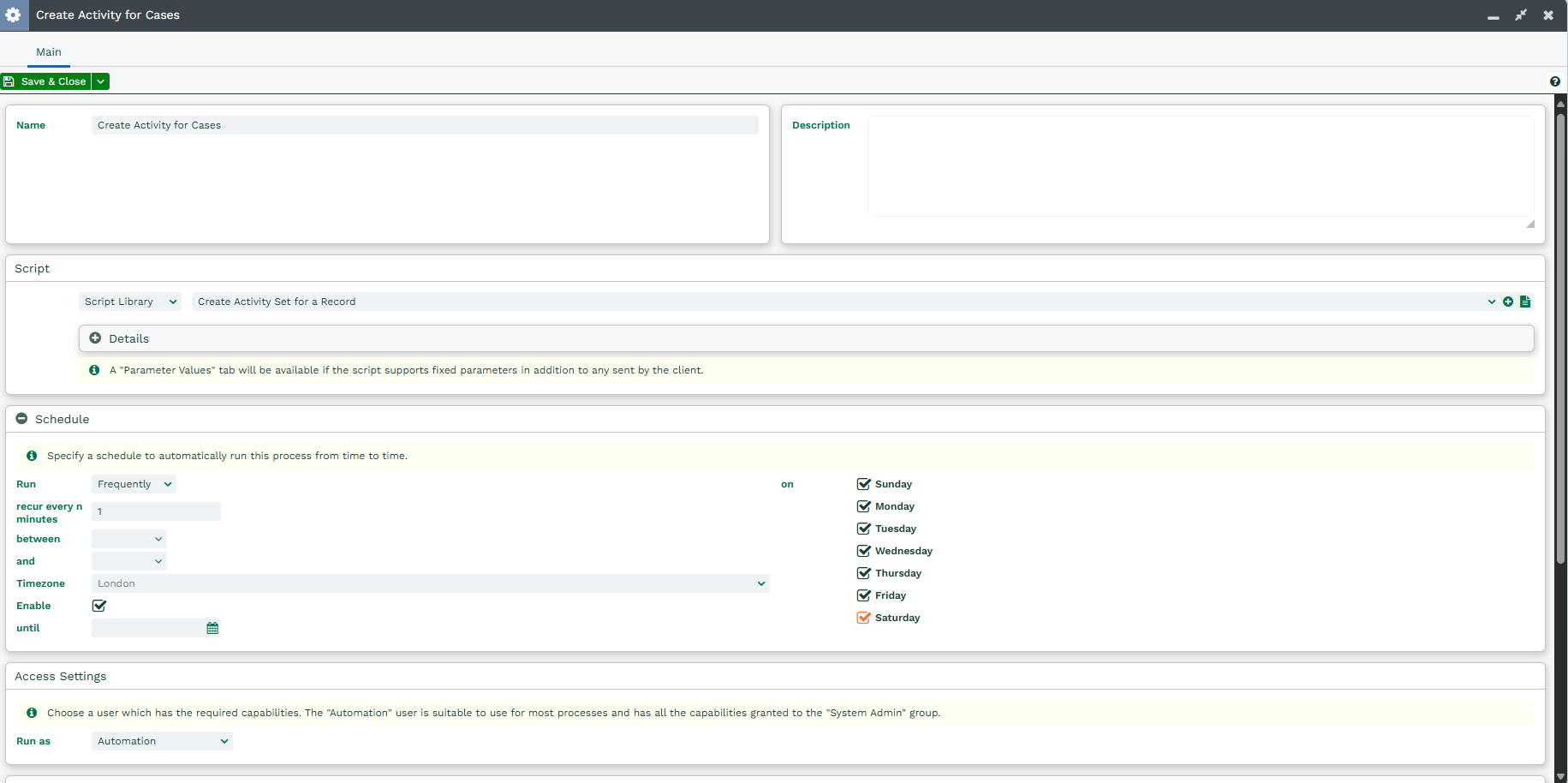
Once configured, click Save, and a new Parameter Values tab will appear. Then continue to Step 5.
Step 5: Set Up Scheduled Process Parameters
From here, using the Scheduled Process created in Step 4, you can set parameter values that control how the process behaves, such as which Report it uses to find the data to process, and the matching criteria used to find your template Tasks. There’s an example in the screenshot below.
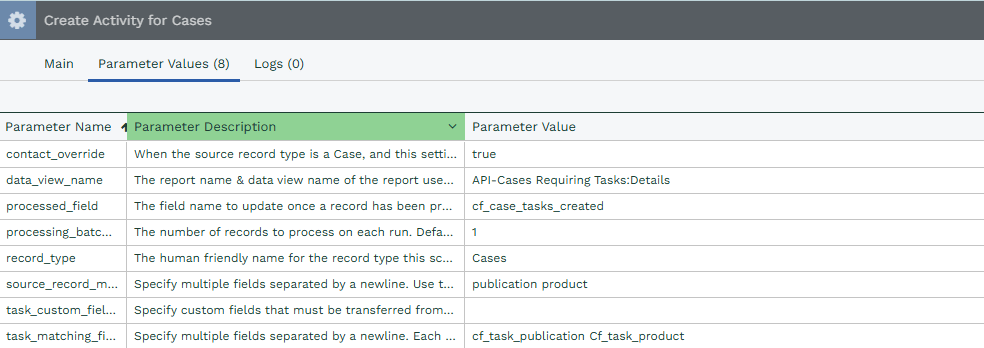
These parameters need to be set for the process to work correctly, and should be configured to suit your database and scenario. Work through the list and set each parameter, using the notes in the Parameter Value column to guide you:
| # | Parameter Name | Parameter Description | Parameter Value |
|---|---|---|---|
| 1 | contact_override | When the source record type is a Case, and this setting is enabled, override the Primary Contact set in a template with the Primary Contact from the source record. | Set this parameter to TRUE if you want the Activities created to set the Primary Contact on these records to that of the Case record. Leave blank if you want to default the new Activity to the same value as the Template. NOTE: A Case has the concept of one Primary Contact by default. You can also create Custom Fields to track further contacts. The script can be configured to use your custom fields instead of the standard field, by changing the Report column for Primary Contact created in Step 3. Ensure that you use the contact's Id, rather than name. |
| 2 | data_view_name | The report name & data view name of the report used to control which records are processed by this script. In the format REPORT_NAME:VIEW_NAME | Set this to the name of the Report and View created in Step 3. For our report, we need to set this parameter to "API - Create Activities for Cases:Details". NOTE: By default, Workbooks creates a view within the report called "Details" for you, but you can rename this as required. |
| 3 | processed_field | The field name to update once a record has been processed by this script to exclude it from the report used by this script. | In our example, we're using a field called "Tasks Created" as configured in Step 1. Set the field name, not field label of that field in this parameter. If you are using the example field, the value to set is "cf_case_tasks_created" NOTE: You can get field names from the API Reference in your database, or alternatively opening the field configuration screen for your chosen field. |
| 4 | processing_batch_size | The number of records to process on each run. Defaults to 5 if not set. | Set how many cases will be processed on each run. Typically the recommended value is 1. This allows the script to finish as quickly as possible and minimizes timeout issues. For high volumes of Cases, set the Schedule to run more frequently instead. |
| 5 | record_type | The human friendly name for the record type this script will relate Activities to. Currently supports "Cases" only. | The current version of the script available only supports the value "Cases" here. Any other value will cause the script to error and no records will be processed. |
| 6 | source_record_matching_field | Specify multiple fields separated by a newline. Use the source report column name here. Each field's value will be used to query Activities to find matching Template Activities to create against any records identified in the report used by this script. | We'll set this parameter to use the report columns that reference the Event and Product fields from our Case record. These columns should have been added to your Report in Step 3. Use the following value for the parameter: event product NOTE: If you've used different fields/report columns, update appropriately. |
| 7 | task_custom_field | Specify custom fields that must be transferred from the template Activity to new Activities created by this process. Must be specified with new lines to separate fields. By default, only standard fields are transferred. | In this example, this parameter value remains blank. By default, only the standard Workbooks fields are transferred across to new records created by this script. If you have any custom fields that you would like to transfer to the new activities, they can be specified here by new lines. Again, use the field name, not the field label here. |
| 8 | task_matching_field | Specify multiple fields separated by a newline. Each field's value will be used to query Activities to find matching Template Activities to create against any records identified in the report used by this script. | We'll set this parameter to use Activity fields for the Event and Product. These fields should have been added to Workbooks in Step 1. Use the following value for the parameter: cf_task_event cf_task_product NOTE: If you've used different fields, update appropriately. The script expects these fields to be in the same order as the "source_record_matching_field" report columns, otherwise a match may not be found. |
Step 6: Run Process & Create New Activities
When the process runs, the new Case will have 5 Activities under its Activities tab. The script copies the template Activities set up in Step 2, setting the Due Date, Subject and so on based on the template record and the parameters configured in Step 5. It also sets the Tasks Created field to TRUE, so the Case is no longer included in the Report.
| # | Subject | Due Date | Type | Priority | Status | Assigned To |
|---|---|---|---|---|---|---|
| 1 | Team Intros | 01/10/2020 | To-do | High | New | Production |
| 2 | Follow-up | 02/10/2020 | To-do | High | New | Production |
| 3 | Request designs | 01/10/2020 | To-do | High | New | Production |
| 4 | Review designs with client | 28/10/2020 | To-do | Medium | New | Production |
| 5 | Project close down | 14/11/2020 | To-do | Low | New | Production |
You’ll notice the Primary Contact on the new Activities has been set to the Case’s contact. This is because the contact_override parameter was set to TRUE in Step 5. The new Activities don’t have the Product, Event, No of Days, Base Date Field Name or Base Date Modifier set, so they can’t be used as templates for future sales of the example Product.