









Creating a Template to show multiple lines
You can create a template which, when applied, displays multiple lines for the same placeholder if the record contains multiple lines. For example, you might want to display all the Activities for a particular Person, or all the Line Items for an Opportunity, or all of the Relationships and so on. These examples are described below.
A Person Template that shows all the Activities for that Person
Click Start > Marketing > Templates > New Template > Record-specific template > People.
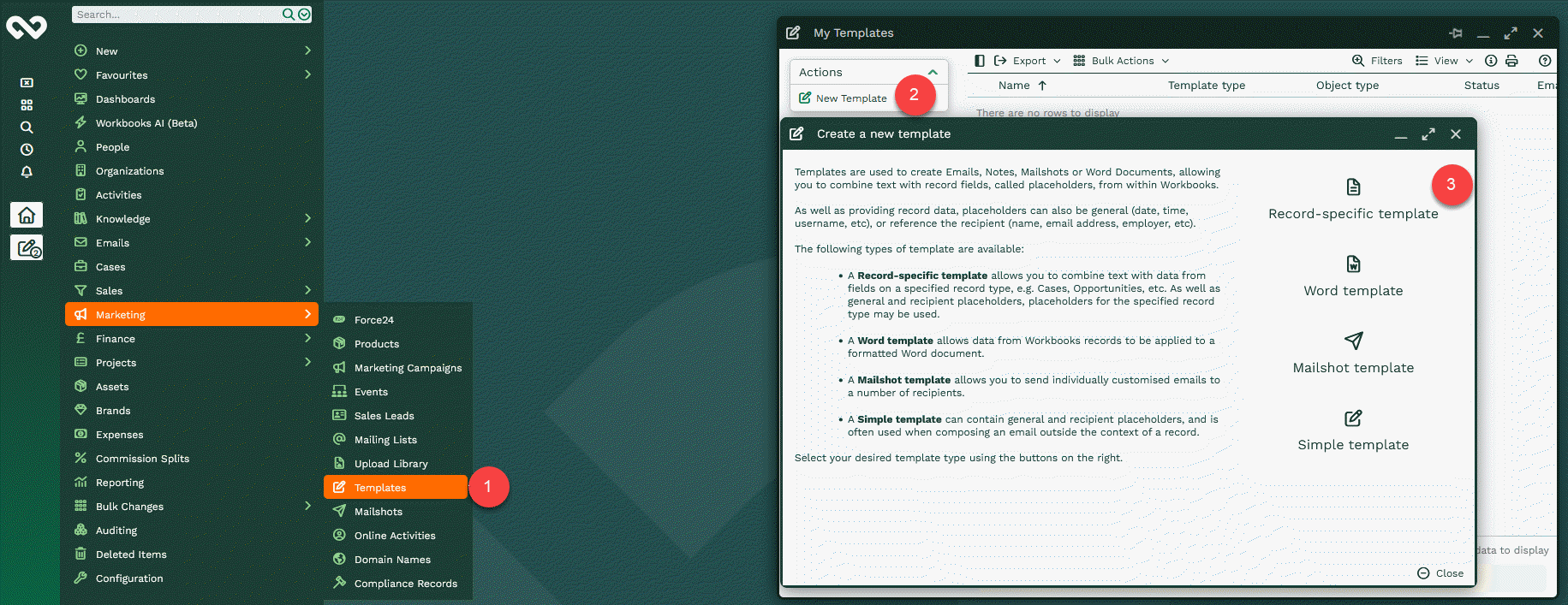
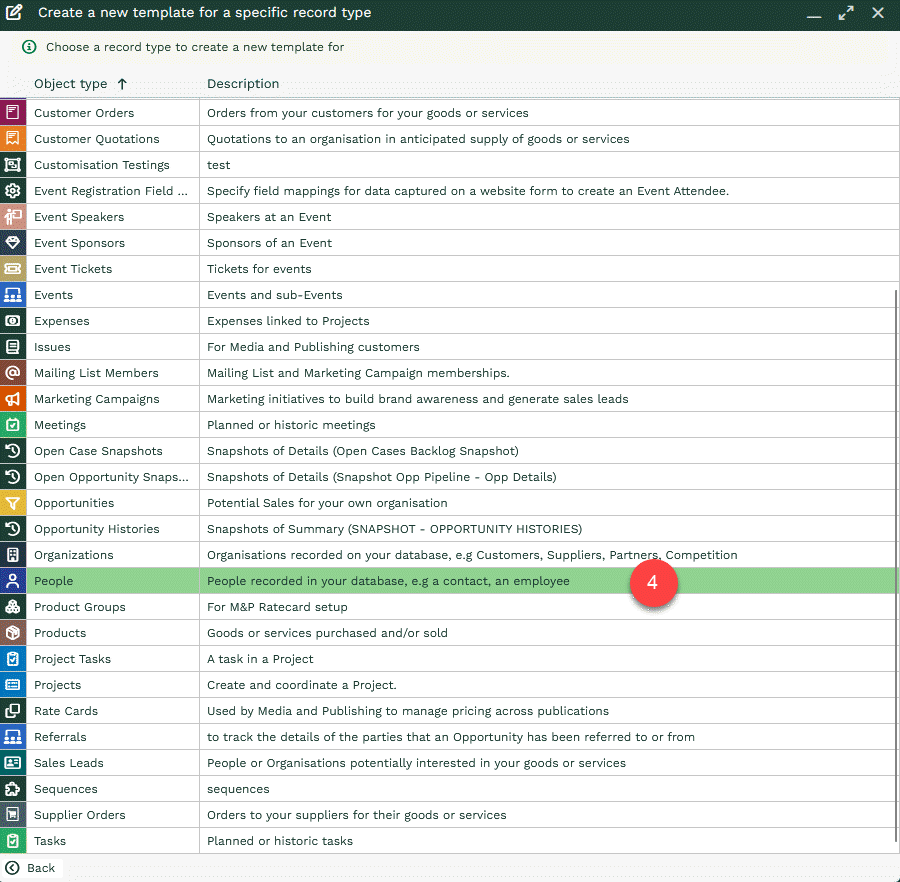
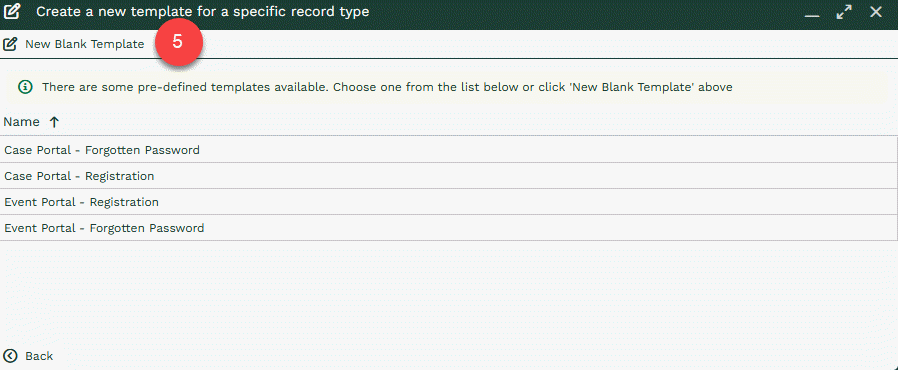
Enter a Name and, if required, a Subject –
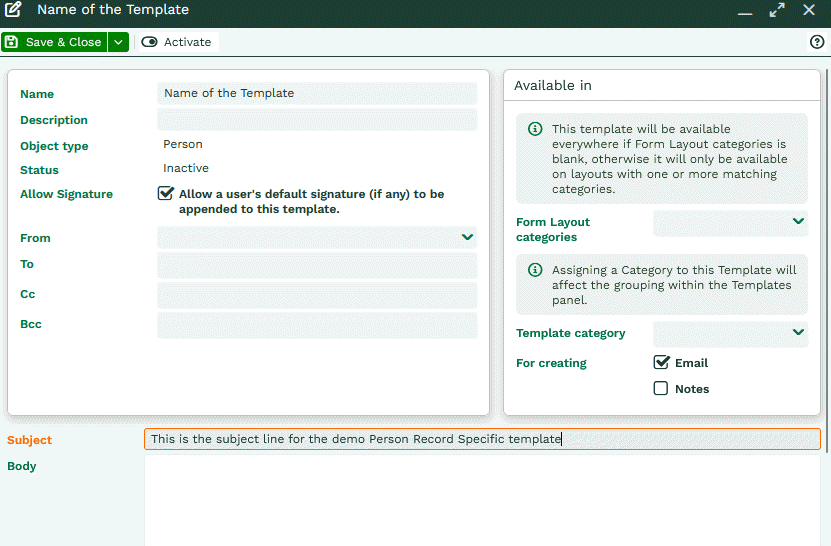
Construct the body of the Template as normal, using placeholders if required.
Where you want the Activities to appear, add a table by clicking on the table icon in the formatting toolbar.
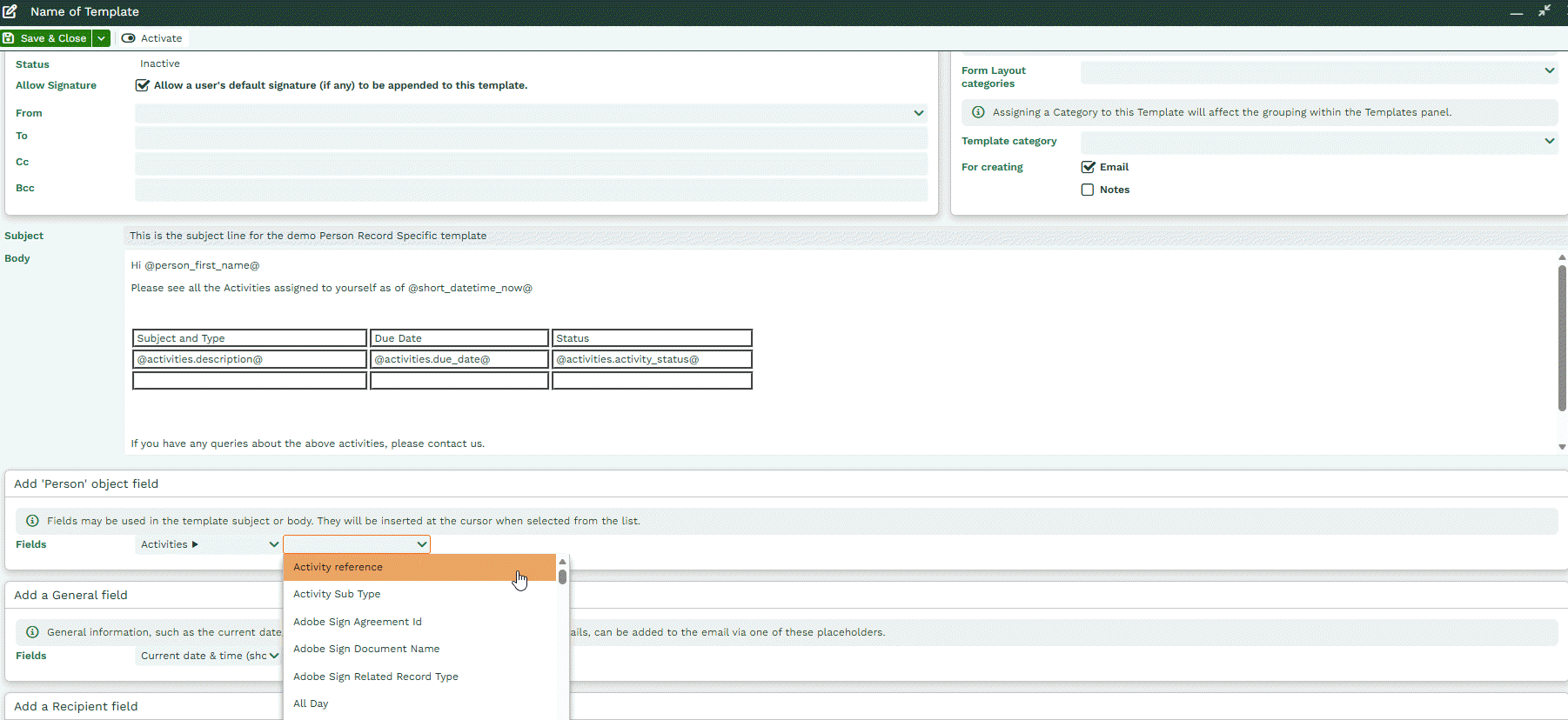
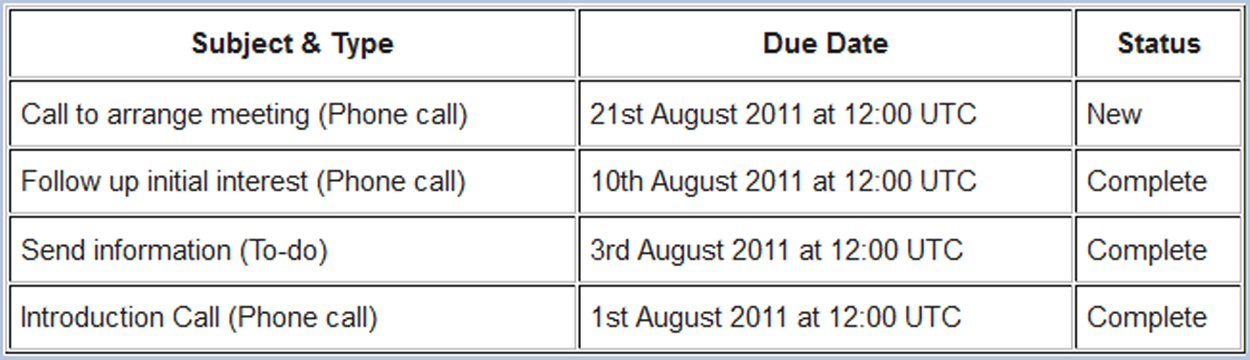
Add the placeholders you require within the table using the Fields chooser. For example, you might want to see the Subject and Type, the Due Date and the Status of the Activities, as shown in the screenshot below (click to enlarge).
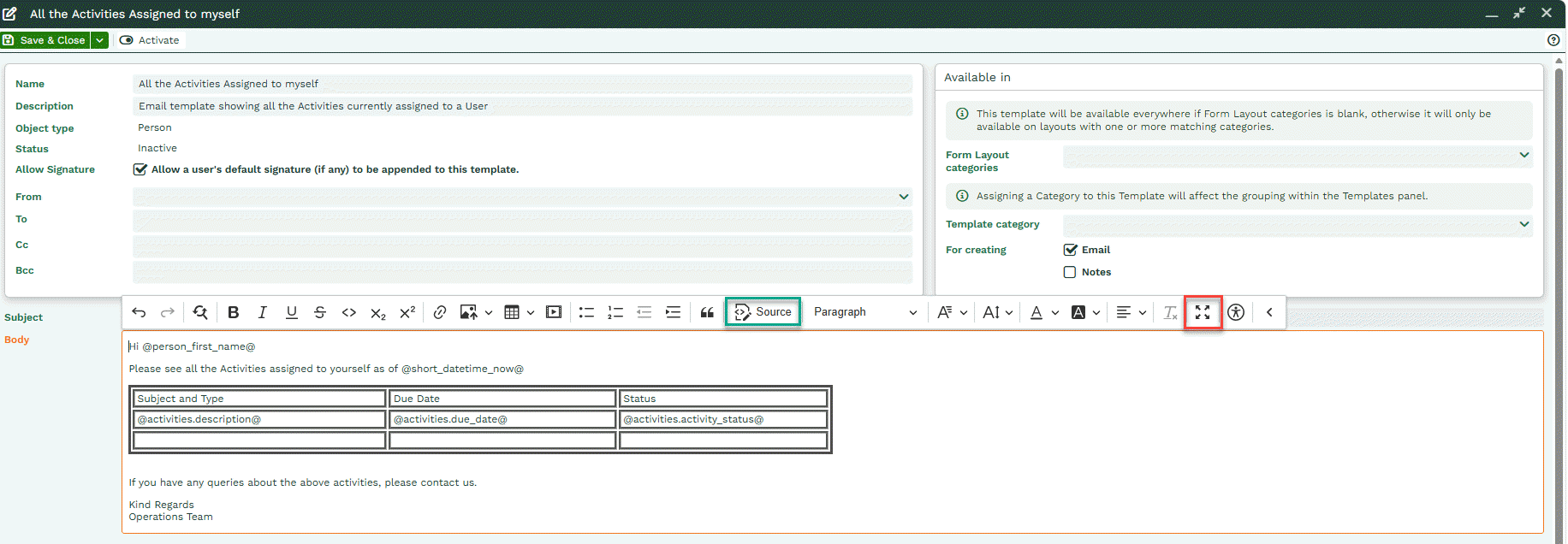
The next step involves editing the HTML so that when the Template is applied against a Person record, it creates a row for each Activity associated with that Person. To do this, click the Source button in the formatting toolbar. You can also expand the Rich Text section so it displays on a full screen.

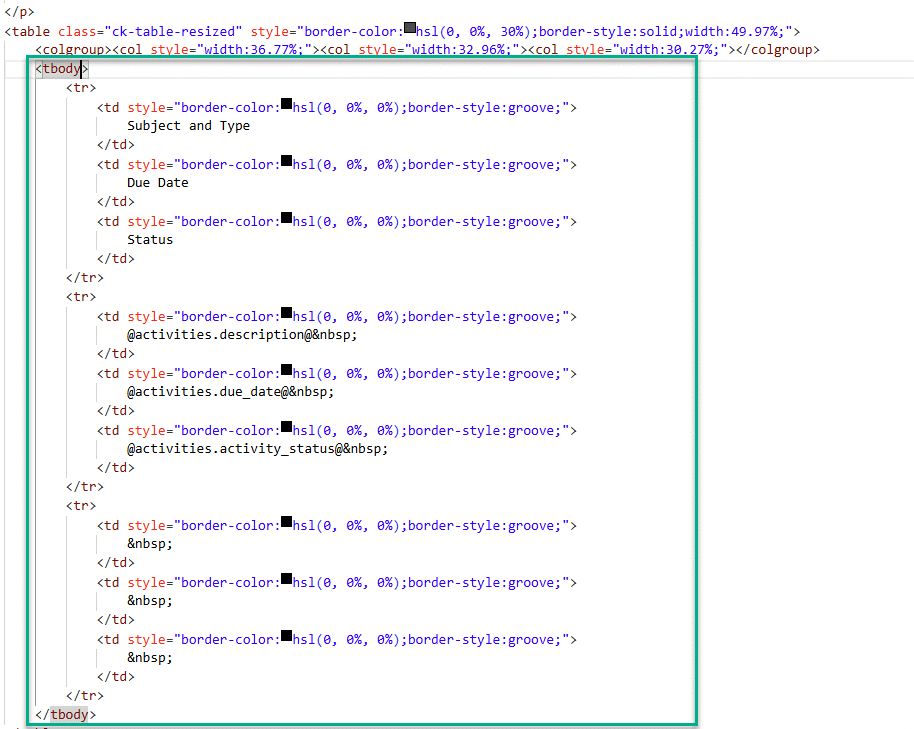
Scroll down to you can see the body of the table, shown in the green box in the screenshot below.
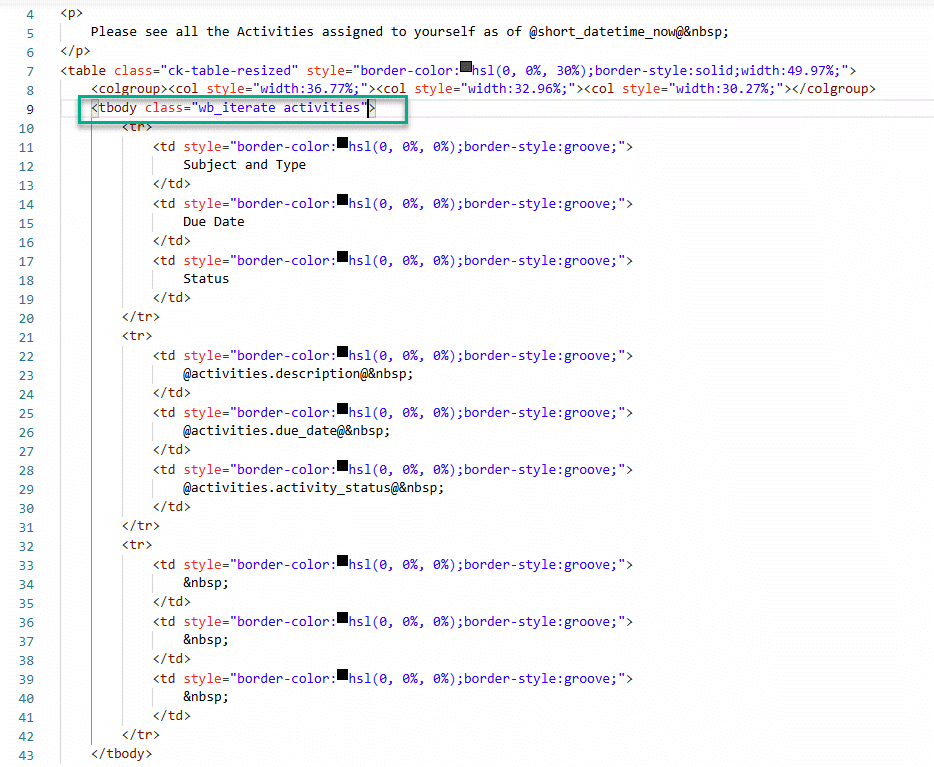
After <tbody add the following text:
class="wb_iterate activities"
so that the line now shows <tbody class=”wb_iterate activities”>, as highlighted below.

Making this change won’t make any difference to the way the text appears when you switch back to text view but when the template’s used on a Person record, it will display a row of data for each Activity for that Person, as shown below.
An Opportunity Template that shows all the Line Items for that Opportunity
Click Start > Marketing > Templates > New Template > A specific record type > Opportunities.
Enter a Name and, if required, a Subject. Construct the body of the Template as normal, using placeholders if required.
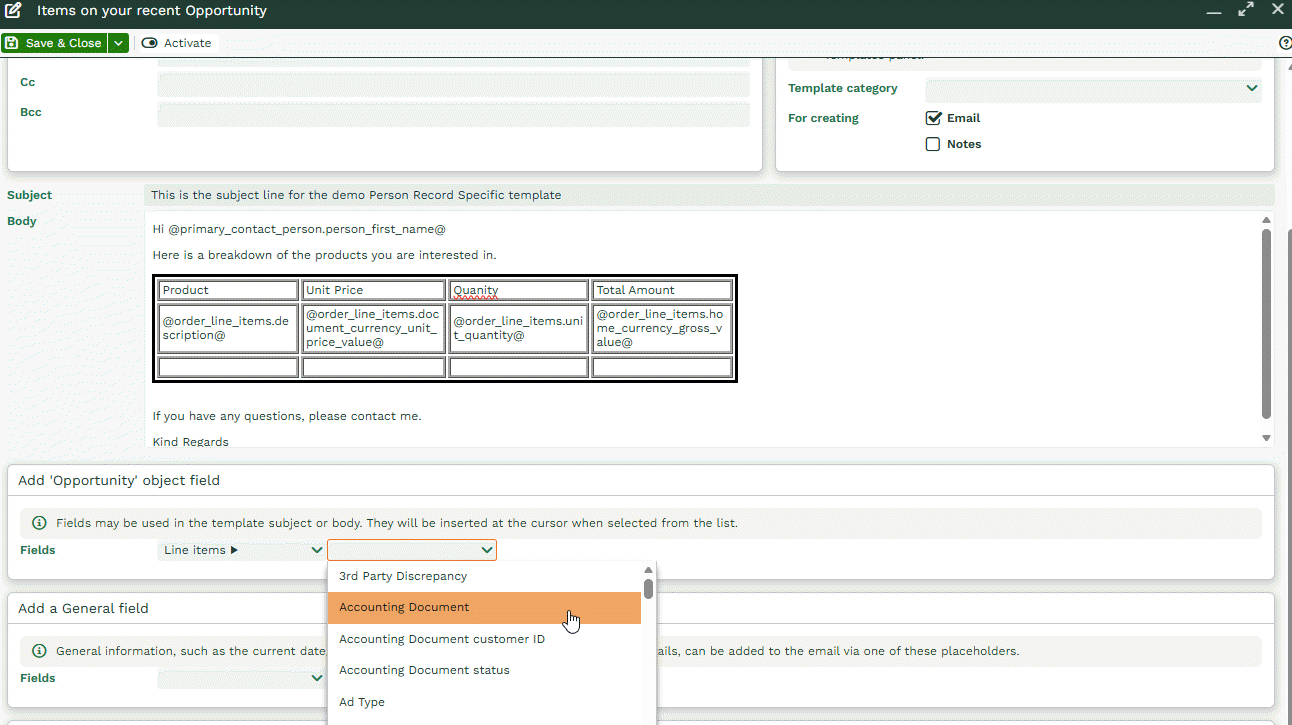
Where you want the Line Items to appear, add a table by clicking on the table icon in the formatting toolbar. Add the placeholders you require within the table using the Fields chooser. For example, you might want to see the Line Description, the Unit Price, the Quantity and the Gross Amount, as shown in the screenshot below (click to enlarge).
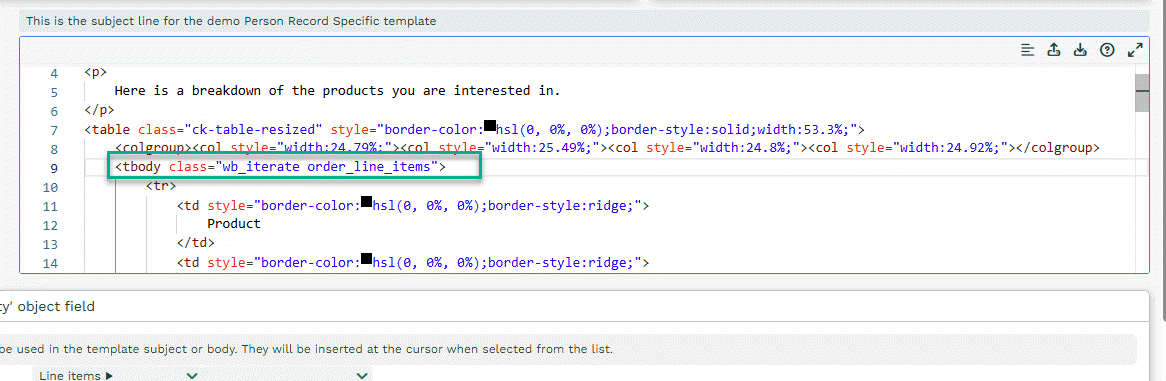
The next step involves editing the HTML so that when the Template is applied against an Opportunity record, it creates a row for each Line Item on that Opportunity. To do this, click the Source button in the formatting toolbar. Scroll down to you can see the body of the table, (between <tbody> and </tbody>). After <tbody add the following text:
class="wb_iterate order_line_items"
The line now shows <tbody class=”wb_iterate order_line_items”>, as shown below.
Making this change won’t make any difference to the way the text appears when you switch back to text view but when the template’s used on an Opportunity record, it will display a row of data for each Line Item on that Opportunity, as shown below.

Relationships
To show the relationships of a particular record, use class=”wb_iterate object_class” where object is the record you are starting from (organisation or person) and class is the relationship name (e.g. partners or employees).
An example could be that you want to list all Partners related to a Person. For this you would use class=”wb_iterate person_partners”