









Unable to see Mail Sync Configuration in Preferences / Configuration menu
The Exchange sync is accessible from two areas within Workbooks. As a standard User, you should be able to access your instance of the Mail Sync UI by completing the following steps:
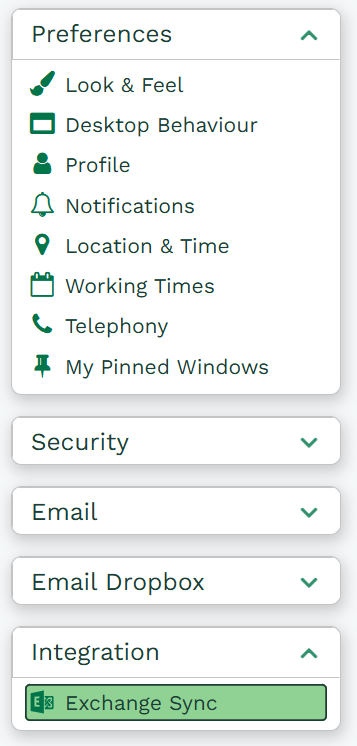
If using Green Theme: Click on the cirlce with your initials at the end of the task bar > Preferences > Integrations > Mail Sync:
If using Clean Theme: Start > Preferences > Integrations > Mail Sync:
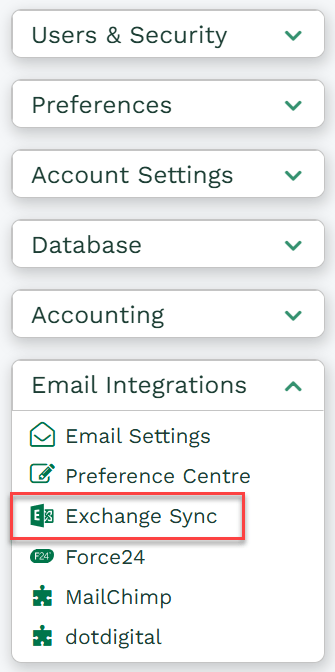
Or as a System Admin, you can additionally find the Mail Sync UI by going to Start > Configuration > Email Integrations > Mail Sync > Configuration:
If you are unable to see these options or unable to access them, it is likely that either your Mail Sync licence has expired, or the module is not active at Database or User level.
Resolution Steps
A System Administrator for your Workbooks database will need to check the following:
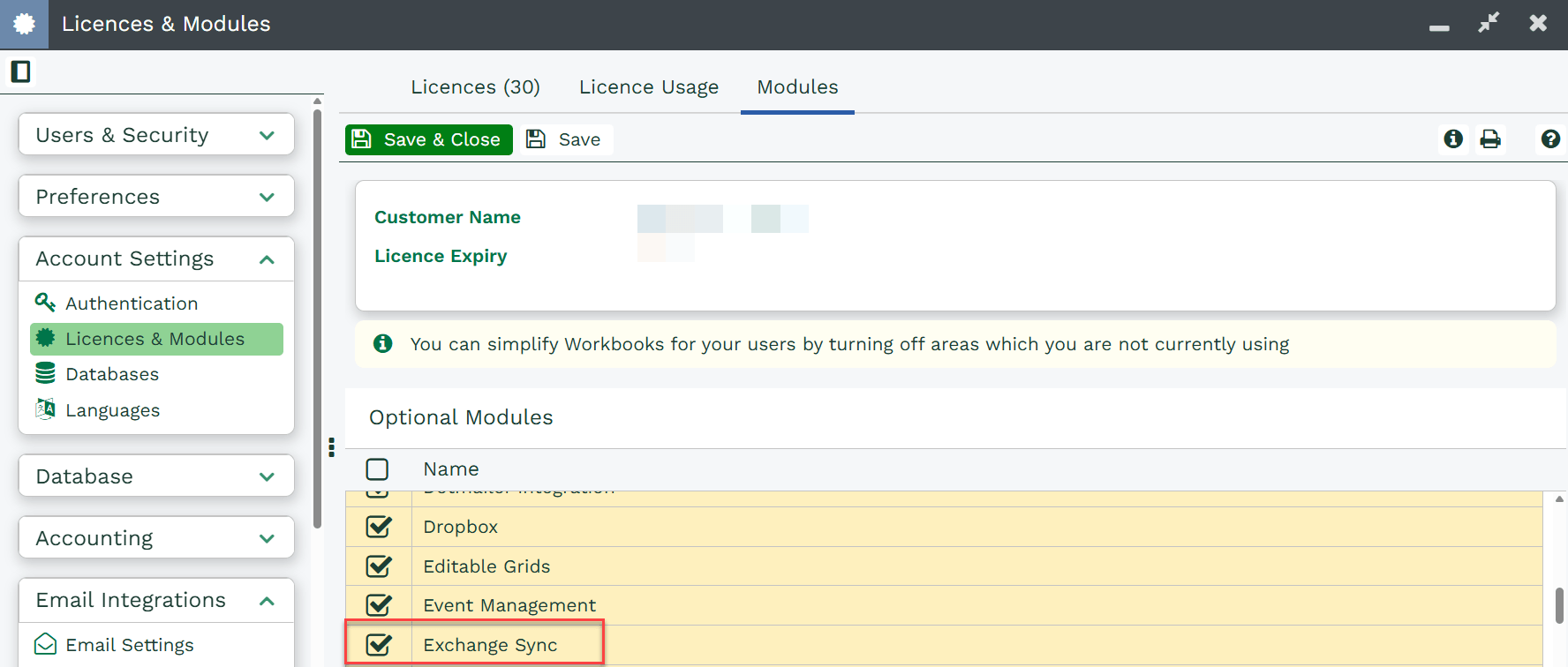
Check that the ‘Mail Sync’ Module is enabled
1. Navigate to Start > Configuration > Account Settings > Licences & Modules
2. Select the Modules tab > Find the ‘Mail Sync’ module and make sure it is ticked/true.
3. Save & Close
4. Log out and back into Workbooks
Check the User has a valid license for Mail Sync
1. Navigate to Start > Configuration > Account Settings > Licences & Modules
2. Select the Licences tab, and ensure that ‘Mail Sync’ is listed.
3. If it is not listed or shows as expired, your Workbooks Account no longer has an Active Mail Sync Licence. To purchase new Mail Sync licences, please contact the Workbooks Sales team by calling 0118 3030 100 or emailing sales@workbooks.com
4. If it is listed, navigate to Start > Configuration > Users & Security > Users
5. Open the User Record for the affected User and allocate an Mail Sync Licence (Located at the bottom of the User profile)
7. Save & Close
8. Ask the User to log out of Workbooks and back in, for the changes to take effect.