





Workbooks AI Agents
Use Agents to prompt Workbooks AI with pre-defined instructions and resources, for example to define responses such as a Statement of Work, Meeting Minutes, or an Account Summary. Agents help standardize how the AI responds, ensuring outputs are consistent and aligned with your business requirements.
Agents
Agents allow you to pre-write instructions for Workbooks AI that can be reused across your organization. Each Agent contains an Initial Agent that provides instructions for how the AI should behave and respond.
You can also assign Guides to an Agent to provide additional business information, terminology, and reusable instructions. The Initial Agent and its assigned Guides form part of the AI’s initial context, giving the Agent the information it needs before responding to the user.
For example, you could create an Agent on Opportunities called “Create SOW”, which includes instructions defining the job functions or sections that the AI should include when generating a Statement of Work. You could also assign a Guide containing relevant terminology or business information that the Agent should use when creating the SOW.
Common use cases for Agents include:
- Generating Statements of Work
- Producing structured meeting minutes
- Creating account or opportunity summaries
- Standardizing internal documentation
- Providing Agents with business information and terminology
- Providing reusable instructions for specific business processes
Note: When using an Agent to update a record, a banner will appear saying ‘This record has been modified since you opened it. Reload to access the latest version.’ Make sure you save any changes you have made to the record before asking AI to update the record as you may lose these.
Agent Visibility
Agents can be limited to specific record types, ensuring they only appear where relevant. You can further restrict their availability by assigning categories that correspond to specific form layouts.
When categories are specified, the Agent will only appear on matching form layouts. If categories are left blank, the Agent will appear on all layouts for the selected record types.
It is possible to control which Users or User Groups the AI Agents are shared with, so that they do not appear for everyone. This helps reduce the number of Agents users see that are irrelevant to them and allows Agents to be restricted where they perform functions that only certain users should have access to. For more information on Sharing Policies, click here.
Making an Agent active or inactive
Each Agent has an ‘Active’ checkbox. When it’s ticked, Users with the appropriate permissions can use the Agent. If the checkbox is un-ticked, the Agent is hidden from use, but all of its settings are kept, including its prompt, tools, and resources. This lets you take an Agent out of use without deleting it.
New Agents are active by default. However, when an Agent is disabled:
- It no longer appears in the Workbooks AI window on records
- It isn’t available when selecting an Agent
- It can’t be run through the API
- It remains in the AI Agents list but appears greyed out
- Its usage history is retained
To make an AI Agent Active or Inactive:
- Go to Start > Configuration > Workbooks AI > Agents
- Open the Agent
- Tick / un-tick the ‘Active’ checkbox
- Click Save & Close
NOTE: If a User is already using an AI Agent when you deactivate it, their current conversation will continue. Any new messages will be answered using the standard Workbooks AI instructions instead of the Agent’s instructions, and the existing conversation history will remain available. The Agent will no longer appear the next time they open the record.
Agent Instructions and Guides
The Initial Agent provides the main instructions for an Agent. This replaces the previous system prompt and defines how the Agent should behave and respond.
You can assign one or more Guides to an Agent to provide additional resources and instructions. Guides are Markdown-based and can contain business information, terminology, reusable instructions, or other information that the Agent needs to perform its tasks.
The Initial Agent and assigned Guides form the Agent’s system context. Guides can therefore be used to provide an Agent with information that should be available when the Agent starts, rather than requiring the Agent to retrieve it during the conversation.
Context Prefetch
Agents can optionally prefetch information before the first turn of a conversation. A read-only tool can be run when the Agent starts to retrieve known information and place it into the Agent’s initial context.
For example, an Agent launched from a particular record type can prefetch information about that record type before the first user message. This can avoid an additional tool-call turn when the information is needed by the Agent.
Context prefetch uses additional tokens and may take some processing time, so it should only be used where having the information available at the start of the conversation is beneficial.
Guides
Guides can be assigned to individual Agents when they need specific business information or instructions. The shared Guide Library contains reusable Markdown guides covering areas such as configuration, data models, permissions, reporting, automation, and Workbooks AI.
Default Guides are supplied to every conversation and every Agent. Because Default Guides are included in every request, they should be kept short and limited to information that is relevant universally. Business information and glossary content that is only relevant to particular Agents should instead be stored in named Guides and assigned where required.
For more information about Guides and providing Workbooks AI with business context, see Workbooks AI Context.
Agent Configuration
When run, some Agents are able to present clickable, button-based choices to users during a conversation. This allows the AI to offer structured options rather than relying on free-text input, enabling workflows like action plan approvals where users can approve or reject suggestions directly via buttons.
Additionally, within the Agent configuration, you can control how Workbooks AI generates responses.
Configuration options include:
- Output Token Limit: Sets the maximum length of the AI’s response. The default value is 7,500 tokens, helping you control how concise or detailed outputs should be.
- Creativity: Controls how predictable or inventive responses are, ranging from Most Predictable (0.0) to Maximum Creativity (1.0). Lower values produce more consistent and focused responses, while higher values encourage more varied output. The default value is 0.2.
- Model: Depending on the complexity and purpose of your Agent, you may want to switch between Conversational, Coding, and Thoughtful.
- Conversational: Best for general chat, customer support, emails, summarization, document analysis, and everyday business tasks. Optimized for fast, natural conversation.
- Coding: Specialized for writing new Agents. Better at writing, debugging, explaining, and reviewing, as well as following technical instructions and producing structured outputs.
- Thoughtful: Better suited for problems that benefit from deeper reasoning such as complex analysis, planning, multi-step decision making, research, and difficult logic problems.
These settings allow you to fine-tune Agents so the AI produces outputs that match your organization’s tone, level of detail, and consistency requirements.
Grouping AI Agents
You can organise your AI agents into groups, making it easier to manage them. As you create more AI agents for a record type, they can start to crowd the bottom of the chat window, making it harder to quickly find and use the right agent.
With Agent Groups, you can organise agents into structured sub-menus, helping you stay organised and navigate your agents more efficiently.
To assign an AI agent to a group, open an existing agent, for example, Case Study. You will see a field labelled “Group”, where you can select a group from a dropdown. The options in this dropdown are set within the AI Agent Groups picklist (Start > Configuration > Customisation > Picklist > AI Agent Group), which allows you to manage existing groups or add new ones as needed.
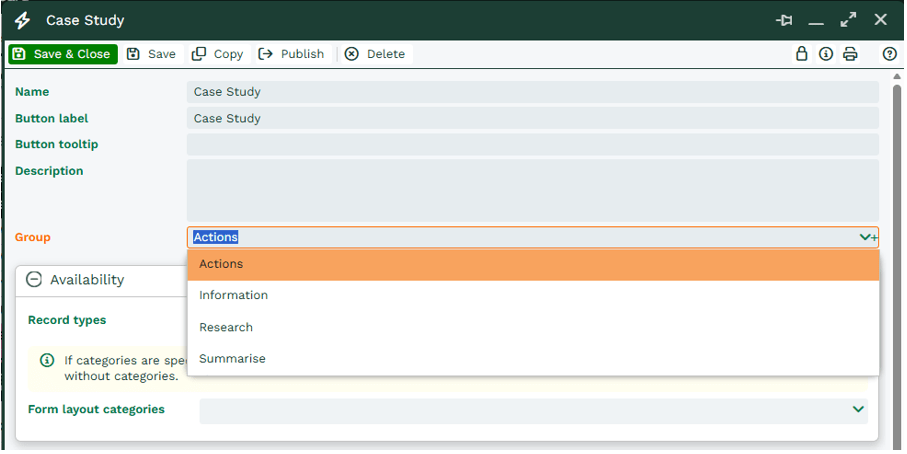
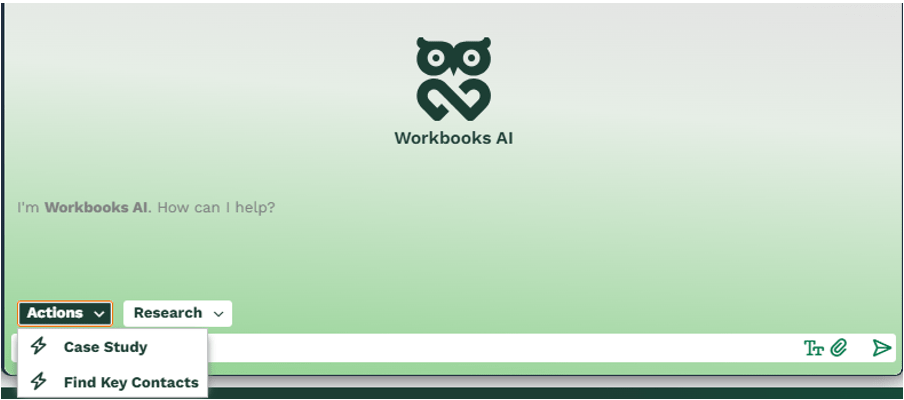
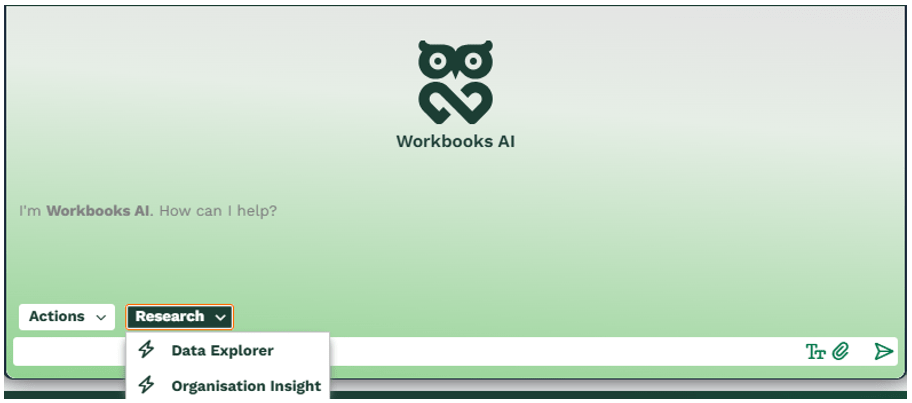
Agents can be organised into groups such as Actions, Summarise, Information, and Research. For example, you might place Case Study and Find Key Contacts under the Actions group. The first screenshot below shows how these agents appear when they are part of the Actions group. Agents such as Organization Insight and Data Explorer can be placed under the Research group. The second screenshot demonstrates how these agents are organised within the Research group, making it easier to navigate and select the right agent.
Workbooks AI Tools
Revision History
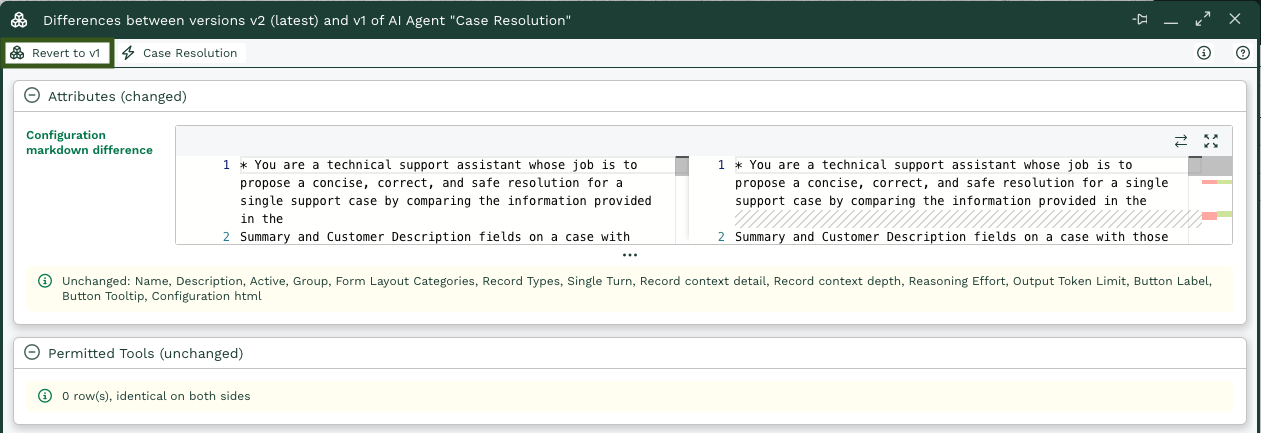
The Revision History tab within Workbooks AI Tools provides a clear audit trail of changes made to a Tool over time. It enables administrators to view previous versions, including what was modified, when the change occurred, and who made the update. This allows you to track the evolution of a Tool, troubleshoot issues by comparing versions, and, where necessary, revert to an earlier configuration.
Within the tab we are able to compare different versions of the scripts:
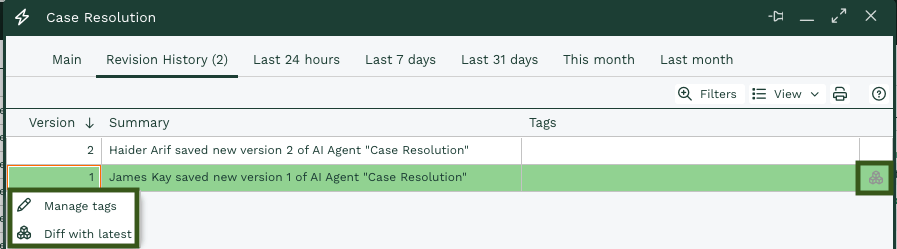
By clicking on the version number we are presented with the options on the left or we can click on the audit icon on the right hand side to open the changes between the versions side by side