









Searching in Workbooks
It’s important that you can find the record(s) you need quickly and easily, and Workbooks includes a powerful Search capability for this purpose. The magnifying glass is used to indicate where a search function exists, and you can find three of these icons on your Desktop and Start Menu:
- Using the Search shortcut on your Workbooks Desktop.
- Clicking the magnifying glass icon in your Taskbar.
- Using the Search field that appears when you click the Start button.
Each option allows you to limit your search to a specific record type. For options 1 and 2 you do this by using the ‘Within’ picklist.
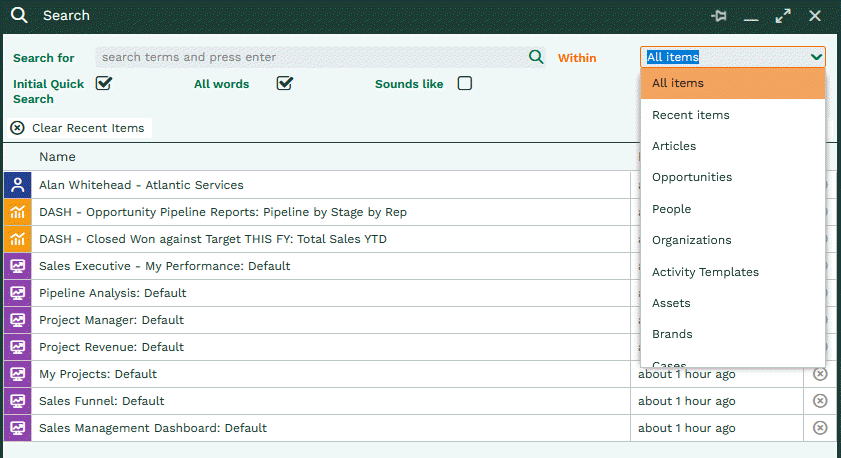
For option 3, you click on the down arrow next to the magnifying glass which gives you a list of record types/areas of Workbooks to search within.
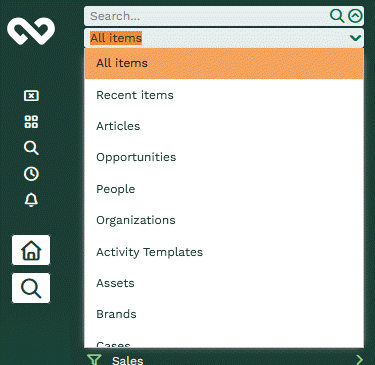
If you select a record type to search with using option 3, the system will remember what you’ve chosen for the rest of your login session, so that the next time you use that search it will be restricted to the record type you previously specified. This is particularly useful if you regularly search for records of just one type.
You can also limit the search to your recent items.
Watch the video below or scroll down to find out more.
Alternatively, you can search the entire database by leaving the setting as ‘All Items’.
Quick and Extended Searches
When doing a search, by default, this will do a quick search. This looks for specific field values that start with what you searched. When creating fields, you can select if you want to allow Quick Searches to use this field.
You may not find the record you want when running a Quick Search and can do an Extended Search. Untick ‘Initial Quick Search’ and rerun your search.
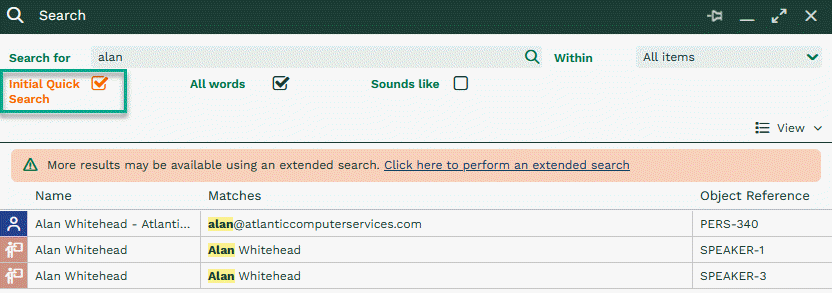
Extended Searches will look for records where fields contain what you are searching.
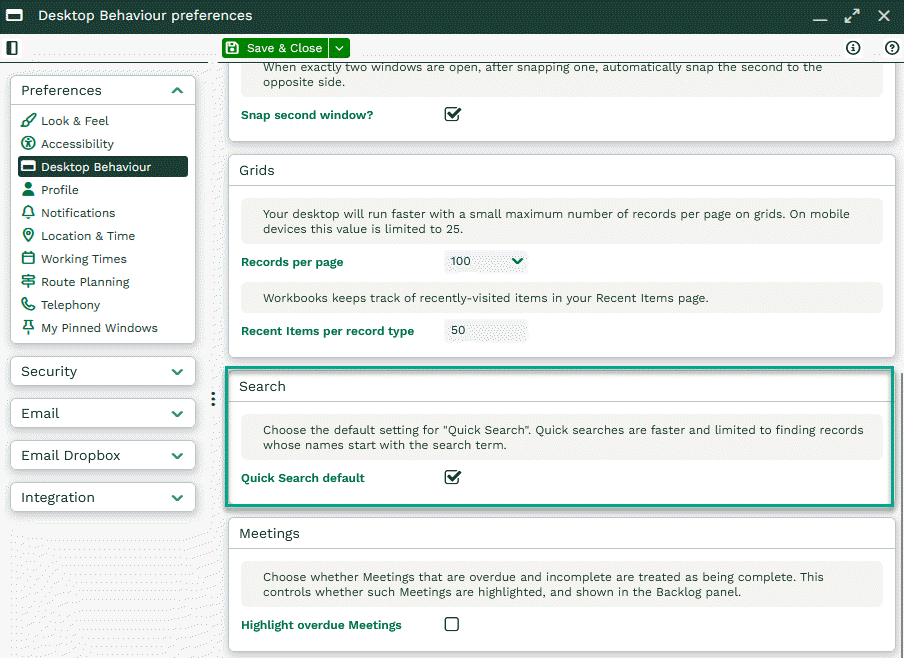
Within your preferences, you can make a change so that whenever you run a search, it is an Extended Search by default.
Keeping your Search open
After running a search clicking one of the results, the search will close and the record will open. To keep the search window open, hover over one of the results and a drop down arrow will appear.
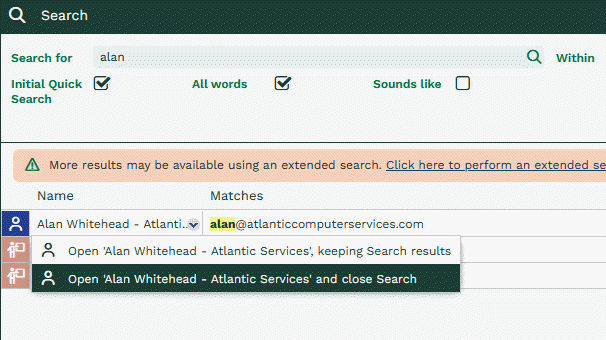
The first option opens the record selected and keeps the search box open.
Searching for specific records
All records have a unique Object Reference where their prefix is based on the record type.
For example, an Organisation’s Object reference would start ORG, while an Opportunity would start OPP.
If you know the Object Reference for a record, this can be entered into the Search.
Note
This is useful when you want to open a specific report
Watch the video below for more information: