









Workbooks AI Guides
AI Guides are reference documents that Workbooks AI Agents read before they start work. A Guide tells an Agent how something works in Workbooks, or how your organisation does things, so the Agent doesn’t have to work it out from scratch each time.
Guides are written in Markdown, and Workbooks stores it as written.
Where to find Guides
Go to Start > Configuration > Workbooks AI > Guides.
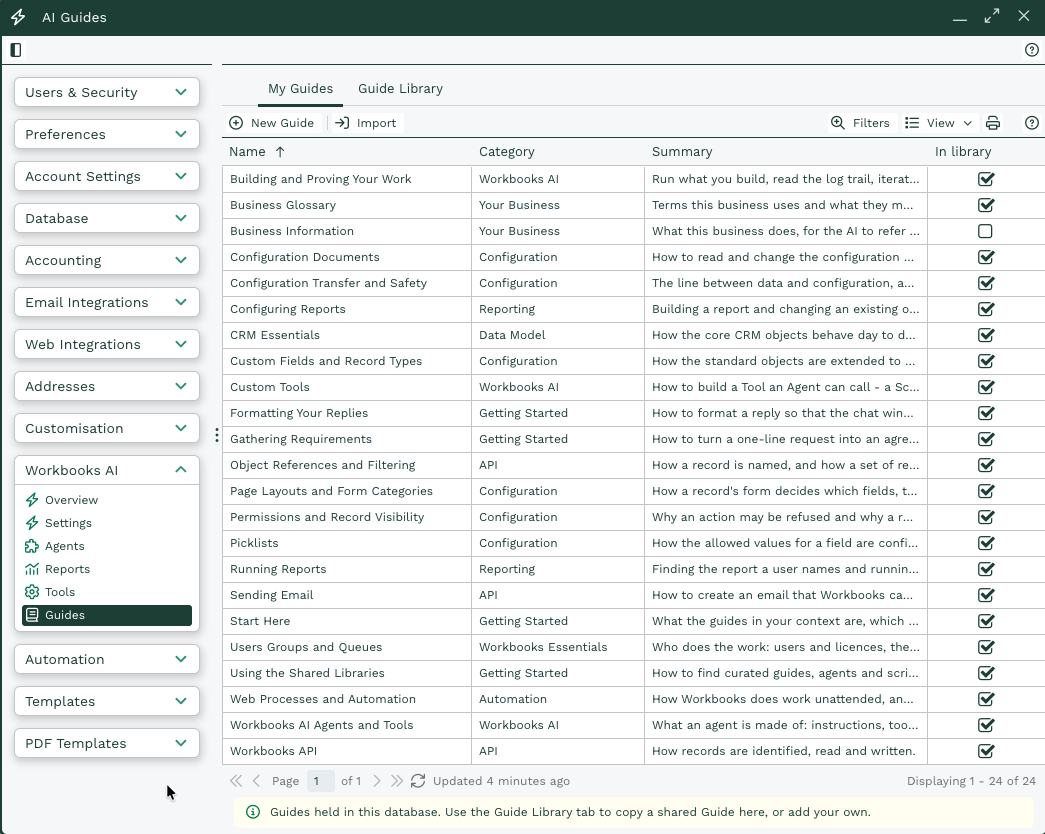
- My Guides holds the Guides that belong to your database, alongside the Guides from the library. Library Guides are ticked in the In library column.
- Guide Library holds the shared set of Guides that Workbooks writes and maintains. Every Workbooks database can read them.
Create a Guide
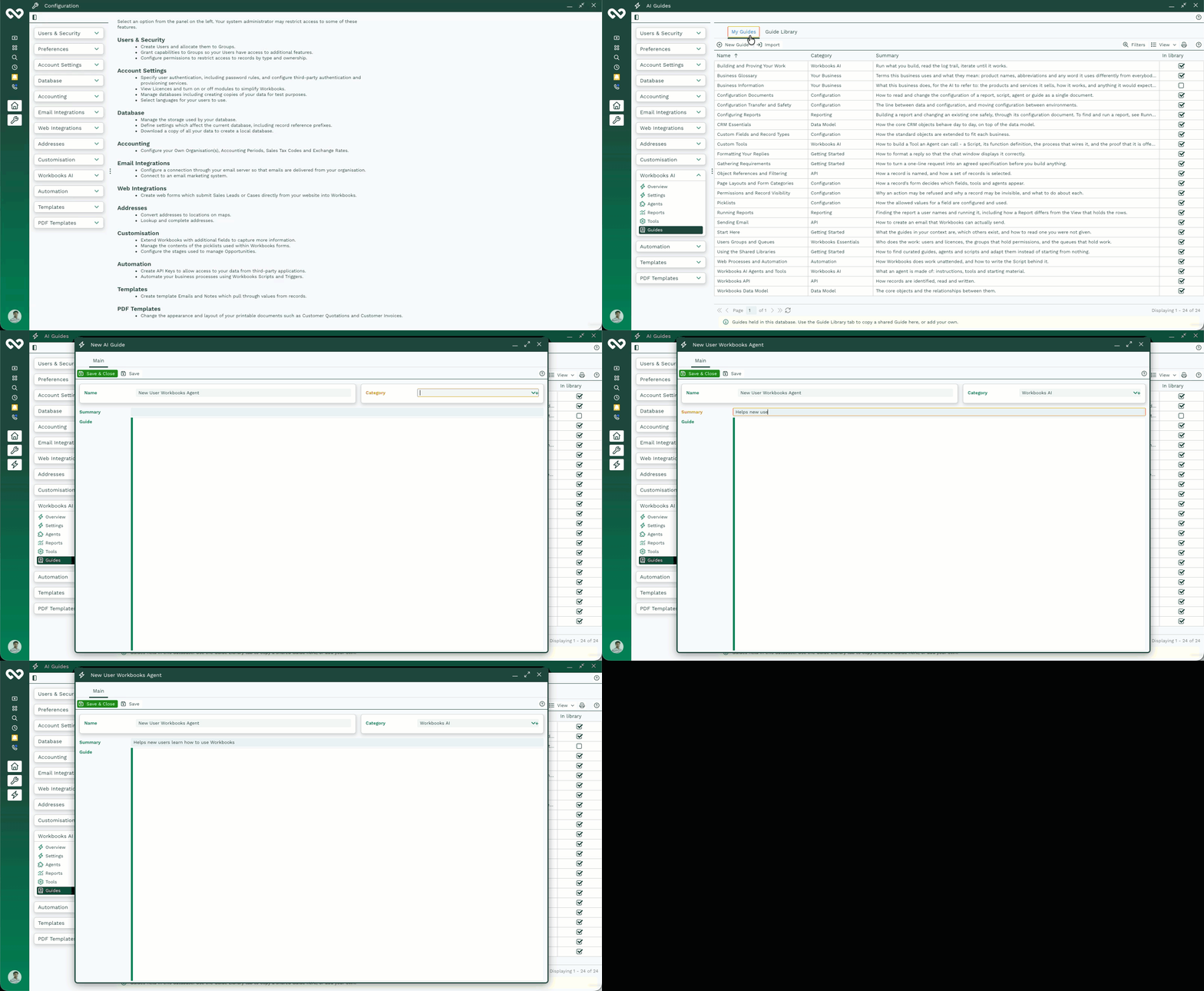
- On the My Guides tab, click New Guide.
- Enter a Name.
- Optionally, choose a Category. You can pick an existing value or type a new one.
- Optionally, enter a Summary that describes what the Guide covers.
- Write the content in the editor. The editor shows the content formatted. To see or edit the raw Markdown, click Source, and click it again to return to the formatted view.
- Click Save.
Replace a library Guide with your own
To start from the library content rather than a blank page:
- On the Guide Library tab, open the Guide.
- Click Copy to this database.
- Edit the copy, give it a different the name and save it.
Note
If your database has a Guide with the same name as a library Guide, your Guide replaces the library one. The library version no longer appears on My Guides, and your Agents read your version instead.
Copy, export, and import Guides
From one of your own Guides, you can click Copy to create a duplicate in your database, or click Export to download the Guide as a .json configuration file named after the Guide.
To import a Guide, click Import on the My Guides tab and choose a Guide export file. An import always creates a new Guide. If a Guide with that name already exists, example “Sending Email”, the imported one is saved under the next free name, for example “Sending Email (2)”, and the existing Guide is left unchanged.
Export and import are available for your own Guides only. To bring a library Guide into your database, use Copy to this database.
Revision history
Each of your Guides has a Revision History tab. Workbooks records a new version every time the Guide is saved, whether a person or an Agent made the change.
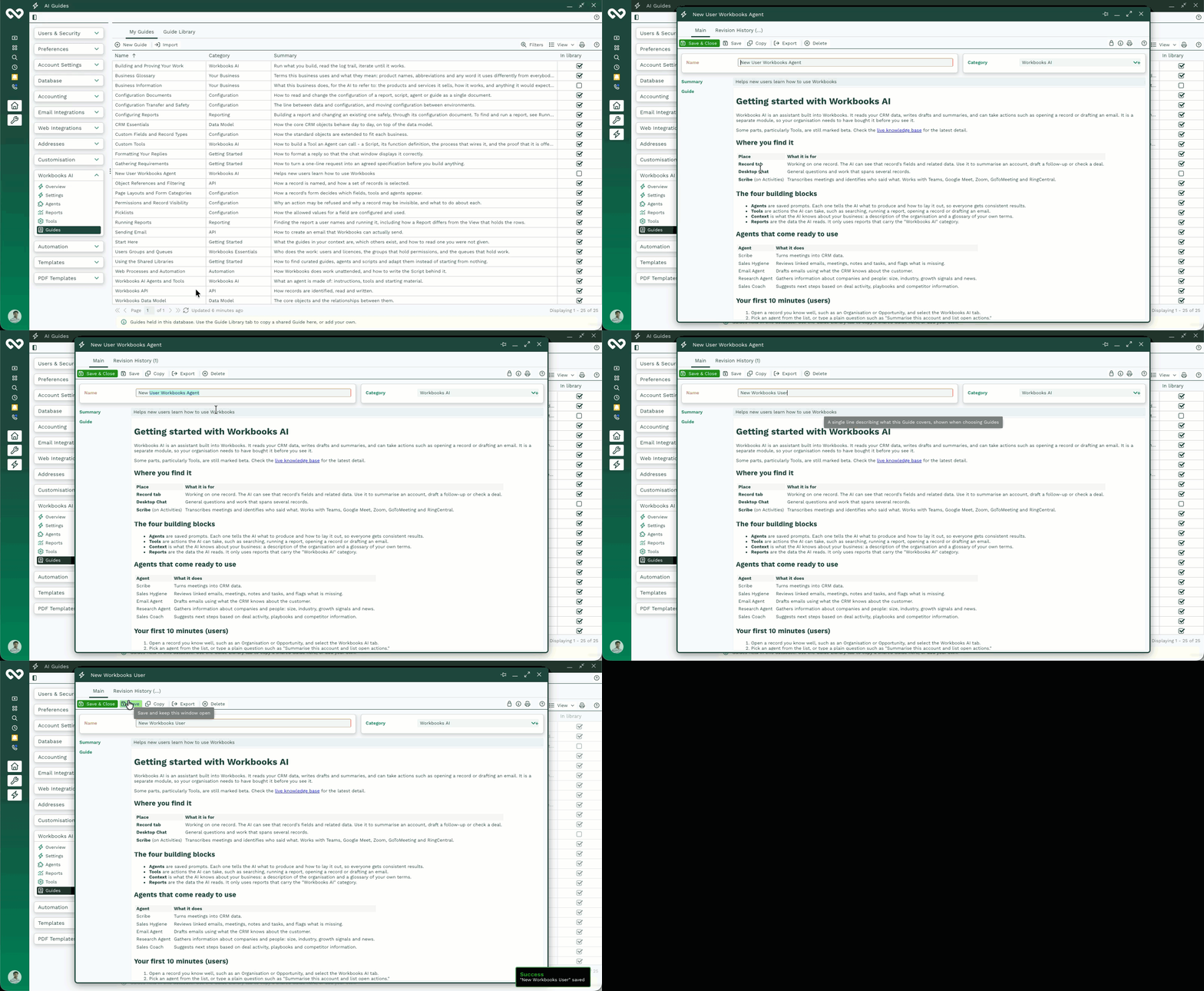
To compare or revert a version:
- Open the Guide and select the Revision History tab.
- Click a version. The Compare Versions panel shows the Markdown of that version and the current version side by side.
- To go back to that version, click Revert. A message confirms which version was applied.
Note
A revert is itself a change, so it adds a new row to the history. You can undo a revert the same way.
Guides and AI Agents
Agents read the Guides in My Guides, which includes the library Guides you haven’t replaced. You can also attach Guides to an Agent so it has them from the start of a conversation. For details, see Workbooks AI Agents.
Agents can create and edit Guides in your database, but they can’t change the Guide Library. Use Revision History to see what an Agent changed and to revert anything you don’t want to keep.
Note
Don't put confidential information in a Guide. If an Agent can read a Guide, someone using that Agent can ask it to repeat the content.