How to order more Workbooks licenses via the Customer Hub
If you’re a Workbooks Authorized Support Contact (ASC) you can request additional licenses through the Customer Hub, without having to contact your Account Manager or the Support team – just follow the steps below.
Accessing the Customer Hub
1. You can place an Order for additional licenses via the Customer Hub at any time. The Hub is available to all Users but only Authorized Support Contacts are able to place Orders.
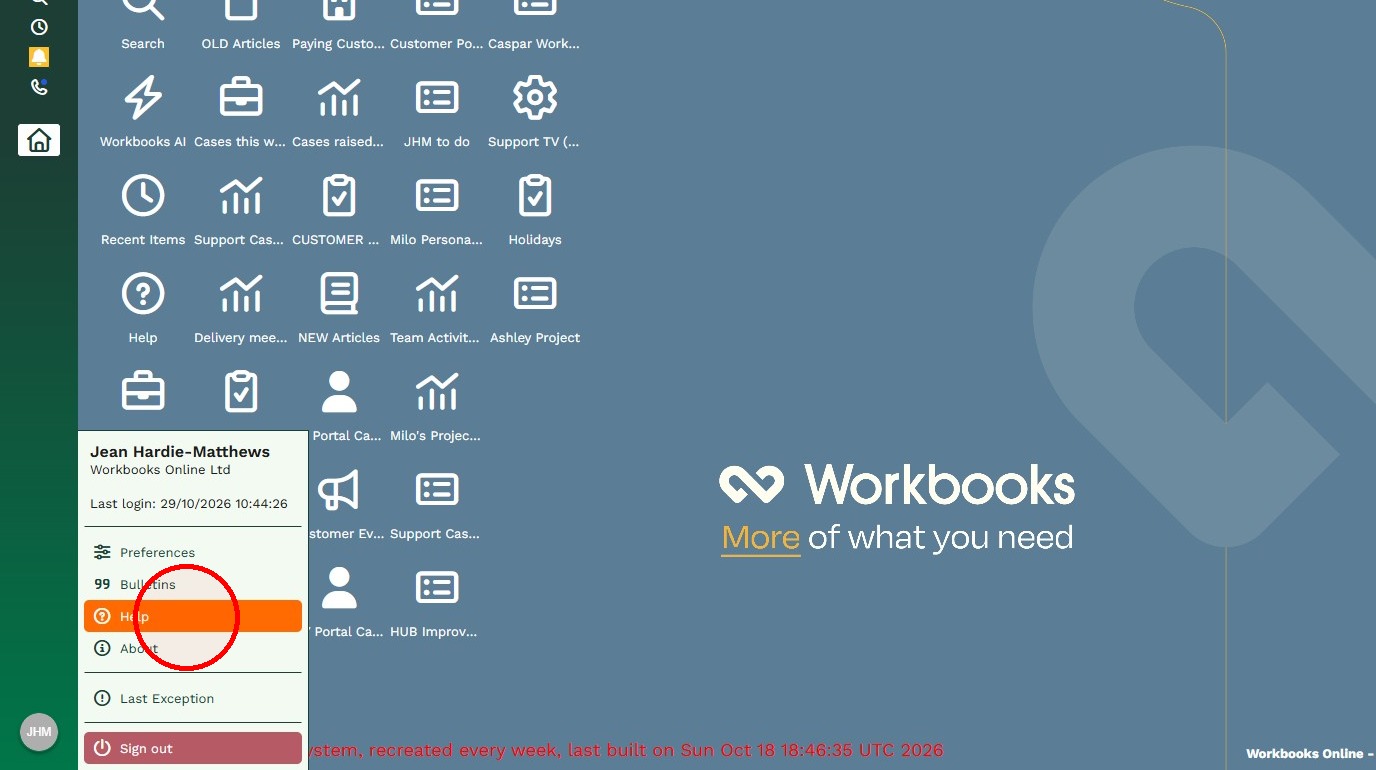
Access the Hub from your User menu and click ‘Help’. In the screenshot below, this is in the bottom left of the screen but if you’ve set your Desktop Preferences differently, your User menu might appear elsewhere.
Configure Upgrade
2. Once in the Hub, click ‘Your Workbooks Account’ and select the Upgrade option. (If you can’t see that option and you’re an Authorized Support Contact, speak to your Account Manager or email support@workbooks.com for assistance.)
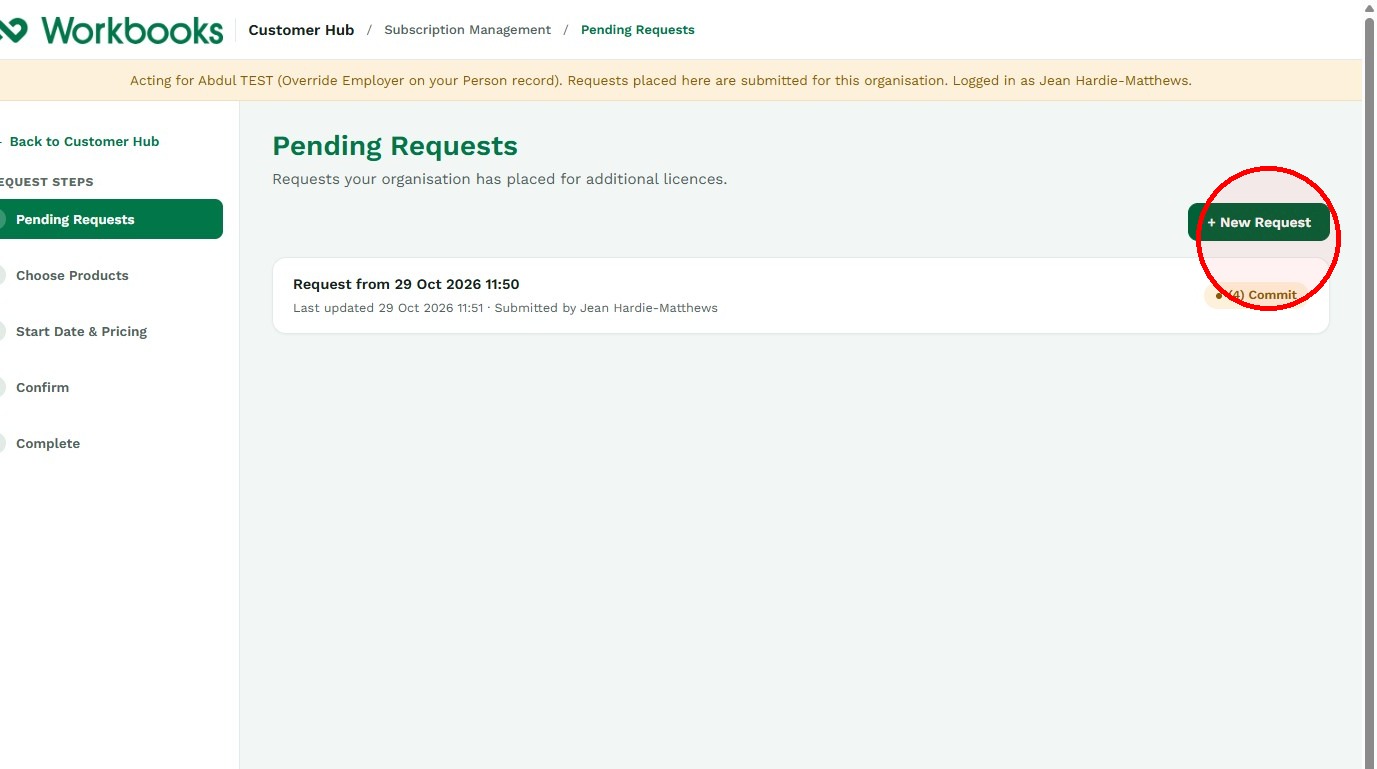
Any previous license requests that have not yet been fulfilled will show as ‘Pending Requests’.
Click ‘New Request’.
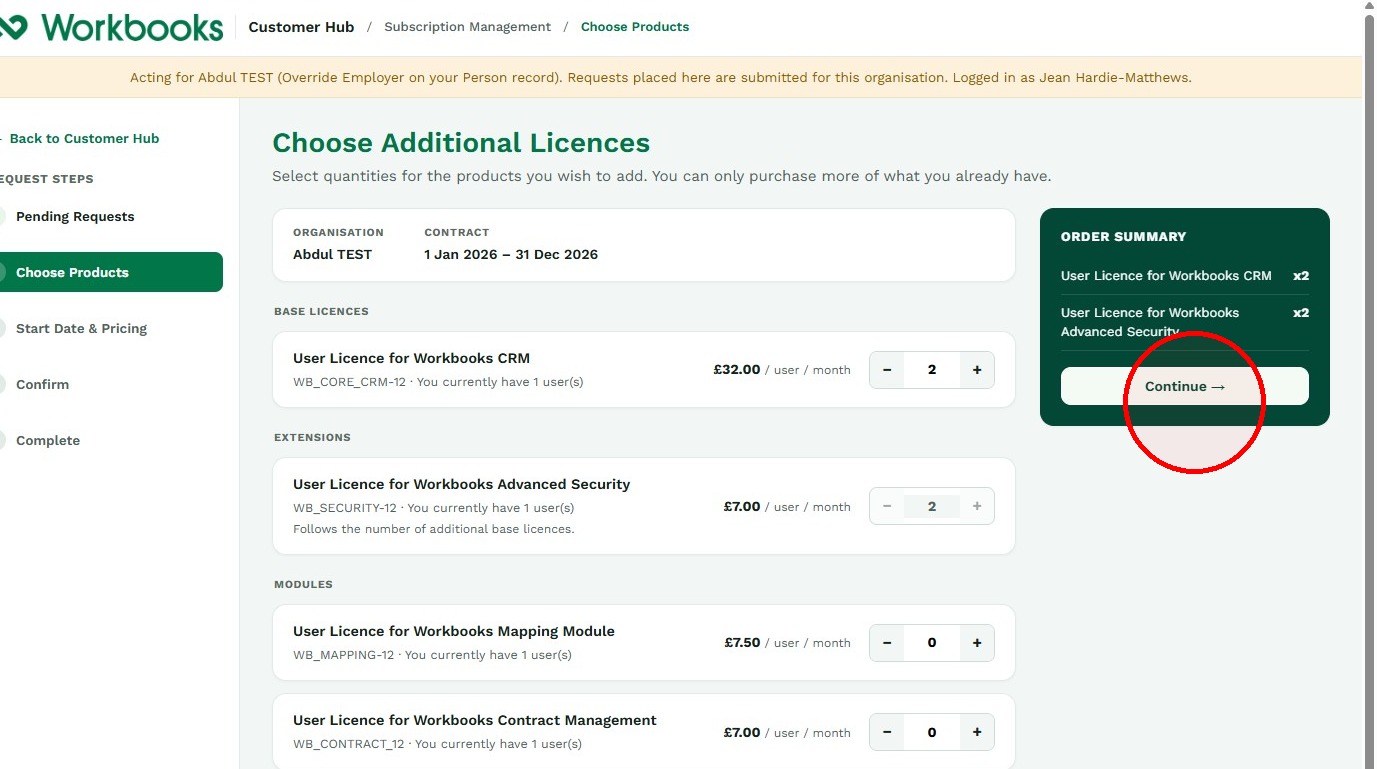
3. The screen shows the number of licenses of each type you currently have. (At the moment, you can only buy more licenses of the types you already have but a forthcoming enhancement will enable you to buy additional products you haven’t bought previously.)
Use the plus (+) buttons to specify the quantity of licenses you want to order. The system will automatically add in any extensions that all Users must have.
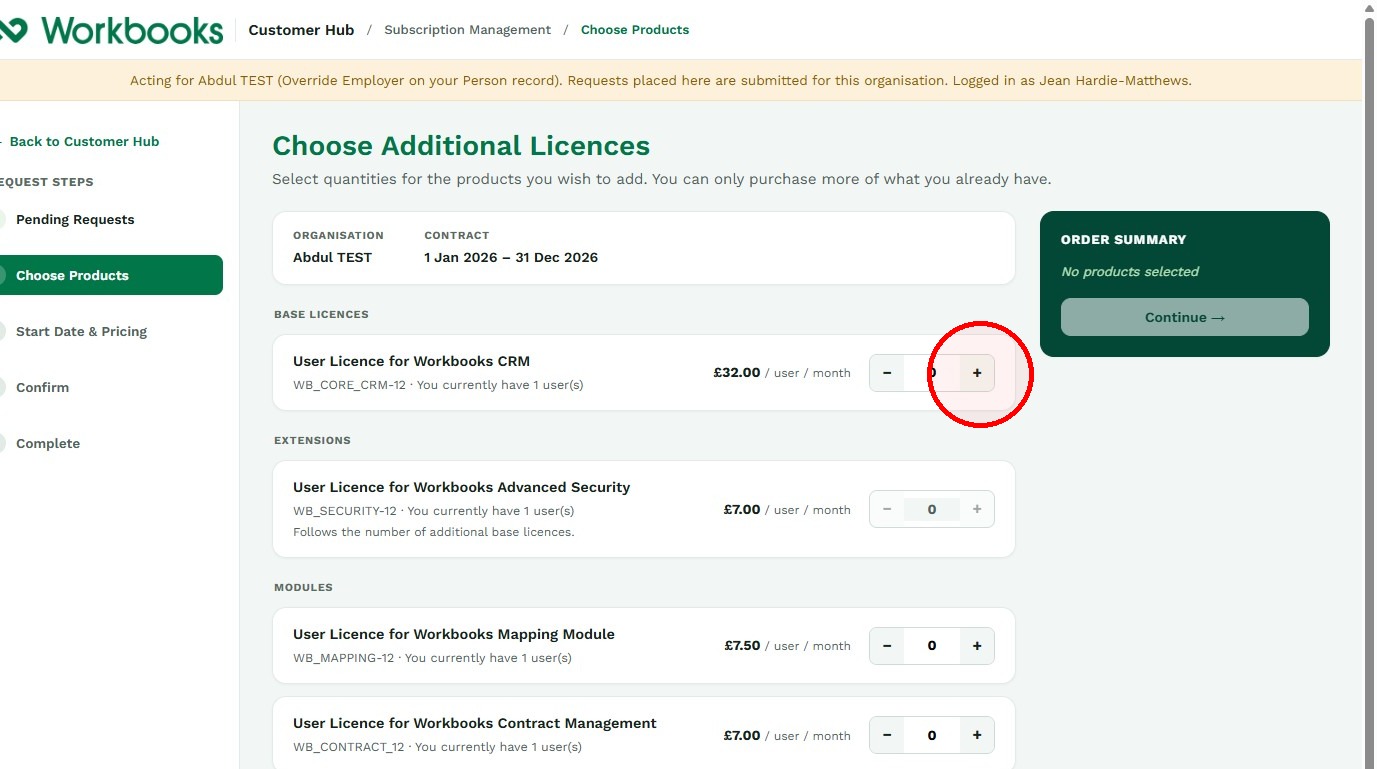
Tip: Tip! If you click to add too many, use the minus (-) buttons to reduce the quantity. Remember, you cannot reduce the number of licenses you’re already contracted for.
4. When you’re happy with your selections, click ‘Continue’.
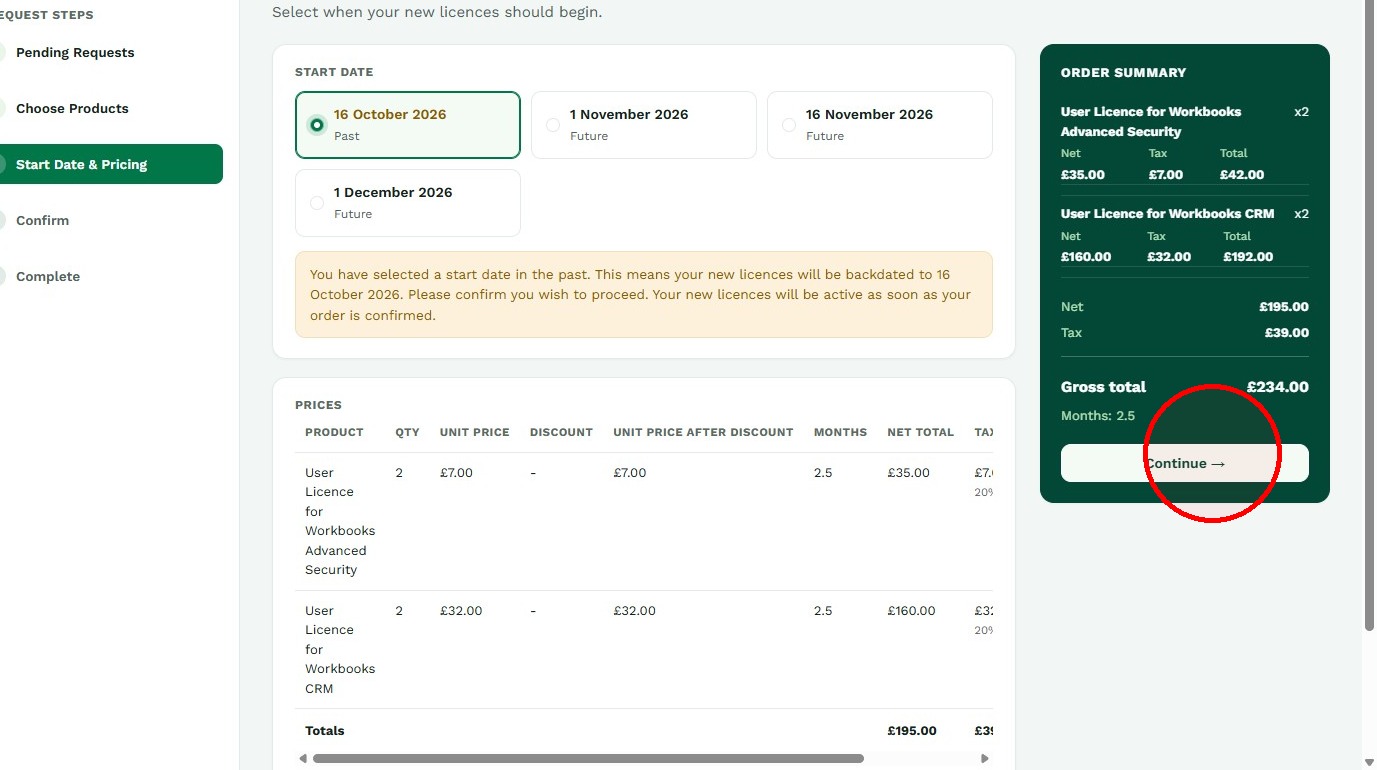
5. The Start Dates offered reflect the start date of your contract. You can select a date in line with the date and month on your contract or one half a month before or after your start date. Your license price will be calculated on a pro rata basis.
When happy, click ‘Continue’.
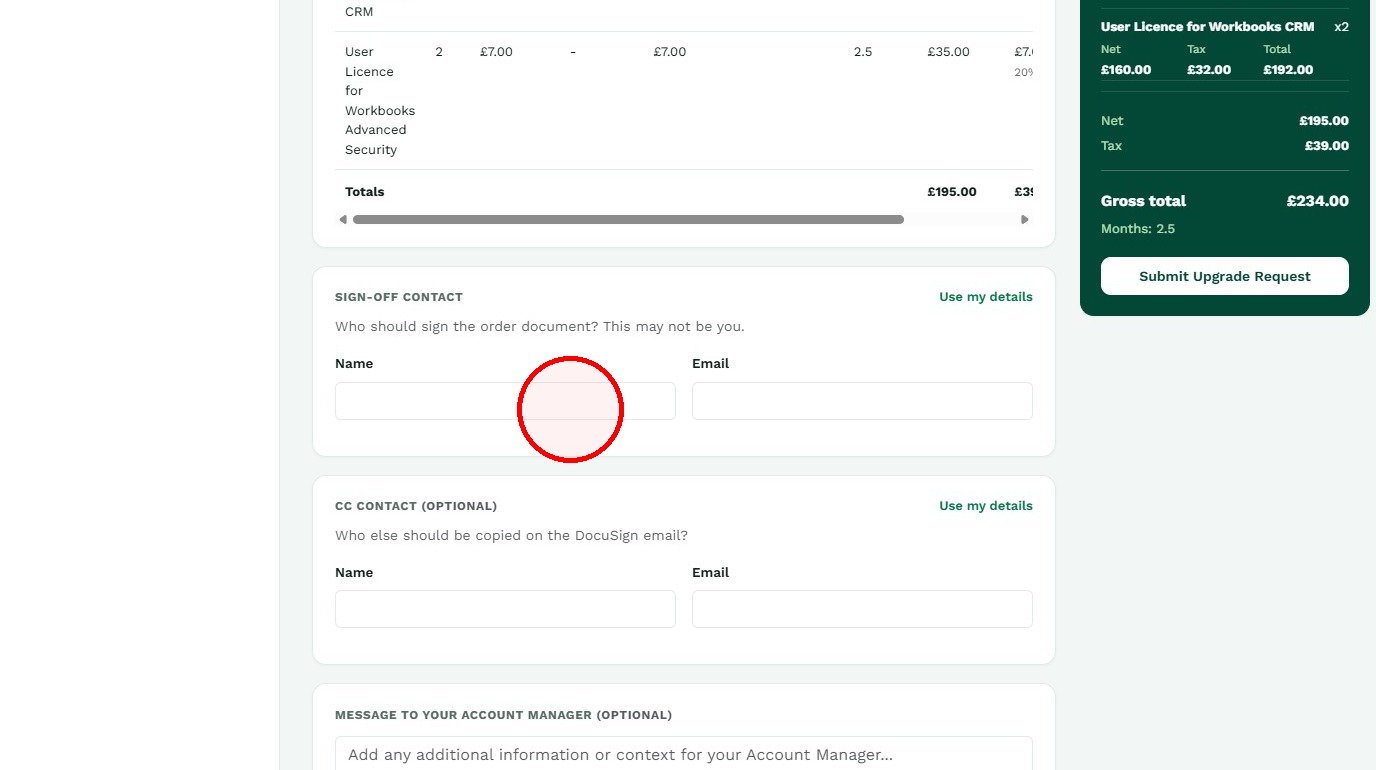
Add the signatory
6. Who needs to sign-off on this Order? If it’s you, click ‘Use my details’. If it’s someone else, enter their name and email address. This will send a Docusign order to that person, which must be signed and returned in order to process the order and add the items to your existing contract.
If anyone else needs to be copied on the Docusign order, complete the ‘CC’ fields.
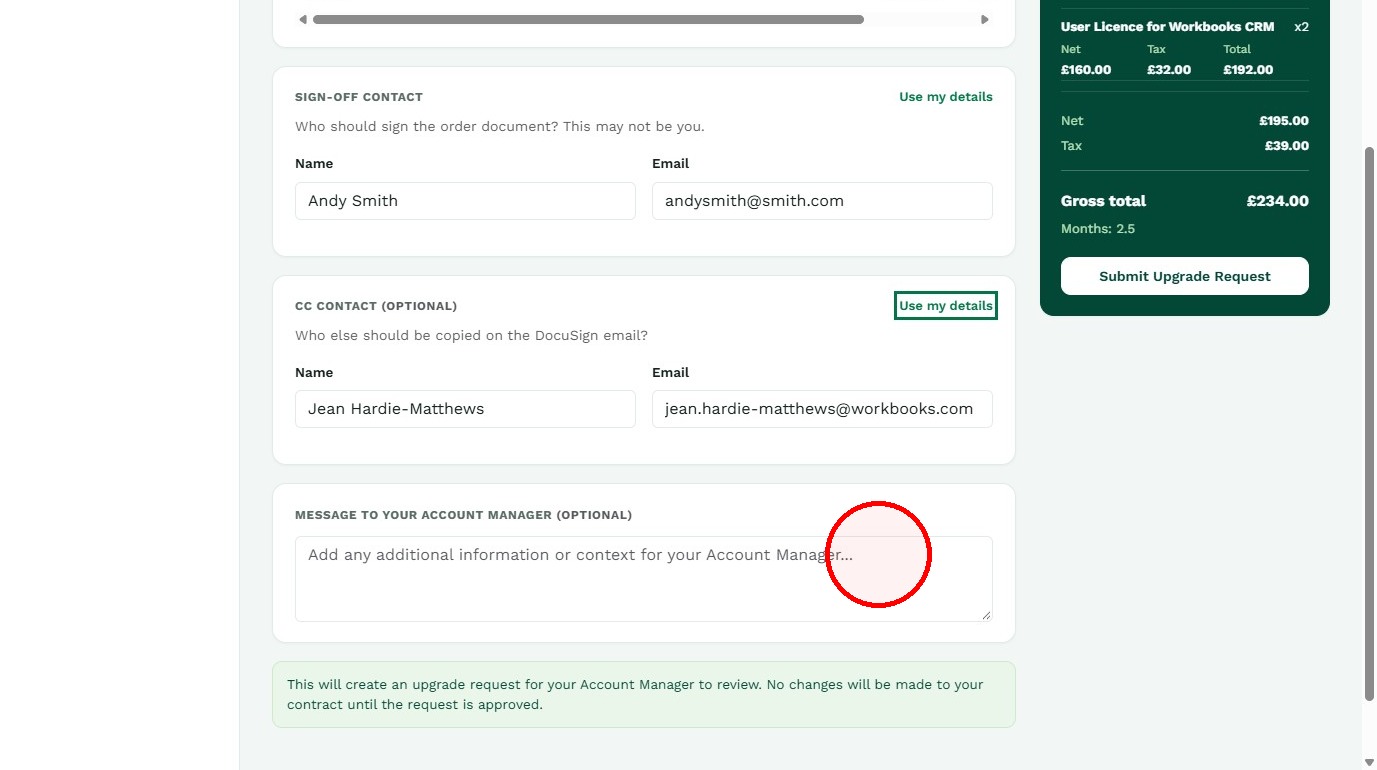
7. Add in any additional information you want your Account Manager to know. They will receive notification of your order, including any message you enter here.
When done, click ‘Submit Upgrade Request’.
8. Your Order has been submitted and the people entered in the ‘Sign-off’ and ‘CC’ fields will receive an email from Docusign. Please check your Junk folder if you don’t see the email within an hour.
Once the Order has been signed and received by Workbooks, the additional license(s) will be added to your Contract and will be available to allocate to Users.
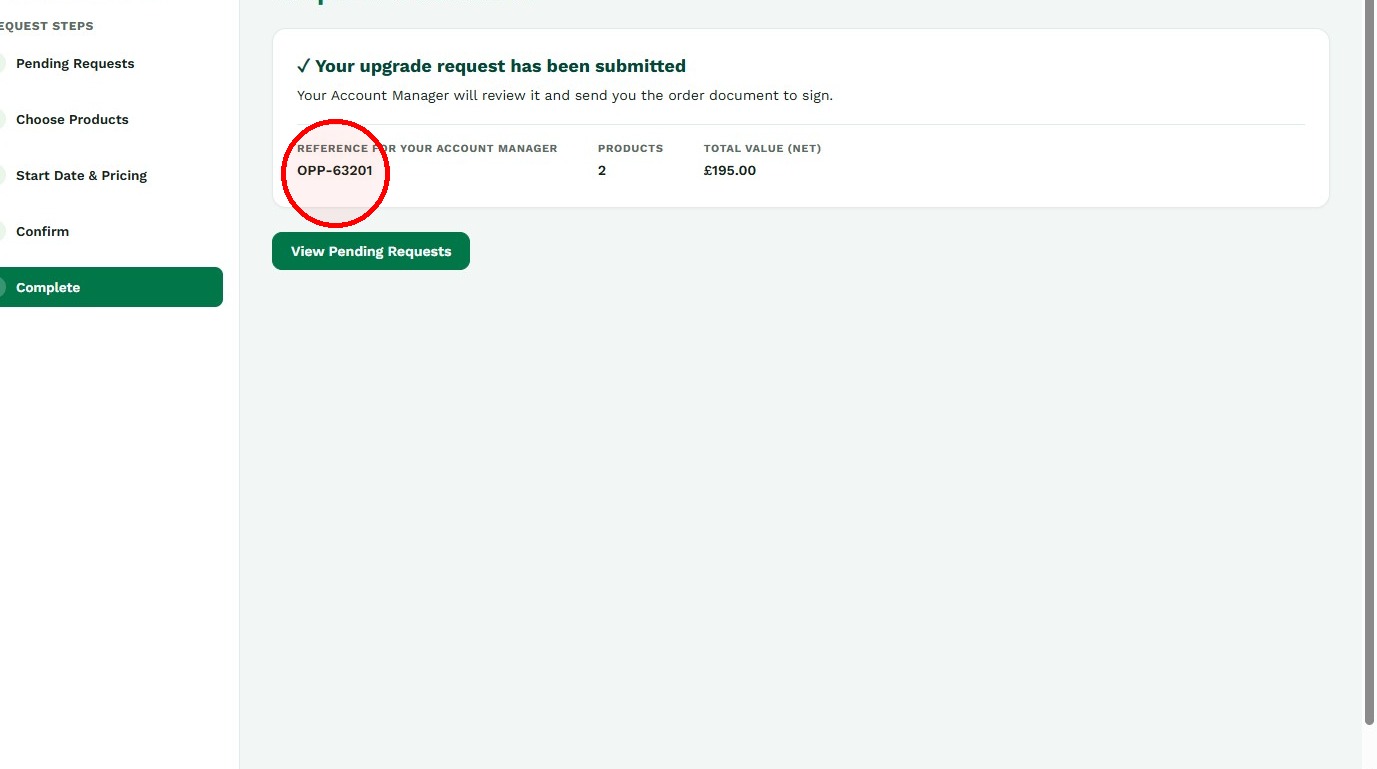
If you need to speak to your Account Manager about your order, please quote the reference number shown below, starting with OPP.