Use this page to download the latest version of the Outlook Connector, or to update your existing version.


If you are using an older version of the Outlook Connector you will need to access the latest version by downloading it from our 'Download/update the Outlook Connector' page.
The Workbooks Outlook Connector allows the user to simply upgrade without having to uninstall previous versions first. To do this, simply run the installer as detailed below and if an installation of the Connector is detected you will be prompted with the following message:
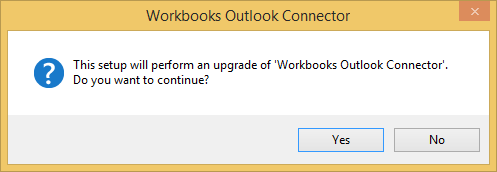
If no installation is present, the installation will carry on as detailed below. Apart from the screenshot above, the installation process is the same as installing the Workbooks Outlook Connector on a new machine.
The short video below runs through how to install the Outlook Connector.
Alternatively, please follow these written steps below to install the Outlook Connector.
Please be aware that anti-virus scanners might prohibit the download of the Connector files.
In this situation, you may need to temporarily disable your security system to allow the download but of course, remember to activate it again.
Using the download link on the System Requirements & Download page, you can obtain a copy of the Workbooks Outlook Connector suitable for your environment. The version you require depends on whether your Outlook installation is 32 or 64 bit. Your internal IT team will be able to provide detail around which version you should download.
Depending on your browser settings, the download might be stored in a different location to this guide. For the purposes of this example, the browser has stored this in the Downloads Folder. Double-click on this to start the installation. Again, dependent on your Windows settings, you could be presented with a run or cancel dialog box, click run to begin the installation if required.

Once you have run the installer it will prompt the Install Wizard to start. This should be straightforward to run and you will only need to decide whether you want to change the location of the files for the Outlook Connector, though as best practise we advise that these are left as the default.

If successful, you will see one final screen; click Finish to complete the installation.
In order to complete the Install you will need to restart Outlook, once Outlook has been restarted you will see a new box appear in the bottom right hand corner of the screen.

You may notice that your outlook changes appearance once you have installed the Outlook Connector. The Outlook Connector will change Outlook to the folder view, in order to change it back to the default view you can select the Email icon at the bottom of the toolbar on the left hand side of your screen, this will reset the view.

When you click in the black box that has appeared in the bottom right hand corner it will open a new window that will ask you to sign in using your Workbooks details in order to sync your Emails to your Workbooks account.

Server: This is the connection to the Workbooks service, this should not be changed.
Email address: the email address of your Workbooks Account used to login.
Password: This is the password for your Workbooks Account
Database: The Database that you will be connecting to when logging into Workbooks. You will need to use the Get databases list this will then populate this field with all available databases that you have access to.
Advanced: From here you can configure the Proxy settings of the Outlook Connector. This controls how you are connecting to the Outlook Connector service. Most users will need to use either a direct connection or their Internet Explorer settings.
Once you have signed into your Workbooks Account you will need to select the popup window, this will trigger the install of the Outlook Connector. This is broken down into a number of stages each allowing you to configure a different aspect of the Outlook Connector.
The first stage of the configuration is to set up which Records will be synced with your Outlook Connector within Workbooks. Initially you will see a list of every record type that can be synced with the Outlook Connector, any record that is syncing will have a tick in the box next to the Record’s Icon.
Note: We recommend only syncing People, Meetings, Tasks and Emails as these are the primary record types used by the Outlook Connector. Removing any unnecessary records will also reduce the sync times.

If you then select the Record’s Icon you can see the filters that have been applied to the record type when selecting what to filter. By default the Record will need to either be assigned to or watched by you.

You can then remove any of the filters by selecting on the bin icon, or added back in by selecting the funnel with a plus icon at the bottom of the filters page.

When selecting to add a new filter this will open a new window where you are able to select the Field you want to match on, the Condition and the value it should be looking for. These can be as specific as required, for example you may only want to sync people with a specific email domain:

Once you have configured the filter settings for each Record Type, if required Save and Close the Filter page and you will then continue on to the next step.
The next step allows you to configure the frequency and settings around synchronisations. Such as whether you are notified of when a sync happens and how often they should occur.
Synchronise in both directions:Set the frequency of a two way sync so new Workbooks records are created in Outlook and new Outlook records are created in Workbooks. This can be set to run at intervals from every 30 minutes to once a week.
Synchronise recent changes from Outlook to Workbooks: Set the frequency of a one way sync so new Outlook records are created in Workbooks. This can be set to run at intervals from every two hours to once a day.
Show progress during automatic synchronisation: Selecting this means that during a sync a progress bar will appear on the screen within Outlook.
Show Summary: Selecting this button will display the Control Panel so you can see if there are any outstanding issues from your most recent sync.

The next stage configures your advanced setting, allowing you to further configure the Outlook Connector to fit your exact requirements, such as email size and whether new records should be automatically synced with the Connector.
Always share with Workbooks new: Appointments, Contacts and Tasks: When any of these new records are created within Outlook they will be made shareable with Workbooks and created when the sync next runs.
Show control panel on conflicts and deletions: When a sync runs, if any conflicts or deletions are encountered during the process the Control Panel will be automatically opened to allow you to resolve these before the sync is next due to run.
Size limit for email creation in Workbooks: Here you can apply a maximum size limit to any email that can be processed by the Outlook Connector where a limit can be applied of up to 100MB. This is the limit for the entire email meaning rather than for individual attachments to the email itself.
Remove attachments if email size would exceed this limit: Applying this setting means that if an email exceeds the size specified in the previous setting then the body will still sync to Workbooks without the attachment. This allows you to retain communication visibility while using less storage space.

Here you can select whether you want Contacts, Emails and Meetings to be automatically configured to a shareable state. You can then include or exclude these record types in the future from the Options area.
Converting Items automatically means that records can be quickly synced from Outlook to Workbooks without too much configuration from the User.

The final stage of the installation is to run the sync for the first time. Depending on the number of records you are syncing this may take longer than any other syncs as records may need to be converted to a syncable state.
While the sync runs you will be able to monitor the progress from the popup window that will appear, however this can be hidden to run in the background by selecting Hide.
Once the sync has finished if you have the Show control panel on conflicts and deletions setting enabled the Control Panel will appear if issues have been encountered so that they can be rectified, otherwise the sync will then continue to run on the defined schedule.
